Join the AI Workshop and learn to build real-world apps with AI. A hands-on, practical program to level up your skills.
When you start the editor for the first time, you will see the welcome screen:
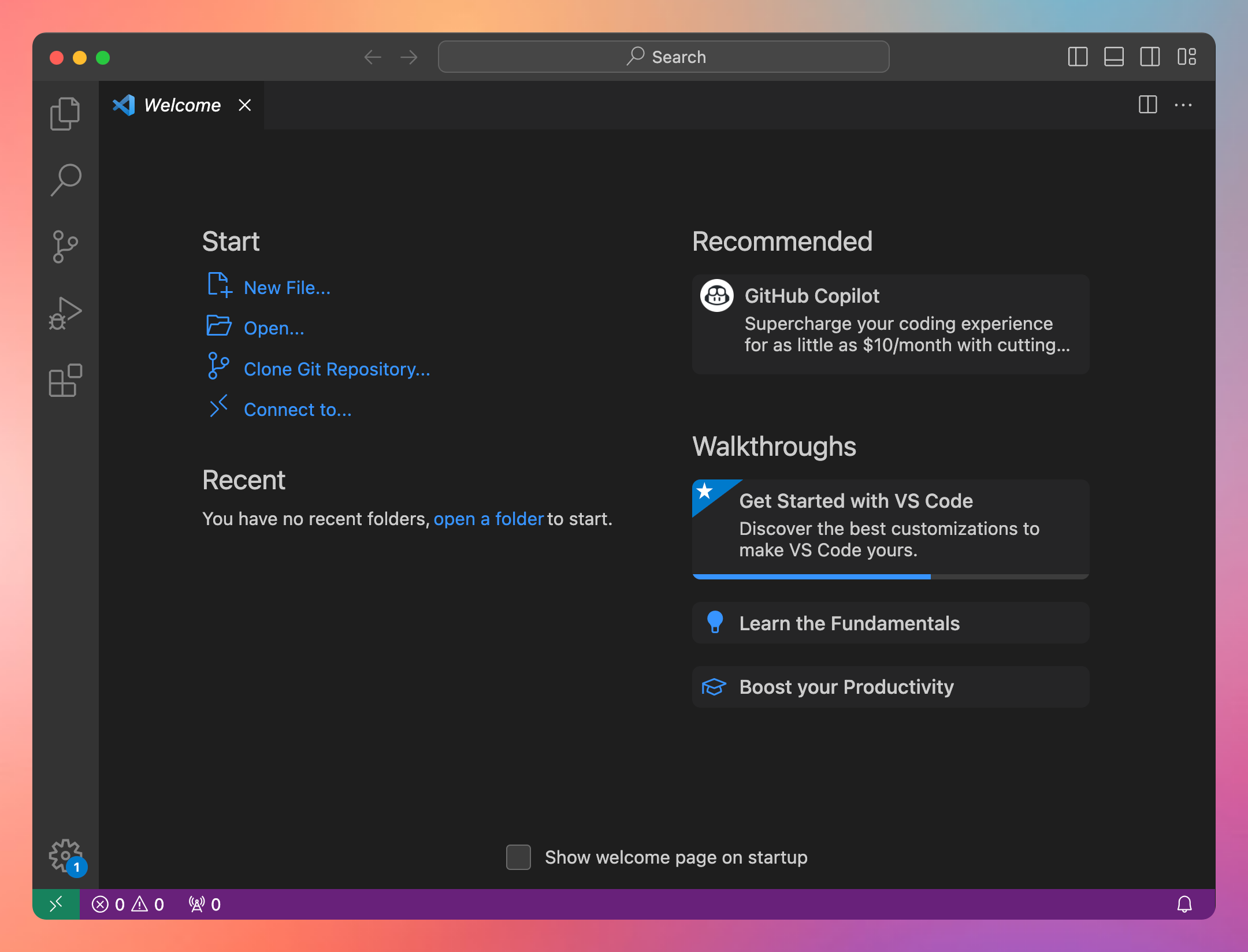
There is a bar on the left, called the Activity Bar, with five icons.
That gives access to:
- The Explorer
- Search
- Source Control
- Run and Debug
- The Extensions
We’ll explore some of those panels in other lessons.
But from here you can click around, and for example that “Get Started with VS Code” link is a good starting point:
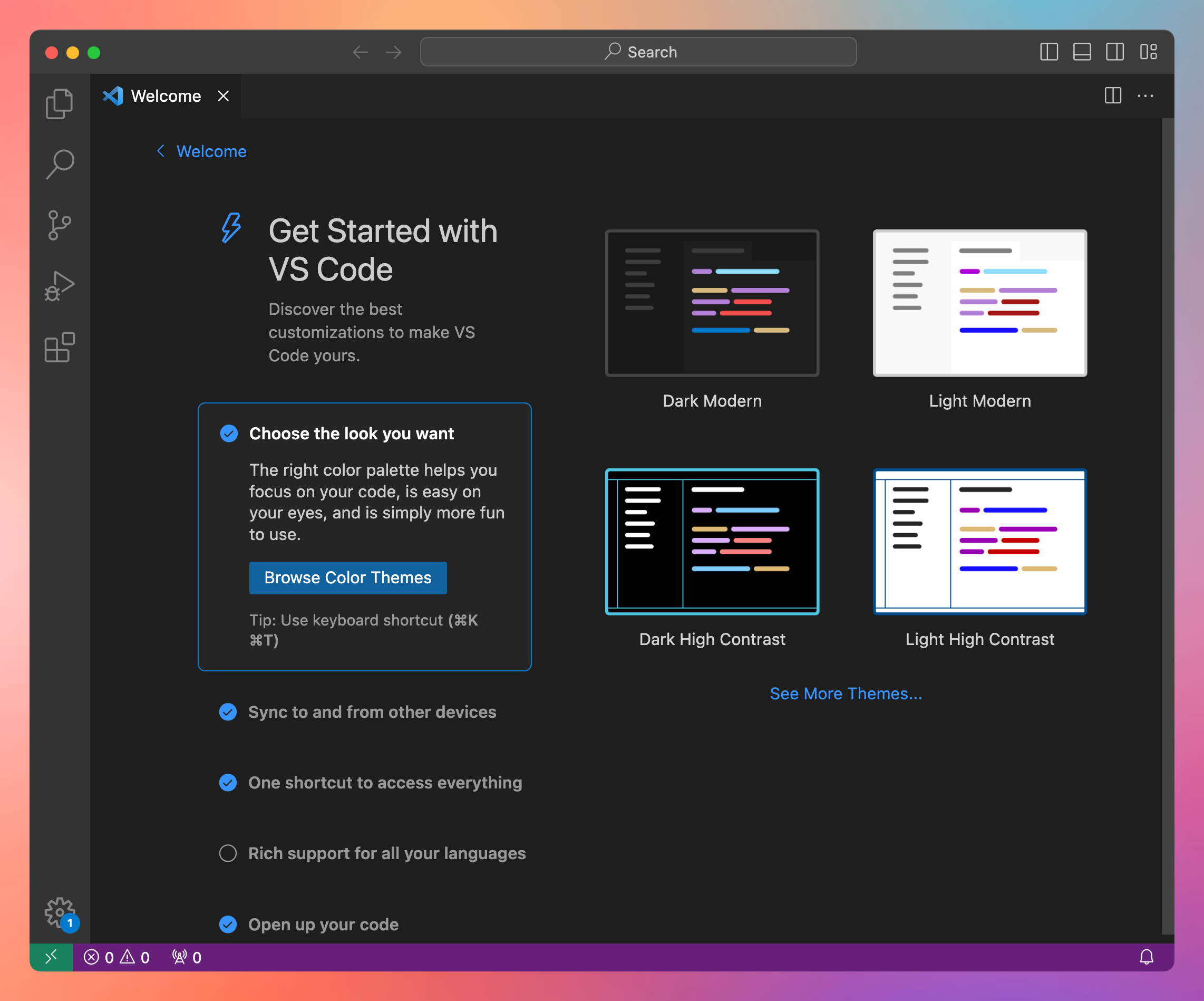
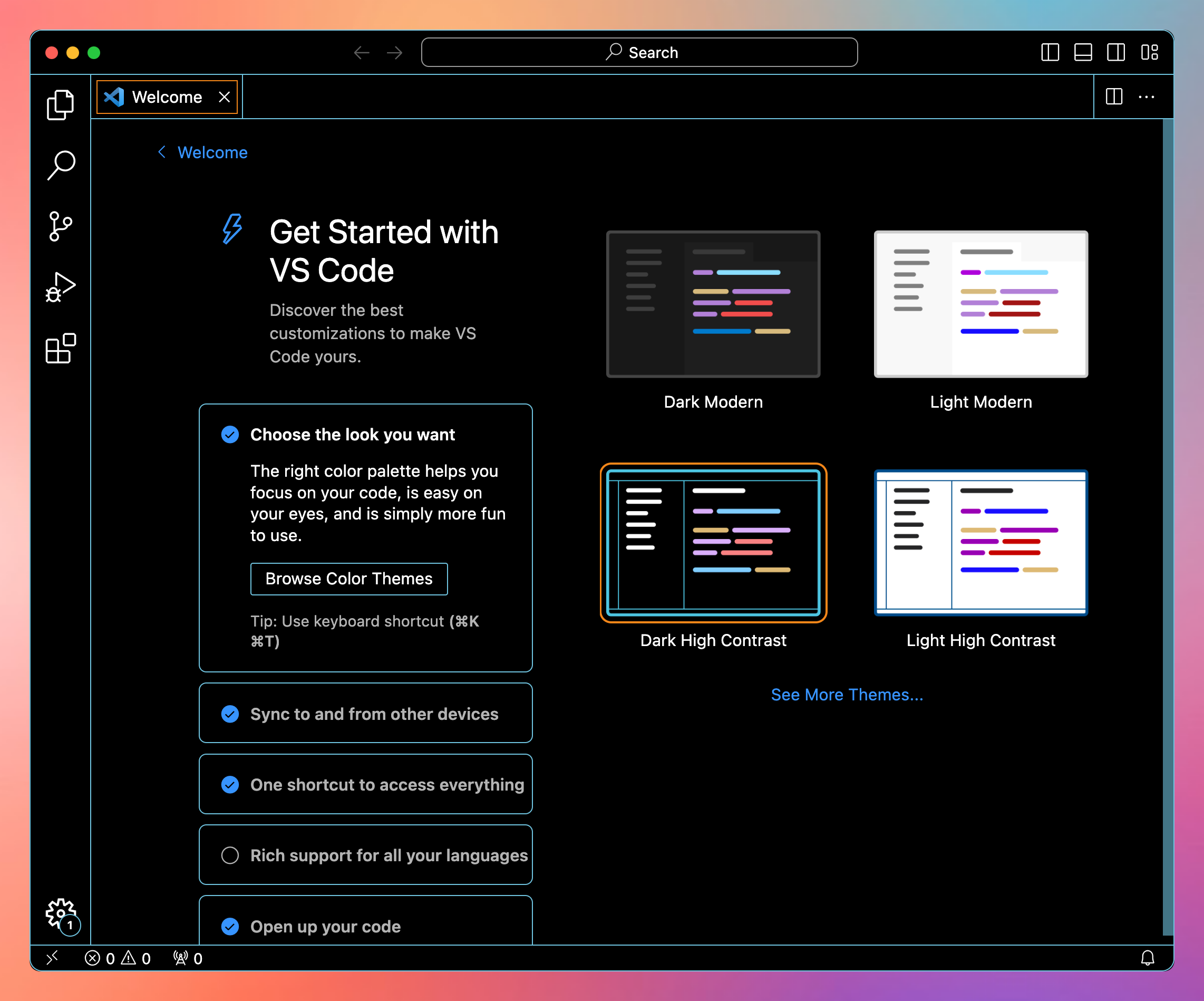
There’s onboarding, and you can, for example, pick a new theme:
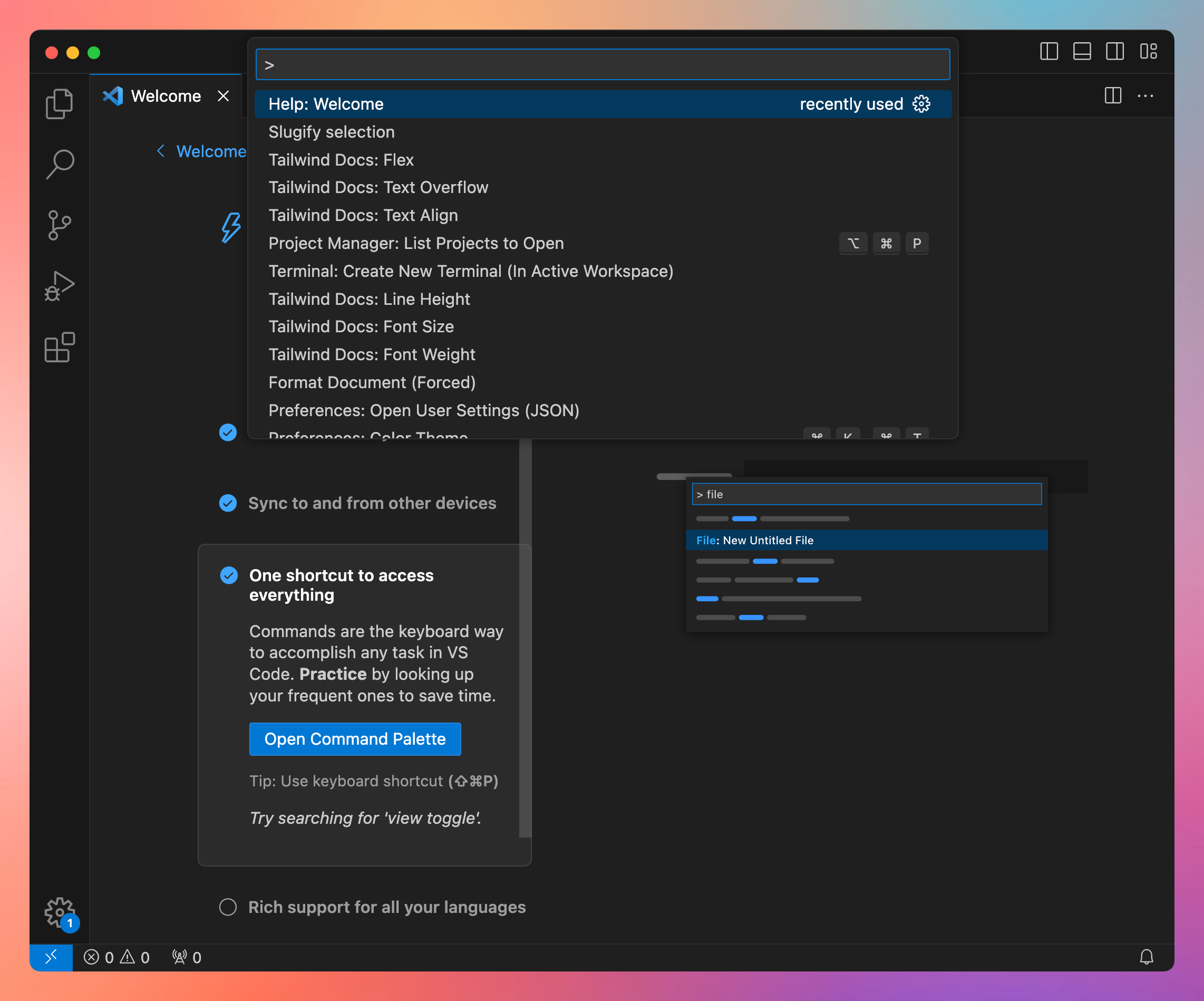
One important thing this introduces is the Command Palette, which lists a few useful commands. You open it by pressing the keyboard shortcut Cmd/Ctrl+Shift+P, or from the menu View -> Command Palette:
You’ve had a quick glance at the power of VS Code.
Lessons in this unit:
| 0: | Introduction |
| 1: | ▶︎ The interface |
| 2: | Opening folders |
| 3: | Editing |
| 4: | Search |
| 5: | Source control |
| 6: | Extensions |
| 7: | Themes |
| 8: | Recommended extensions |
| 9: | The command palette |
| 10: | Shortcuts |
| 11: | Customization |
| 12: | Terminal |
| 13: | How to use VS Code |