Join the AI Workshop and learn to build real-world apps with AI. A hands-on, practical program to level up your skills.
The Source Control tab is enabled by clicking the third icon in the toolbar.
VS Code comes with Git support out of the box. We’ll see more about this soon, but this is where you’ll get access to Git inside VS Code.
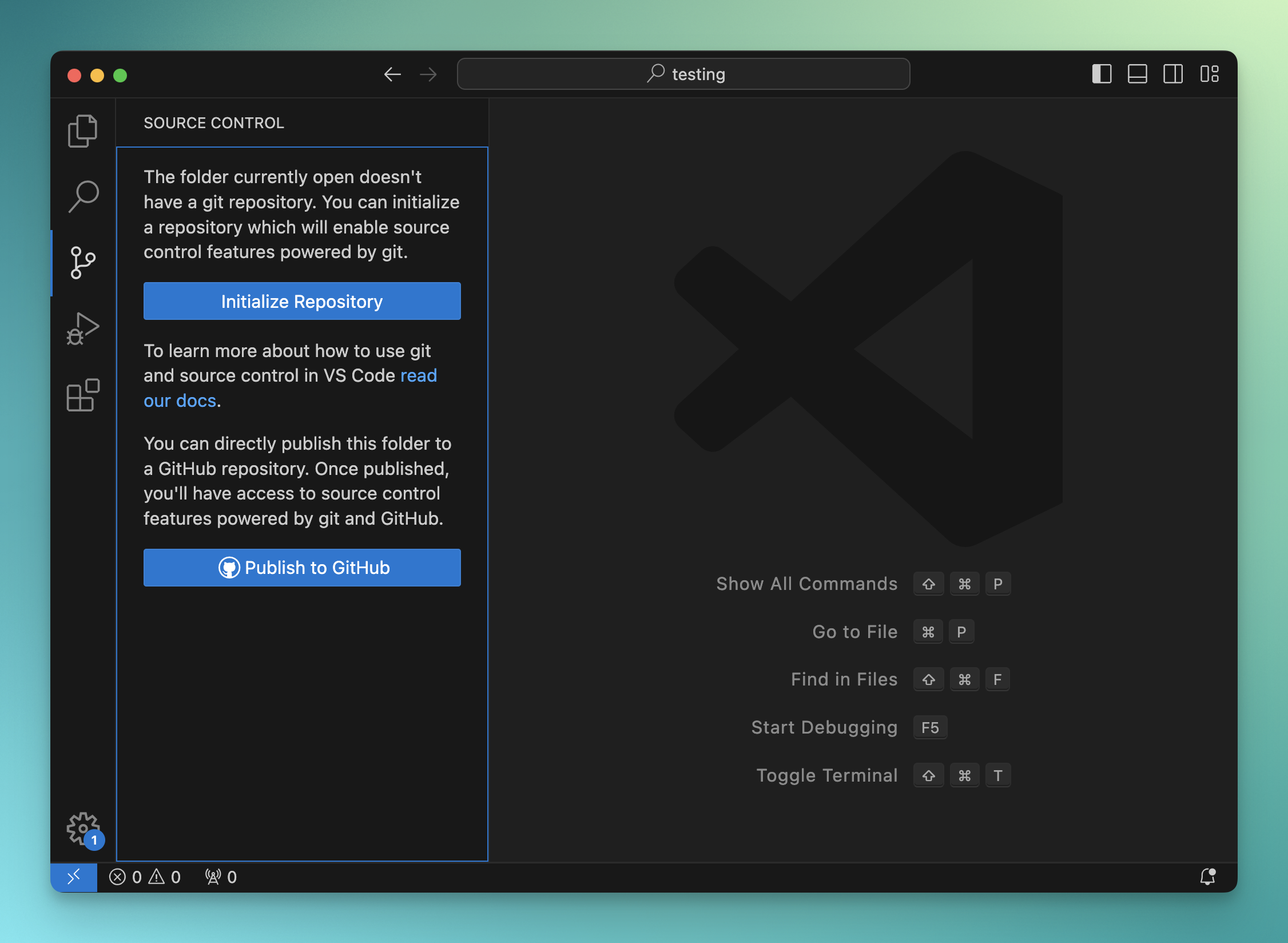
Clicking the “Initialize Repository” button will initialize Git, and you’ll be prompted to make the first commit:
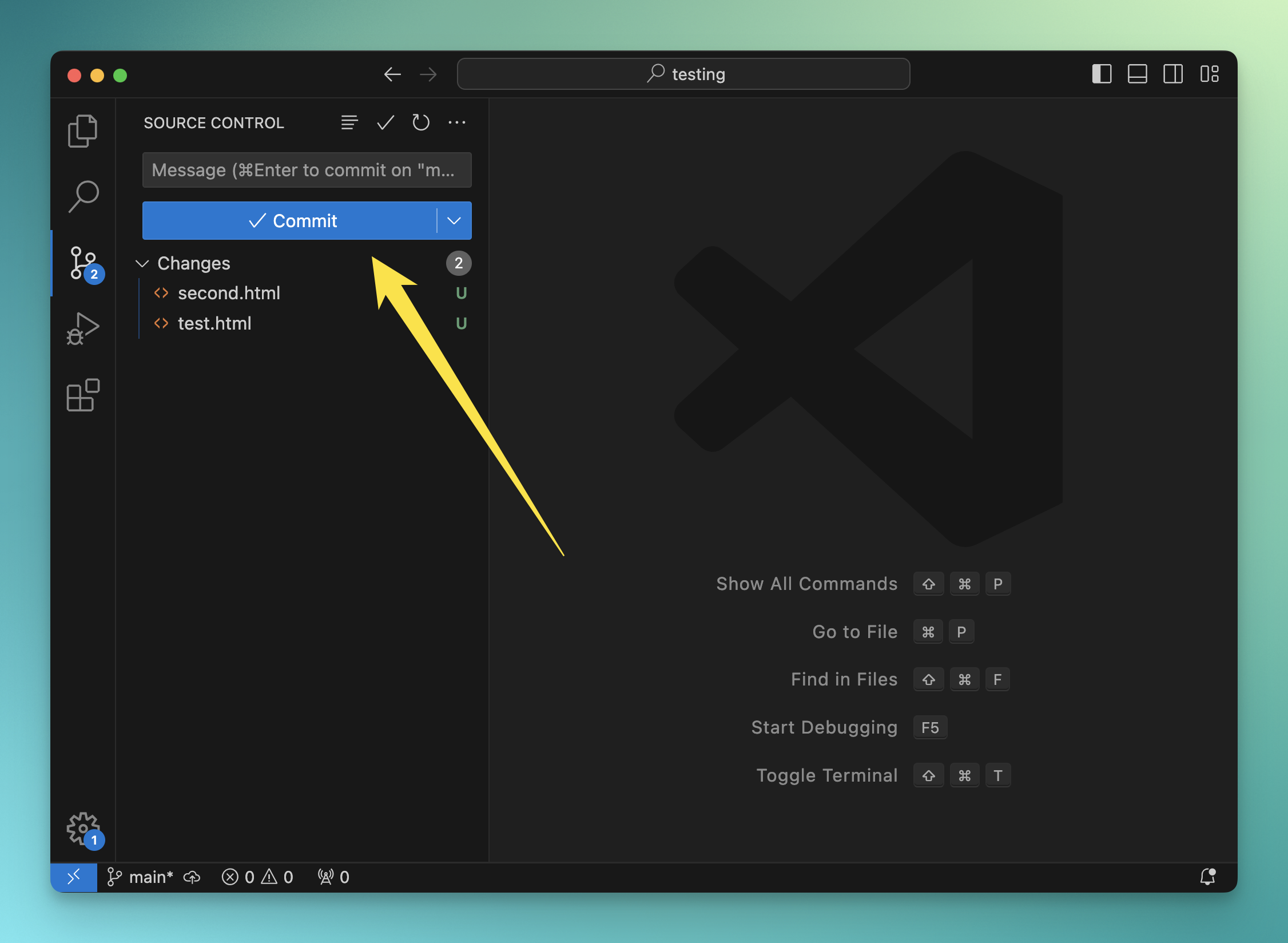
And you’ll be able to push the repository to GitHub directly.
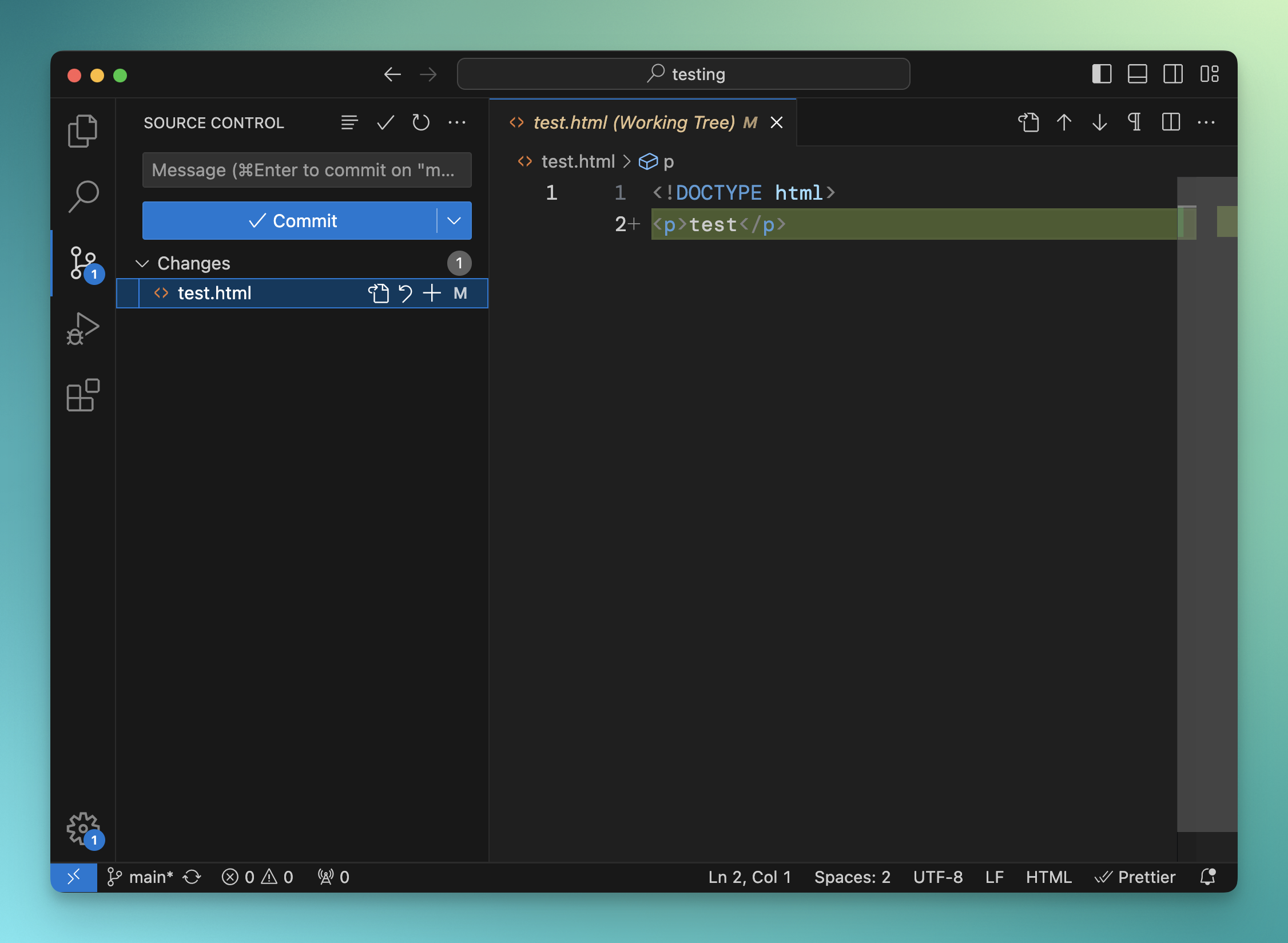
Source control is great because you’ll “commit” changes over time, and those changes will be “frozen” in the Git repository.
Any time you make a new change, you’ll be able to save that single change.
In this way, in the future you’ll be able to see how the code evolved, and you’ll also be able to roll back to a specific version of your code.
Lessons in this unit:
| 0: | Introduction |
| 1: | The interface |
| 2: | Opening folders |
| 3: | Editing |
| 4: | Search |
| 5: | ▶︎ Source control |
| 6: | Extensions |
| 7: | Themes |
| 8: | Recommended extensions |
| 9: | The command palette |
| 10: | Shortcuts |
| 11: | Customization |
| 12: | Terminal |
| 13: | How to use VS Code |