Join the AI Workshop and learn to build real-world apps with AI. A hands-on, practical program to level up your skills.
The second icon in the Activity Bar is “Search”.
Clicking it shows the search interface:
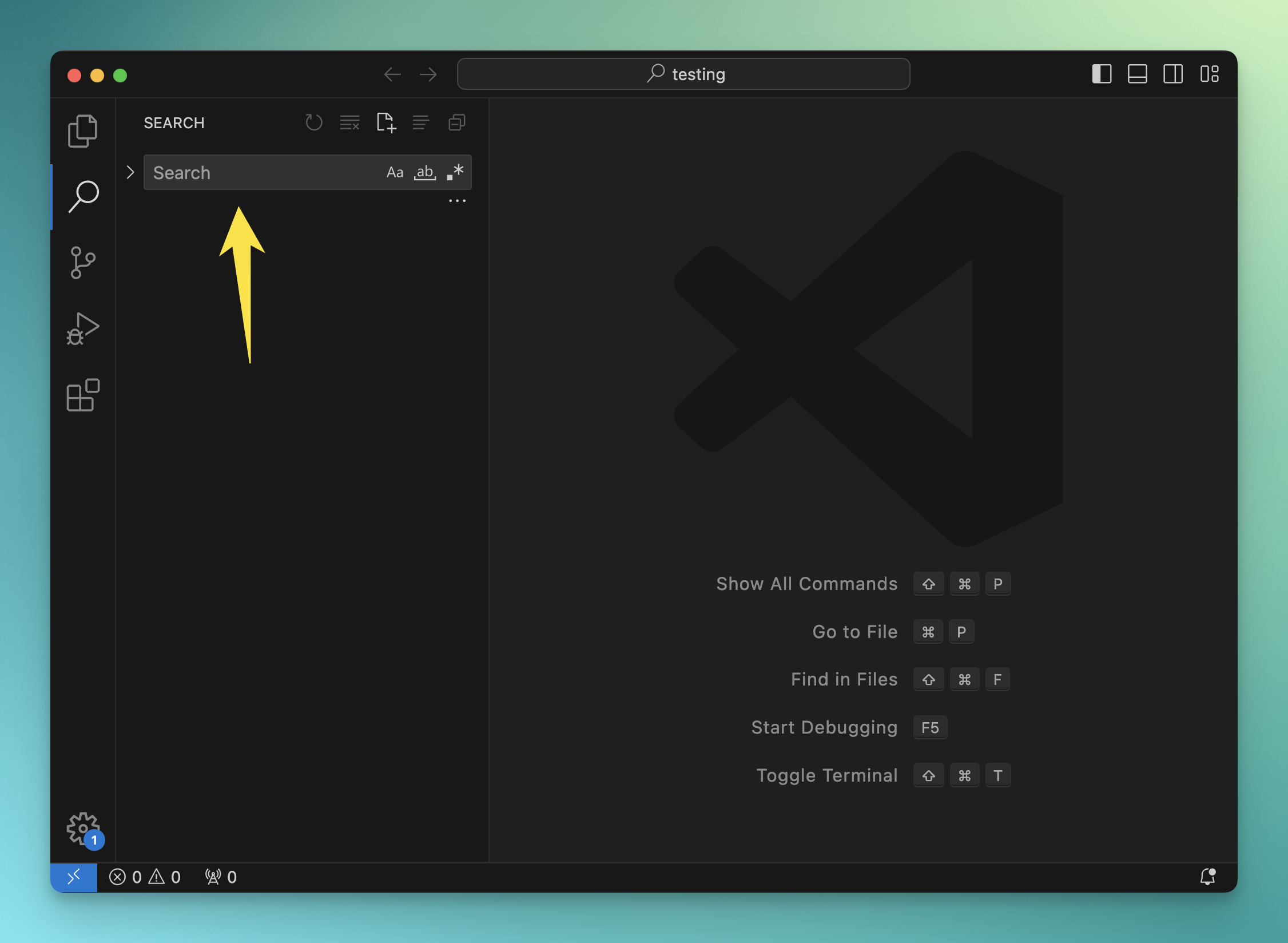
You can click the icons in the Search input box to make the search case-sensitive, to match whole words (not substrings), and to use a regular expression for the search string.
To perform a search, type something and press Enter.
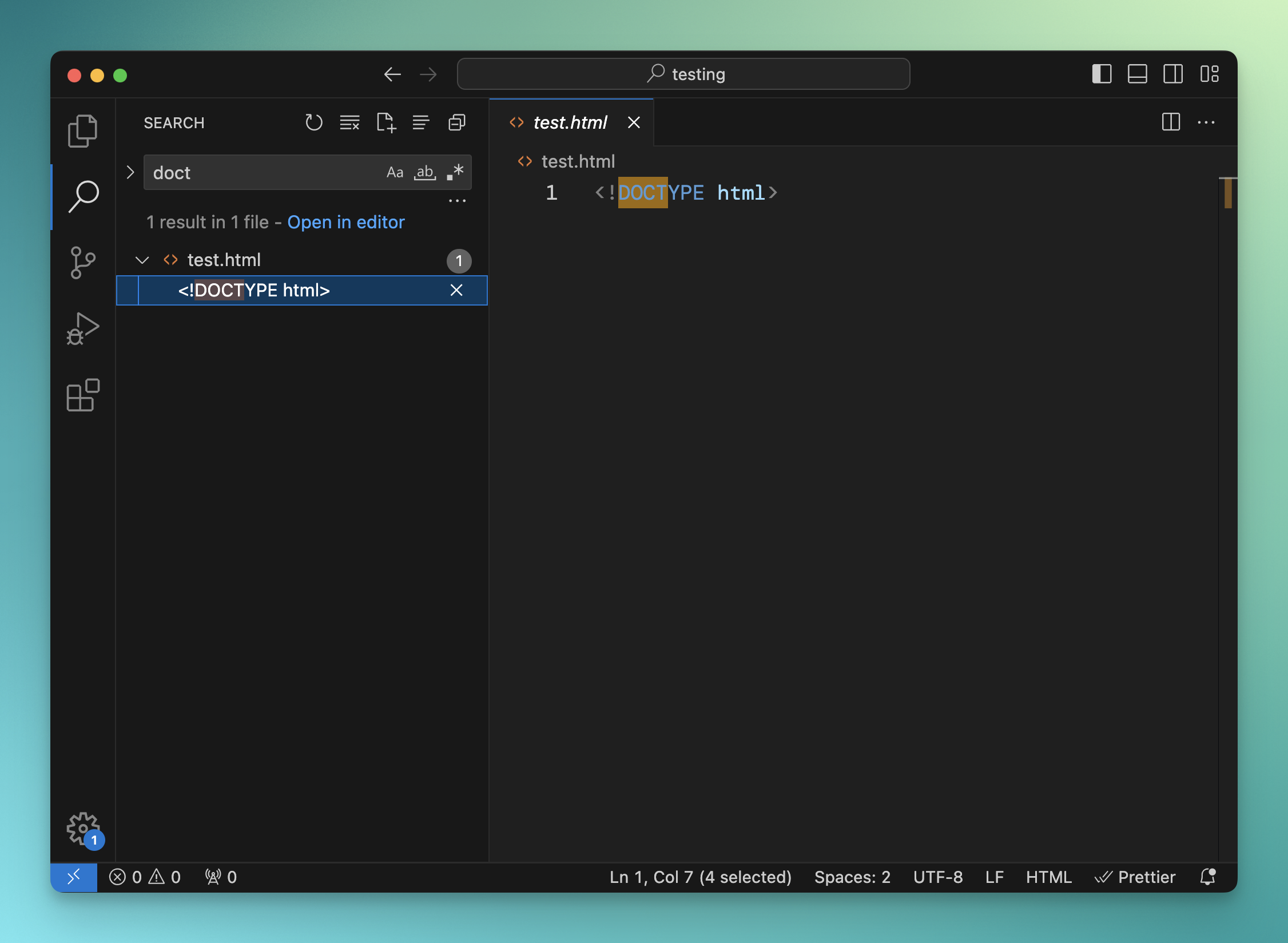
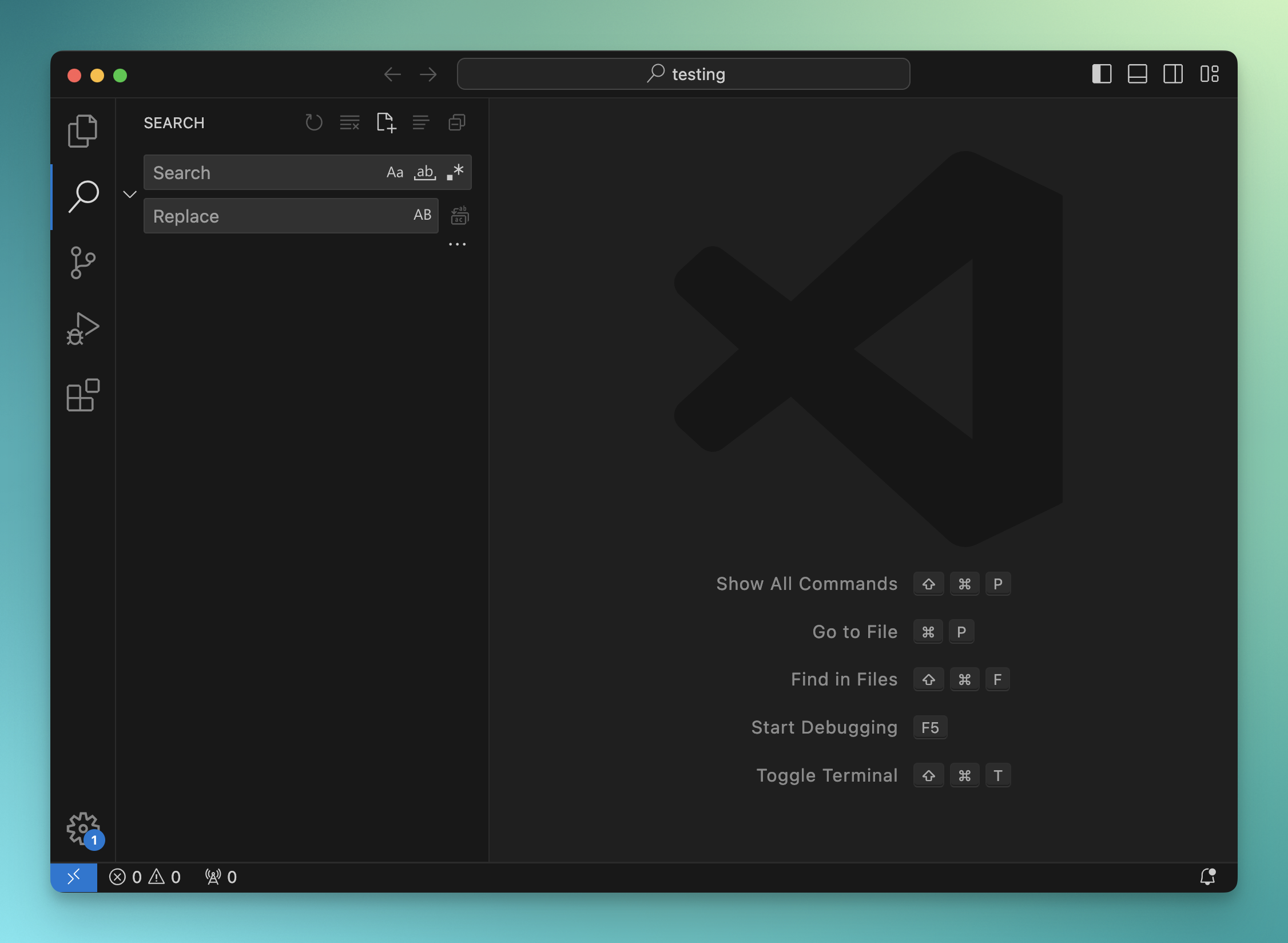
Clicking the ▷ symbol on the left enables the “search and replace” tool.
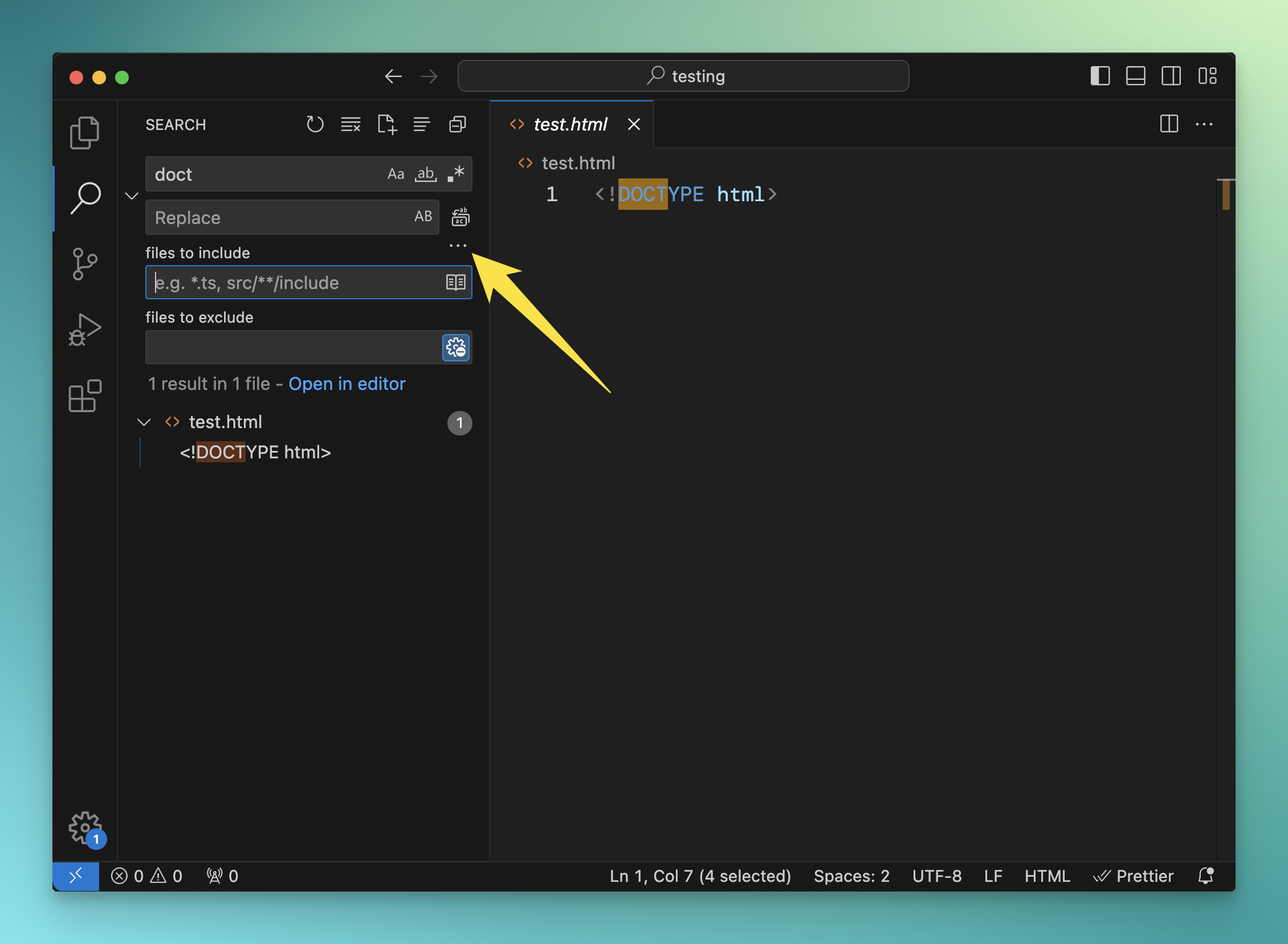
Clicking the three dots shows a panel that lets you include specific kinds of files and exclude other files:
Lessons in this unit:
| 0: | Introduction |
| 1: | The interface |
| 2: | Opening folders |
| 3: | Editing |
| 4: | ▶︎ Search |
| 5: | Source control |
| 6: | Extensions |
| 7: | Themes |
| 8: | Recommended extensions |
| 9: | The command palette |
| 10: | Shortcuts |
| 11: | Customization |
| 12: | Terminal |
| 13: | How to use VS Code |