Join the AI Workshop and learn to build real-world apps with AI. A hands-on, practical program to level up your skills.
We’ll skip the “Run and Debug” menu here, as it’s not very useful right now for us.
The fifth icon in the Activity Bar brings us to extensions.
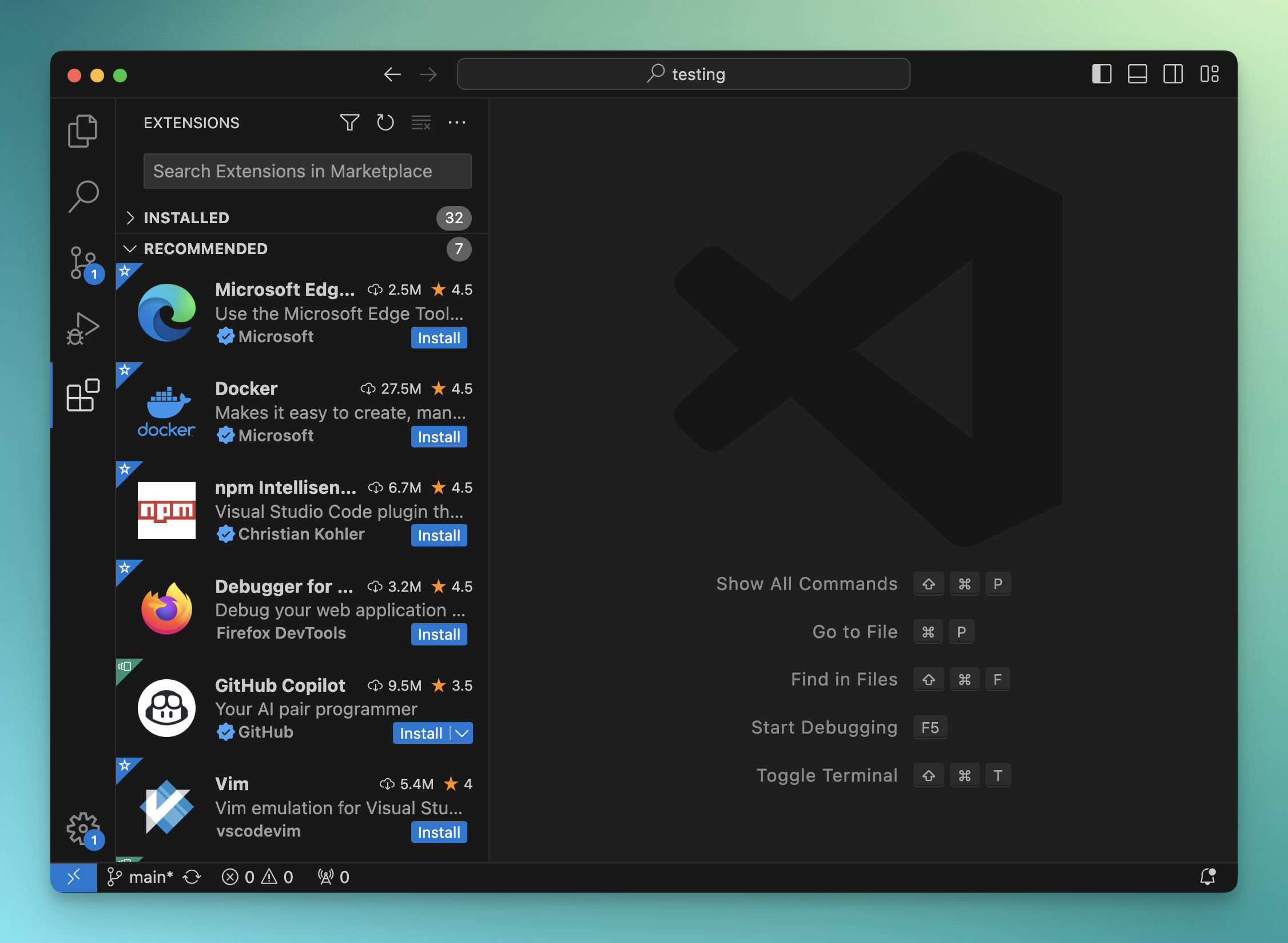
Extensions are a great feature of VS Code.
They can provide so much value that you’ll surely end up using tons of them.
I have lots of extensions installed.
You can disable an extension you install and enable it only when you need it.
You can also disable an extension for a specific workspace. Workspaces are basically ongoing project windows.
You might have a workspace for a web project and a workspace for a Python project. Those will need different extensions.
There is a list of recommended extensions when you first open this tab, which includes the most popular tools.
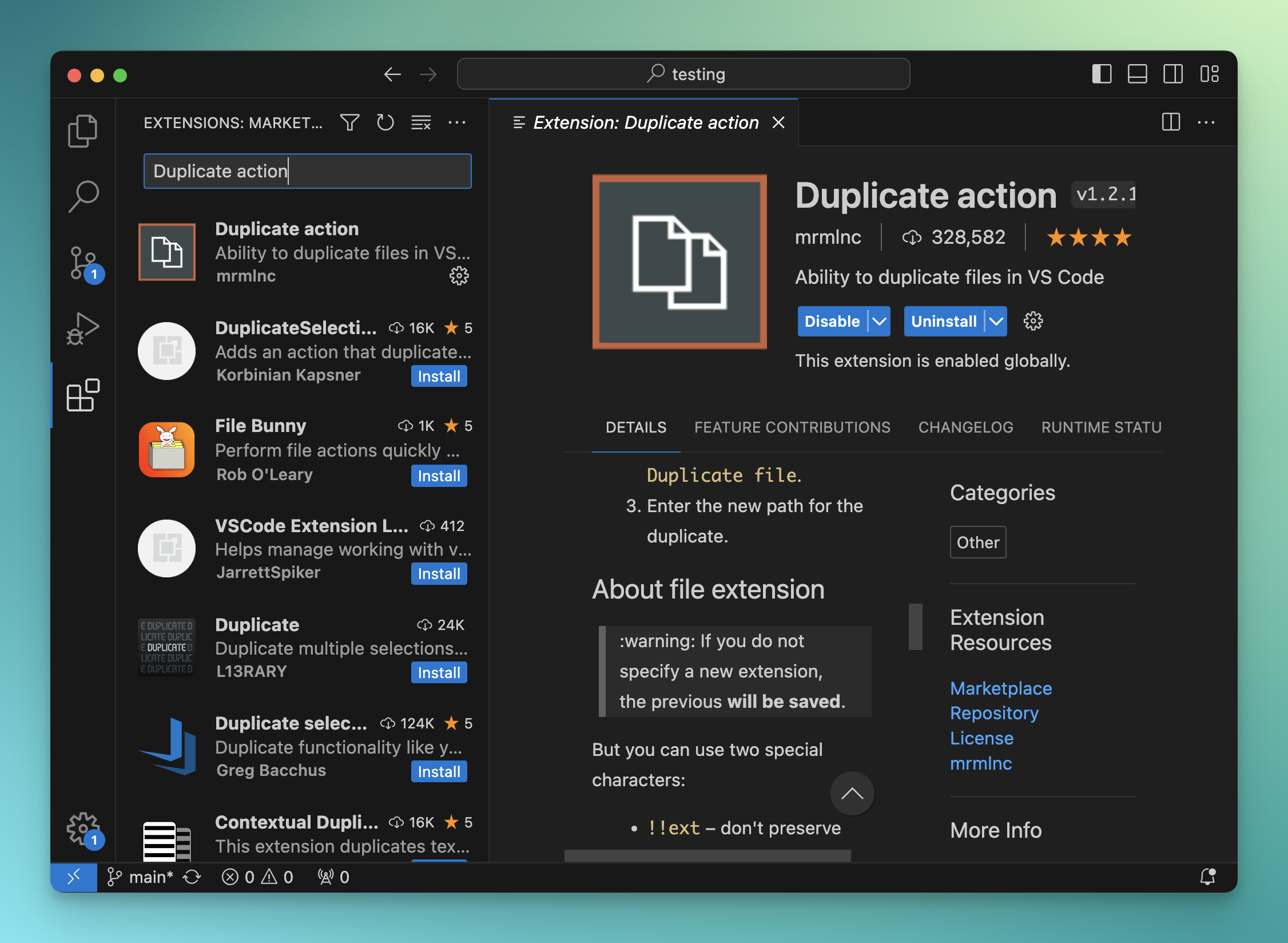
Let’s install one extension I recommend you add, which is Duplicate action.
For some reason VS Code doesn’t have a quick way to “Duplicate” a file. This extension will add a menu item that shows up when you right-click a file.
Search for “Duplicate action” and you’ll see the extension. Click Install to enable it!
Lessons in this unit:
| 0: | Introduction |
| 1: | The interface |
| 2: | Opening folders |
| 3: | Editing |
| 4: | Search |
| 5: | Source control |
| 6: | ▶︎ Extensions |
| 7: | Themes |
| 8: | Recommended extensions |
| 9: | The command palette |
| 10: | Shortcuts |
| 11: | Customization |
| 12: | Terminal |
| 13: | How to use VS Code |