Join the AI Workshop and learn to build real-world apps with AI. A hands-on, practical program to level up your skills.
Scrolling a page to see the content below the fold is probably the most common event happening on a page, more than clicks or keyboard events.
You can listen for the scroll event on the window object to get information every time the user scrolls the page:
window.addEventListener('scroll', (event) => {
  // scroll event detected
})
Inside the event handler you can check the current vertical scroll position with window.scrollY, and the horizontal scroll position with window.scrollX.
window.addEventListener('scroll', (event) => {
  console.log(window.scrollY)
  console.log(window.scrollX)
})
Keep in mind that scroll event is not a one-time thing.
It fires many times during scrolling, not just at the end or beginning, so avoid doing heavy work in the handler.
Avoid heavy computation or DOM manipulation in the event handler; use throttling instead.
Throttling
The scroll event is not fired once per scroll; the browser calls the event handler repeatedly for the duration of the action.
This provides continuous coordinates so you can track the scroll position.
If you perform a complex operation in the event handler, you will hurt performance and make the page feel sluggish for users.
Libraries that provide throttling, such as Lodash implement it in 100+ lines of code, to handle every possible use case. A simple implementation uses setTimeout to throttle the scroll handler to run at most every 100ms:
let cached = null
window.addEventListener('scroll', (event) => {
  if (!cached) {
    setTimeout(() => {
      // you can access the original event at `cached`
      cached = null
    }, 100)
  }
  cached = event
})
Throttling also applies to the
mousemoveevent we saw in the mouse events lesson. Same thing - that event is fired multiple times as you move the mouse.
Here’s an example on Codepen: https://codepen.io/flaviocopes/pen/BejPwV/
How to get the scroll position of an element
When you are building a user interface in the browser, you might have an element which can be scrolled, and it’s a common need to know the horizontal and vertical scrolling it currently has.
How can you do that?
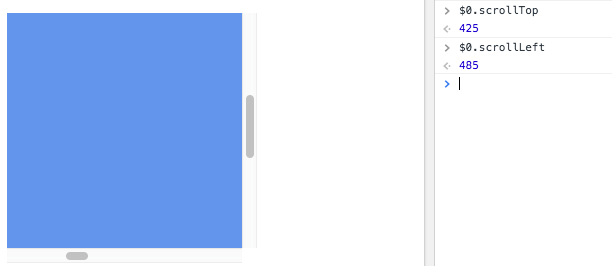
Once you have the element, you can inspect its scrollLeft and scrollTop properties.
The 0, 0 position is always found in the top left corner, so any scrolling is relative to that.
Example:
const container = document.querySelector('.container')
container.scrollTop
container.scrollLeft
Those properties are read/write, so you can also set the scroll position:
const container = document.querySelector('.container')
container.scrollTop = 1000
container.scrollLeft = 1000