Join the AI Workshop and learn to build real-world apps with AI. A hands-on, practical program to level up your skills.
Many sites provide content that users need to copy and paste elsewhere—for example, an API key or an activation token for an application.
Typically, they let you click inside a box and the text is copied to the clipboard so you can paste it elsewhere.
How can we implement that functionality in our sites? Using the Clipboard API!
There is another way to implement copy and paste using
document.execCommand(). This guide does not cover that option; the Clipboard API is intended as its successor.
The Clipboard API is available on the navigator.clipboard object:
navigator.clipboardThe Clipboard API is relatively recent and not all browsers implement it. It works on Chrome, modern Edge (chromium-based), Firefox and Opera.
You can check for the existence of this object to make sure the functionality is implemented:
if (!navigator.clipboard) {
  // Clipboard API not available
  return
}
You cannot read from or write to the clipboard without the user’s permission.
The permission is different if you’re reading or writing to the clipboard. In case you are writing, all you need is the user’s intent: you need to put the clipboard action in a response to a user action, like a click.
Writing to the clipboard
Say you have a p element in an HTML page:
<p>Some text</p>You create a click event listener on it, and you first check if the Clipboard API is available:
document.querySelector('p').addEventListener('click', async (event) => {
  if (!navigator.clipboard) {
    // Clipboard API not available
    return
  }
})
Now, we want to copy the content of that p tag to the Clipboard. We do so by looking up the innerText of the element, identified by event.target:
document.querySelector('p').addEventListener('click', async (event) => {
  if (!navigator.clipboard) {
    // Clipboard API not available
    return
  }
  const text = event.target.innerText
})
Next, we call the navigator.clipboard.writeText() method, wrapping it in a try/catch to handle any error that might happen.
This is the full code of the example:
document.querySelector('p').addEventListener('click', async (event) => {
  if (!navigator.clipboard) {
    // Clipboard API not available
    return
  }
  const text = event.target.innerText
  try {
    await navigator.clipboard.writeText(text)
    event.target.textContent = 'Copied to clipboard'
  } catch (err) {
    console.error('Failed to copy!', err)
  }
})
You can see and try the example in Codepen: https://codepen.io/flaviocopes/pen/yLBPaVY/
Reading from the clipboard
Here’s how to read from the clipboard. We have a p element:
<p>Some text</p>and when clicking it we want to replace the element content with the content stored in the clipboard.
First we create a click event listener and we check for the Clipboard API availability:
document.querySelector('p').addEventListener('click', async (event) => {
  if (!navigator.clipboard) {
    // Clipboard API not available
    return
  }
})
Then we call navigator.clipboard.readText(). With async/await we store the result in a text variable and assign it to event.target.textContent:
document.querySelector('p').addEventListener('click', async (event) => {
  if (!navigator.clipboard) {
    // Clipboard API not available
    return
  }
  try {
    const text = await navigator.clipboard.readText()
    event.target.textContent = text
  } catch (err) {
    console.error('Failed to read from clipboard.', err)
  }
})
The first time you run this code on a site, a permission prompt appears:
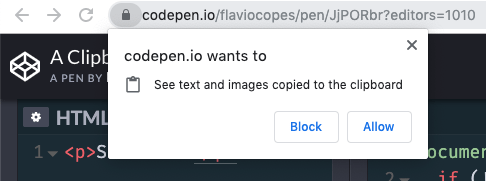
You must grant the site permission to read from the clipboard; allowing any site to read the clipboard without permission would be a serious security issue.
See it on Codepen: https://codepen.io/flaviocopes/pen/JjPORbr/