Join the AI Workshop and learn to build real-world apps with AI. A hands-on, practical program to level up your skills.
Postgres is an awesome database management system.
NOTE: I will call PostgreSQL “Postgres” most of the time, it’s the same thing.
To use it, you have 2 options.
The first one is to install Postgres locally.
The second is to use a cloud service that provides you a Postgres database.
Installing it locally is much more flexible.
But when you have to put your website “out there”, you’ll need a cloud database. So you have to learn both.
Let’s start local here.
Each operating system has its own way.
I’ll show you the easy way on macOS.
You can Google or search on YouTube “how to install postgres on
On macOS, you can use DBngin, a very cool little app that provides a simple interface to start a Postgres database.
It’s free, download it from https://dbngin.com.
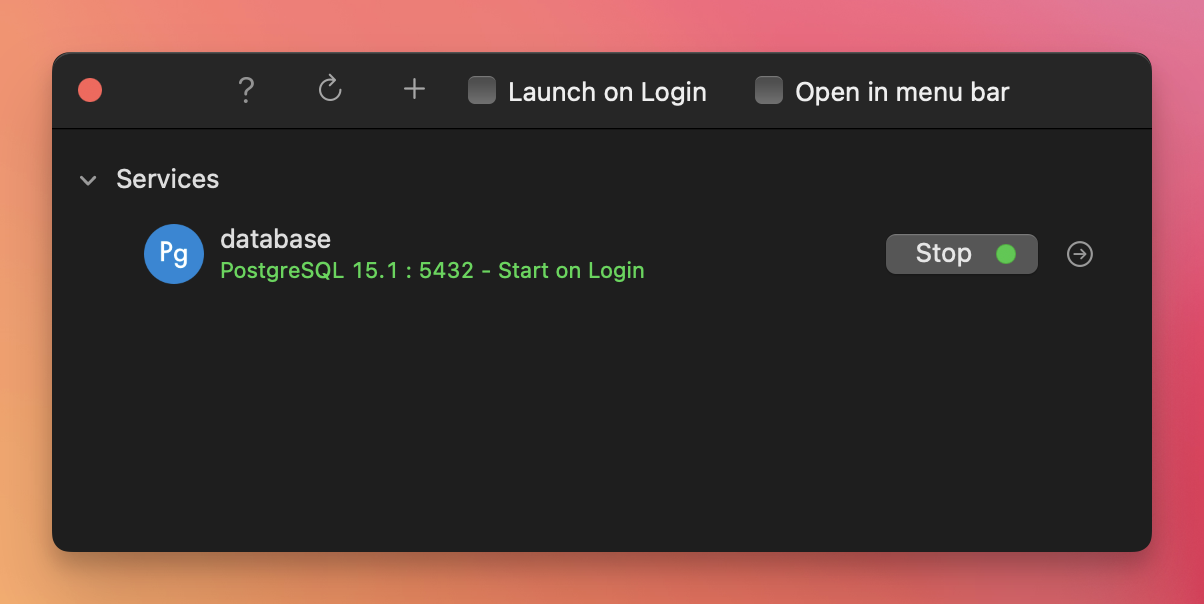
Once you have the database, you click the arrow icon on the right, and it connects TablePlus to that database.
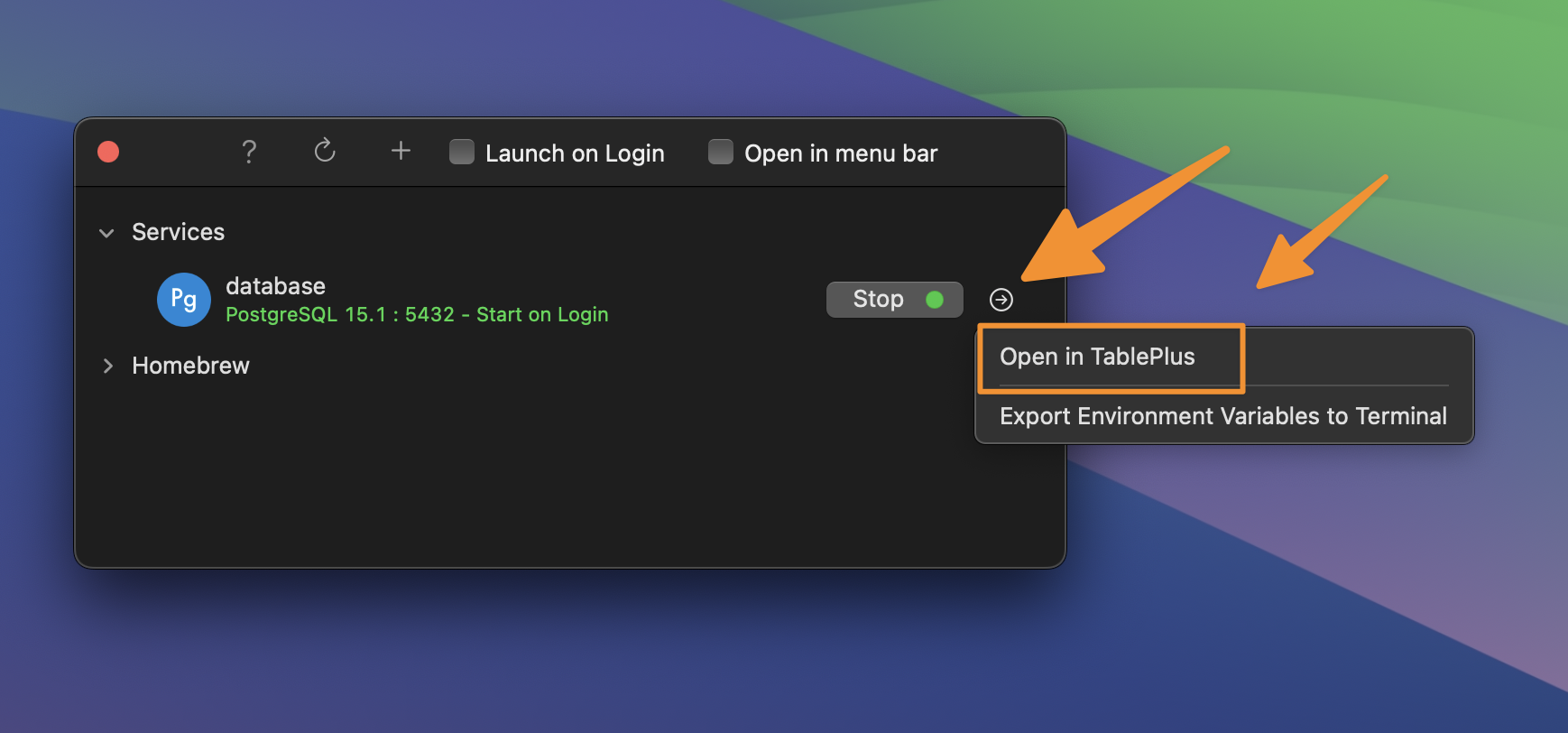
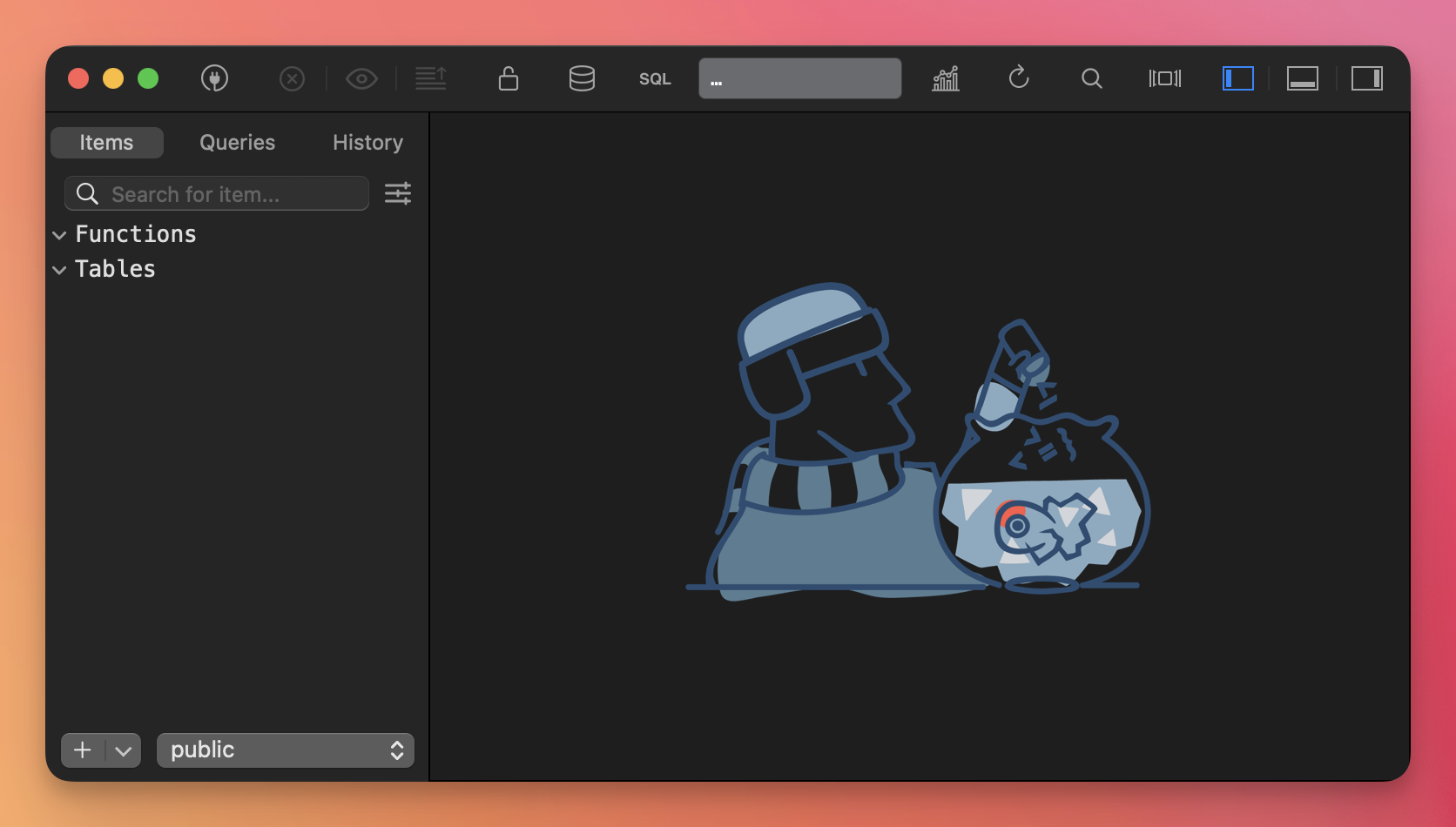
Really easy!
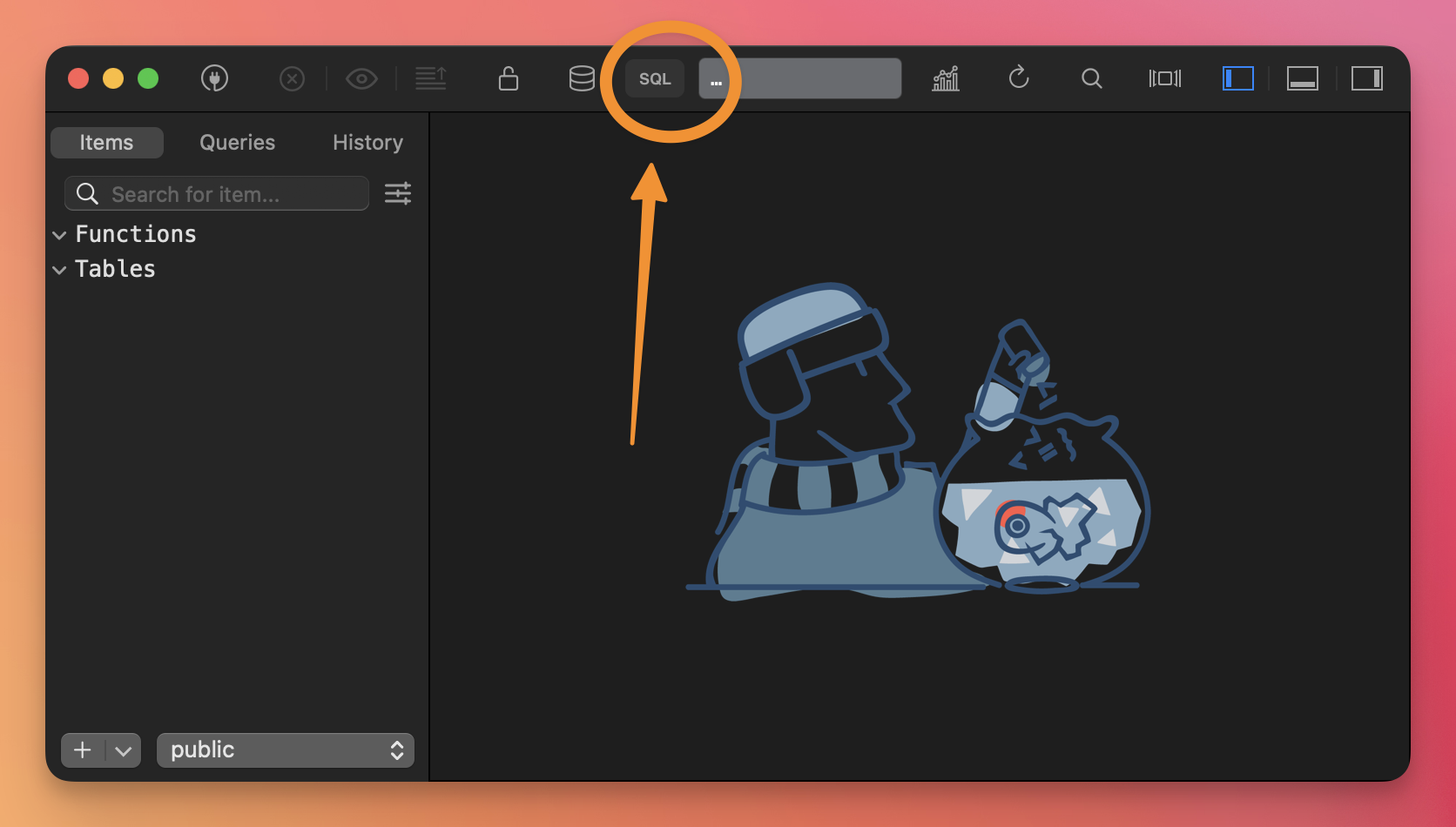
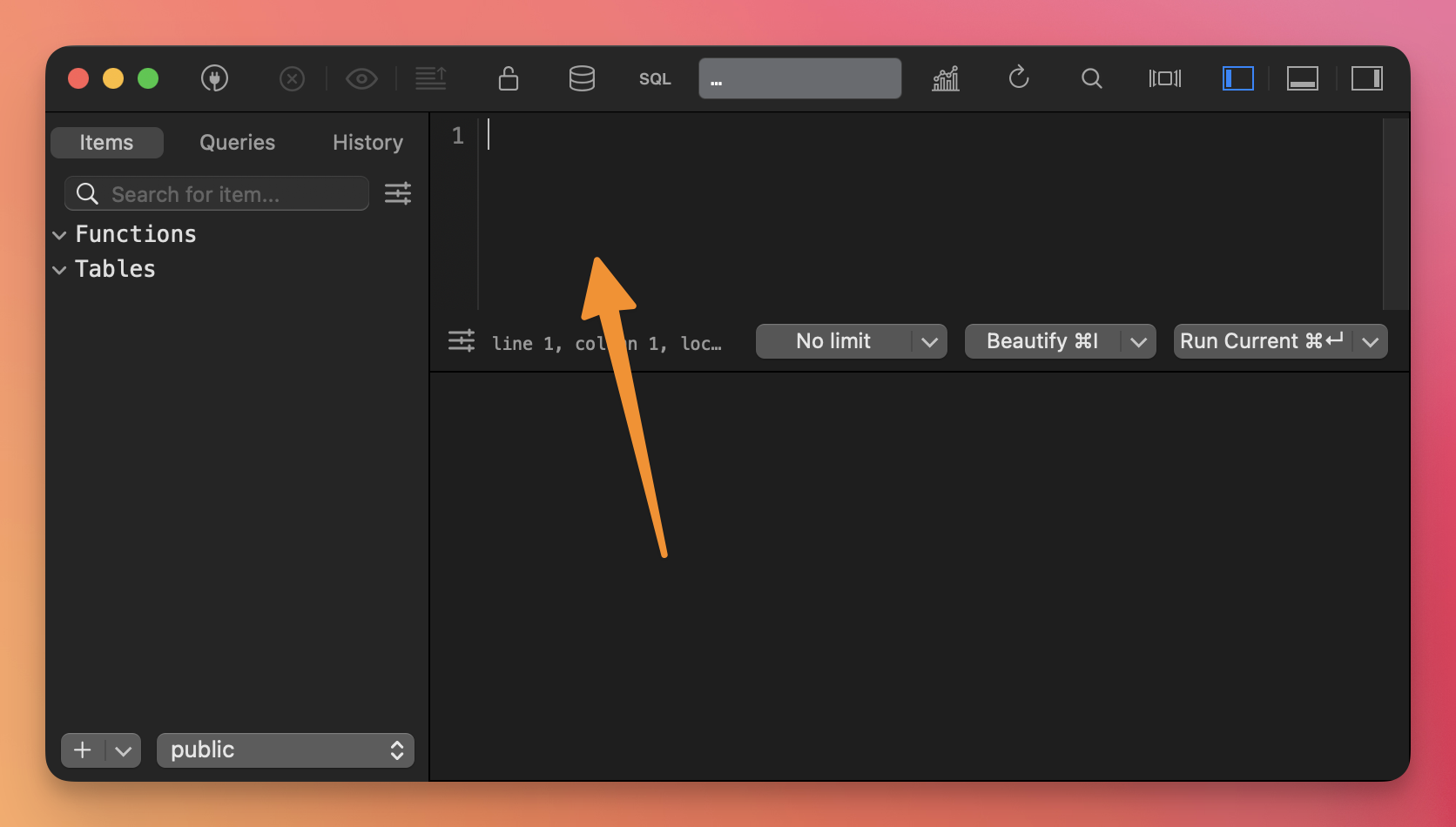
Now click the “SQL” icon and you’re ready to start executing SQL instructions, so you can test all the things you’ll learn very easily: