Join the AI Workshop and learn to build real-world apps with AI. A hands-on, practical program to level up your skills.
If you built an application using create-react-app and you’re running it locally on your computer, by default it is served using the HTTP protocol.
Any application running in production will be served using HTTPS, the secure version of HTTP.
You will get HTTPS almost with no effort in most cases, especially if you use a modern platform like Netlify or Vercel to serve your app.
But locally, it’s a bit more complicated than we’d like.
Let’s see how you can do it!
As you know, the create-react-app application is run using npm run start, or simply npm start, because in the package.json file’s scripts section, we have this line:
"start": "react-scripts start"change that to:
"start": "HTTPS=true react-scripts start"This sets the HTTPS environment variable to the true value.
That’s not enough, though.
Now we also need to generate a local certificate. This step will work fine for any app, not just create-react-app apps, but I will include it in this post, as a reference.
Note: I ran these commands on macOS. Linux should work in the same way. I don’t guarantee for Windows.
In the project root folder, run:
openssl req -x509 -newkey rsa:2048 -keyout keytmp.pem -out cert.pem -days 365Now run:
openssl rsa -in keytmp.pem -out key.pemYou should now have the files cert.pem and key.pem in the folder.
Now change the start script in the package.json file to:
"start": "export HTTPS=true&&SSL_CRT_FILE=cert.pem&&SSL_KEY_FILE=key.pem react-scripts start",If you ran npm run start, and access https://localhost:3000 (or the port your app uses, if different - in my case it’s 3008), you should see this warning message:
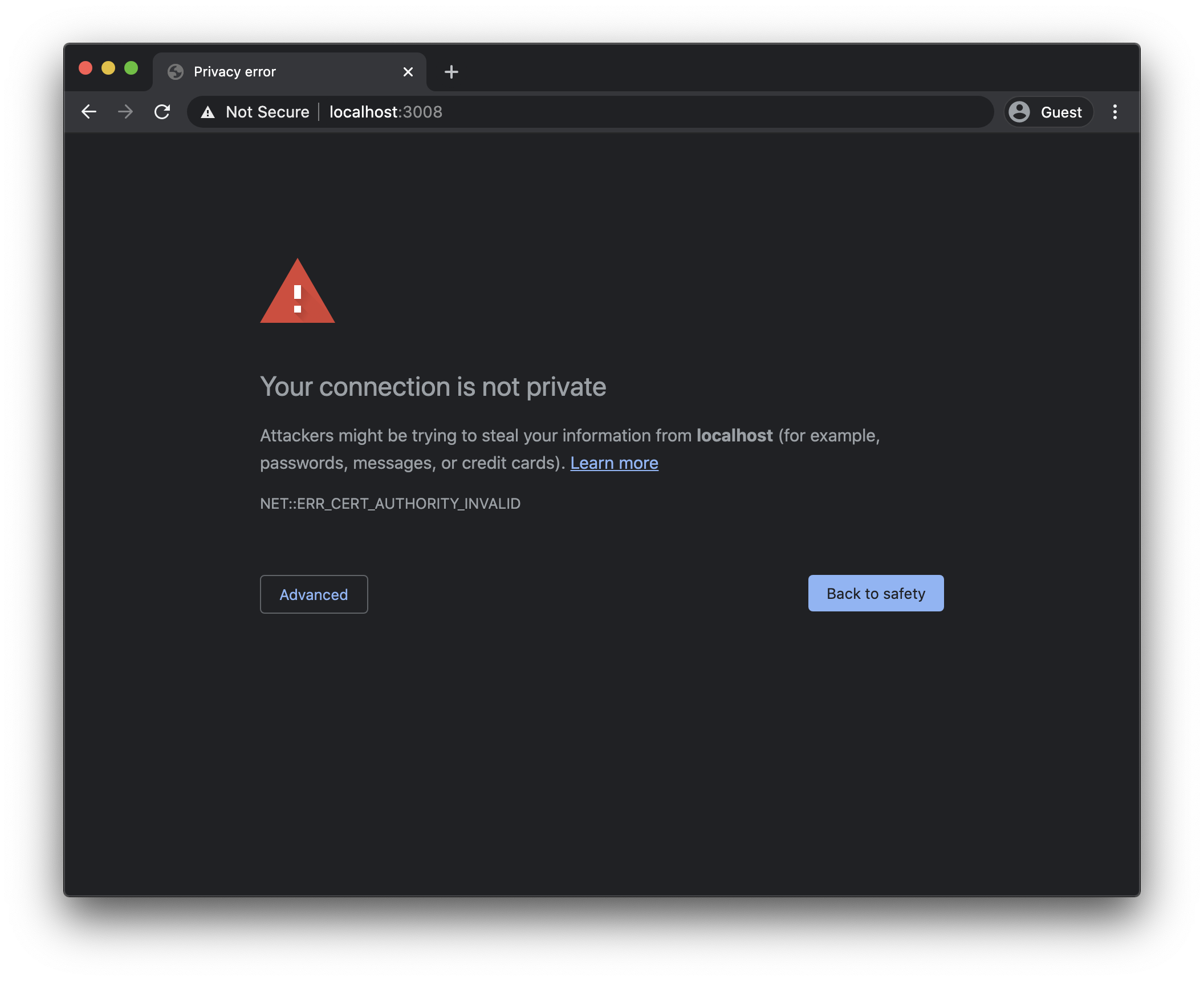
To fix it on macOS, follow the instructions of my tutorial how to install a local certificate in macOS.
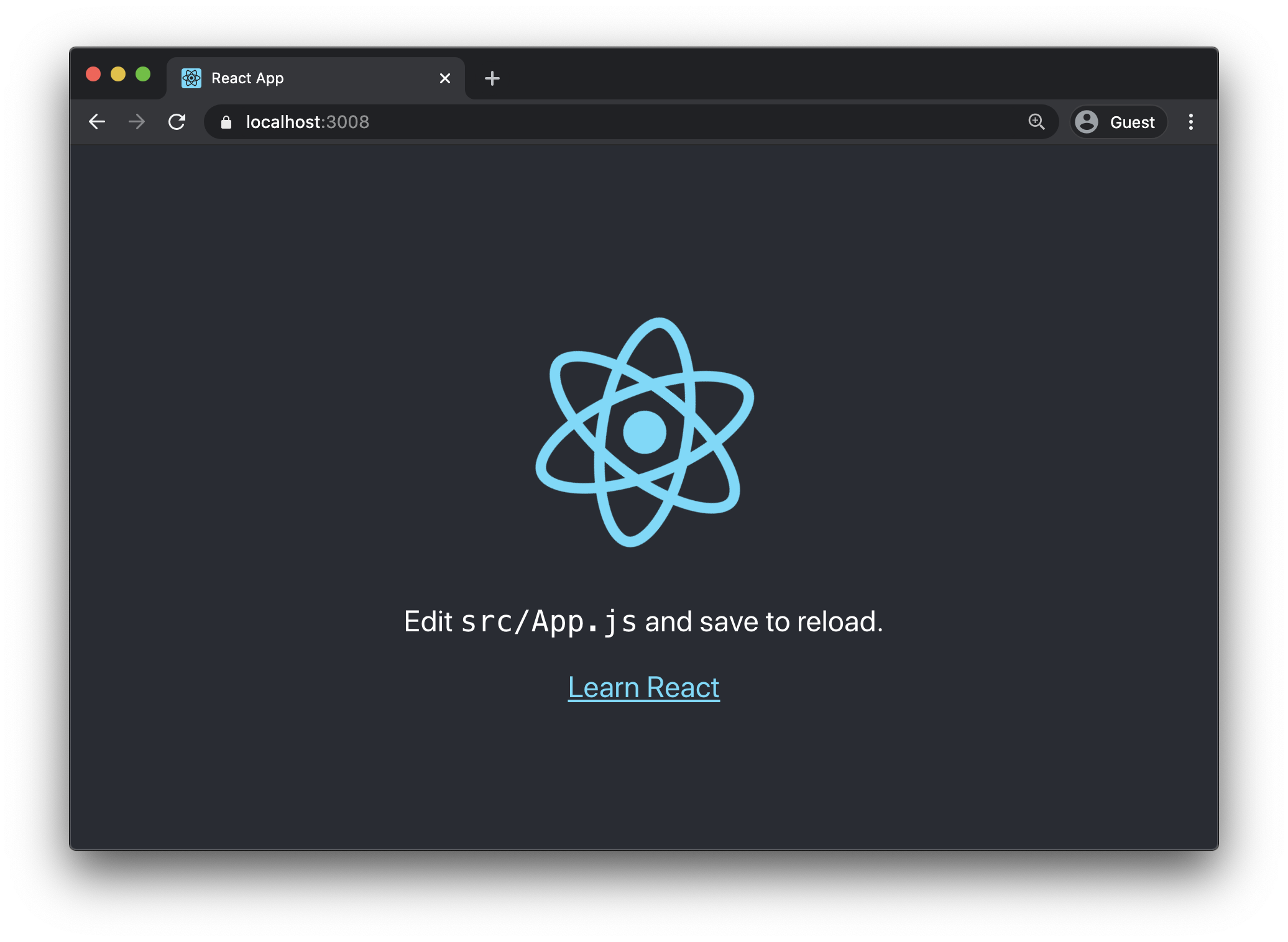
Once you do, you will be able to see the app without problems, served using SSL: