Join the AI Workshop and learn to build real-world apps with AI. A hands-on, practical program to level up your skills.
Introduction to the Notifications API
The Notifications API lets you show messages to the user (with their permission) even when the site or app is not open. Notifications use the system UI and appear the same as native app notifications.
In combination with the Push API this technology can be a successful way to increase user engagement and to enhance the capabilities of your app.
The Notifications API interacts heavily with Service Workers, as they are required for Push Notifications. You can use the Notifications API without Push, but its use cases are limited.
if (window.Notification && Notification.permission !== 'denied') {
  Notification.requestPermission((status) => {
    // status is "granted", if accepted by user
    var n = new Notification('Title', {
      body: 'I am the body text!',
      icon: '/path/to/icon.png', // optional
    })
  })
}n.close()Permissions
To show a notification to the user, you must have permission to do so.
The Notification.requestPermission() method call requests this permission.
Call Notification.requestPermission() to show the permission prompt (unless the user has already granted or denied):
To handle the user’s choice, use a callback or the returned promise:
const process = (permission) => {
  if (permission === 'granted') {
    // can show notifications
  }
}

Notification.requestPermission((permission) => {
  process(permission)
}).then((permission) => {
  process(permission)
})
Older browsers used a callback; newer ones return a promise. Supporting both, as in the example, handles either. The callback or promise receives a permission string:
granted— you can show notificationsdenied— you cannot show notificationsdefault— the user has not been asked yet
You can also read Notification.permission to get the current state.
Create a notification
Use the Notification constructor (available on window) to create and customize a notification. Example (after requesting permission):
Notification.requestPermission()
new Notification('Hey')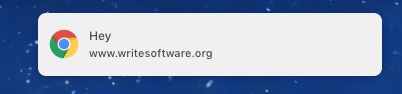
You have a few options to customize the notification.
Add a body
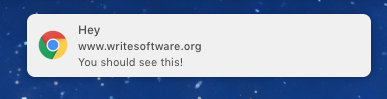
First, you can add a body, which is usually shown as a single line:
new Notification('Hey', {
  body: 'You should see this!',
})
Add an image
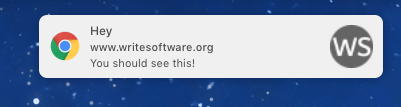
You can add an icon property:
new Notification('Hey', {
  body: 'You should see this!',
  icon: '/user/themes/writesoftware/favicon.ico',
})
More customization options, with platform-specific properties, can be found at https://developer.mozilla.org/docs/Web/API/Notification
Close a notification
To close a notification, keep a reference and call close():
const n = new Notification('Hey')Then close it:
n.close()or with a timeout:
setTimeout(() => n.close(), 1000)Lessons in this unit:
| 0: | Introduction |
| 1: | Progressive Web Apps |
| 2: | Service Workers |
| 3: | Cache API |
| 4: | Making a website work offline |
| 5: | ▶︎ Notifications API |
| 6: | Push API |
| 7: | Unregister service workers in Safari |