Join the AI Workshop and learn to build real-world apps with AI. A hands-on, practical program to level up your skills.
Introduction to the Fetch API
Since IE5 (1998), browsers have supported asynchronous network calls via XMLHttpRequest (XHR). Gmail and other rich apps later made heavy use of it, and the approach became known as AJAX.
Working directly with XMLHttpRequest was cumbersome and was usually abstracted by libraries; jQuery, for example, provided helpers:
jQuery.ajax()jQuery.get()jQuery.post()
The Fetch API is the modern, standards-based way to make asynchronous network requests; it is built on Promises.
Fetch is well supported in major browsers except IE.
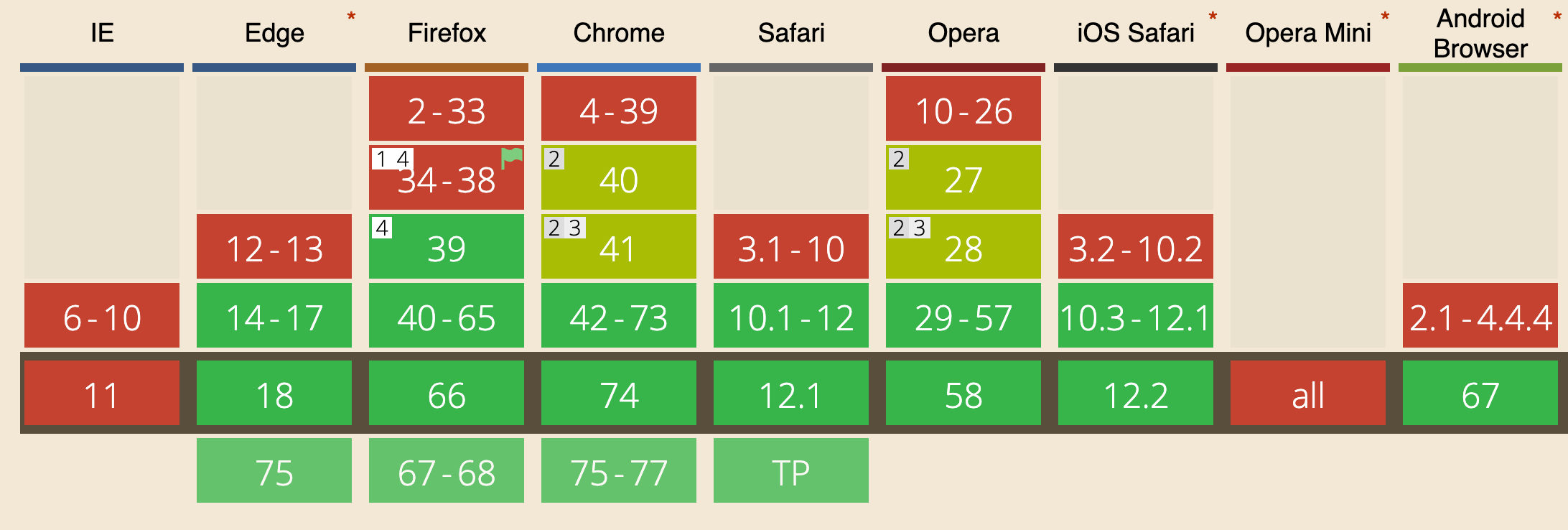
A polyfill lets you use fetch in older browsers.
Using Fetch
A simple GET request:
fetch('/file.json')This sends an HTTP request for file.json on the same origin. The fetch function is available on the global window object.
To read the response body:
fetch('./file.json')
  .then((response) => response.json())
  .then((data) => console.log(data))
fetch() returns a promise. Chain then() to handle the response. The handler receives a Response object.
We’ll see this object in detail in the next section.
Catching errors
Because fetch() returns a promise, you can use catch() to handle errors from the request or from then() callbacks:
fetch('./file.json')
  .then((response) => {
    //...
  })
  .catch((err) => console.error(err))
Alternatively, handle errors in the first then:
fetch('./file.json')
  .then((response) => {
    if (!response.ok) {
      throw Error(response.statusText)
    }
    return response
  })
  .then((response) => {
    //...
  })
Response Object
The Response object returned by fetch() contains the response data and metadata.
Metadata
headers
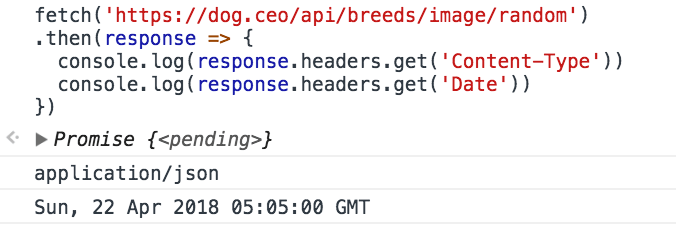
The headers property gives you the HTTP response headers:
fetch('./file.json').then((response) => {
  console.log(response.headers.get('Content-Type'))
  console.log(response.headers.get('Date'))
})
status
This property is an integer representing the HTTP status:
- 101, 204, 205, and 304 indicate a null body
- 200–299 indicate success
- 301, 302, 303, 307, and 308 indicate redirects
fetch('./file.json').then((response) => console.log(response.status))statusText
statusText is the status message (e.g. OK for success).
fetch('./file.json').then((response) => console.log(response.statusText))url
url is the full URL of the resource that was fetched.
fetch('./file.json').then((response) => console.log(response.url))Body content
A response has a body, accessible using several methods:
text()returns the body as a stringjson()returns the body as a JSON-parsed objectblob()returns the body as a Blob objectformData()returns the body as a FormData objectarrayBuffer()returns the body as anArrayBufferobject
All those methods return a promise. Examples:
fetch('./file.json')
  .then((response) => response.text())
.then((body) => console.log(body))fetch('./file.json')
.then((response) => response.json())
.then((body) => console.log(body))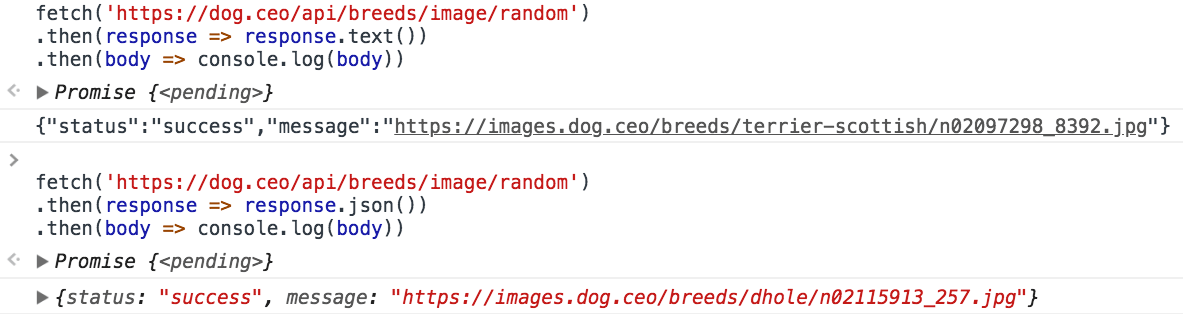
The same can be written using the ES2017 async functions:
;(async () => {
  const response = await fetch('./file.json')
  const data = await response.json()
  console.log(data)
})()
Request Object
The Request object represents a resource request, and it’s usually created using the new Request() API.
Example:
const req = new Request('/api/todos')The Request object offers several read-only properties to inspect the request details, including:
method: the request’s method (GET, POST, etc.)url: the URL of the request.headers: the associated Headers object of the requestreferrer: the referrer of the requestcache: the cache mode of the request (e.g., default, reload, no-cache).
It also exposes methods such as json(), text(), and formData() to read the request body.
The full API can be found at https://developer.mozilla.org/docs/Web/API/Request
Request headers
Setting request headers is essential; fetch lets you do this with the Headers object:
const headers = new Headers()
headers.append('Content-Type', 'application/json')
or:
const headers = new Headers({
  'Content-Type': 'application/json',
})
Pass a Request object to fetch() instead of a URL to attach headers. Instead of fetch('./file.json'), use:
const request = new Request('./file.json', {
  headers: new Headers({
    'Content-Type': 'application/json',
  }),
})
fetch(request)
You can also query the Headers object:
headers.has('Content-Type')
headers.get('Content-Type')
and we can delete a header that was previously set:
headers.delete('X-My-Custom-Header')POST Requests
Fetch supports other HTTP methods (POST, PUT, DELETE, OPTIONS). Set the method in the options and pass headers and body as needed. Example POST:
const options = {
  method: 'post',
  headers: {
    'Content-type': 'application/x-www-form-urlencoded; charset=UTF-8',
  },
  body: 'name=Flavio&test=1',
}

fetch(url, options).catch((err) => {
  console.error('Request failed', err)
})
How to cancel a fetch request
Initially there was no way to abort a fetch. AbortController and AbortSignal now allow this. Pass a signal in the fetch options:
const controller = new AbortController()
const signal = controller.signal

fetch('./file.json', { signal })
Example: abort after 5 seconds:
setTimeout(() => controller.abort(), 5 * 1000)If the fetch has already completed, calling abort() has no effect. When aborted, fetch rejects with a DOMException named AbortError:
fetch('./file.json', { signal })
  .then((response) => response.text())
  .then((text) => console.log(text))
  .catch((err) => {
    if (err.name === 'AbortError') {
      console.error('Fetch aborted')
    } else {
      console.error('Another error', err)
    }
})Lessons in this unit:
| 0: | Introduction |
| 1: | ▶︎ The Fetch API |
| 2: | XMLHttpRequest |
| 3: | CORS |
| 4: | Streams API |