Join the AI Workshop and learn to build real-world apps with AI. A hands-on, practical program to level up your skills.
The MediaDevices object on navigator.mediaDevices provides the getUserMedia method.
Warning: the
navigatorobject exposes agetUserMedia()method as well, which might still work but is deprecated. The API has been moved inside themediaDevicesobject for consistency purposes.
Example with a button:
<button>Start streaming</button>Listen for the click, then call navigator.mediaDevices.getUserMedia(). Pass an object with media constraints. For video:
navigator.mediaDevices.getUserMedia({
  video: true,
})
We can be very specific with those constraints:
navigator.mediaDevices.getUserMedia({
  video: {
    minAspectRatio: 1.333,
    minFrameRate: 60,
    width: 640,
    height: 480,
  },
})
You can get a list of all the constraints supported by the device by calling navigator.mediaDevices.getSupportedConstraints().
For audio only, pass audio: true:
navigator.mediaDevices.getUserMedia({
  audio: true,
})
For both video and audio:
navigator.mediaDevices.getUserMedia({
  video: true,
  audio: true,
})
getUserMedia() returns a promise. Example with async/await:
document.querySelector('button').addEventListener('click', async (e) => {
  const stream = await navigator.mediaDevices.getUserMedia({
    video: true,
  })
})
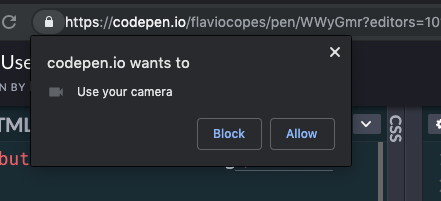
The browser will prompt for permission to use the camera:
See on Codepen: https://codepen.io/flaviocopes/pen/WWyGmr
Use the stream from getUserMedia() to display video in a video element:
<button>Start streaming</button> <video autoplay>Start streaming</video>document.querySelector('button').addEventListener('click', async (e) => {
const stream = await navigator.mediaDevices.getUserMedia({
video: true,
})
document.querySelector('video').srcObject = stream
})See on Codepen: https://codepen.io/flaviocopes/pen/wZXzbB
Example
Request camera access and play the video in the page:
See the Pen WebRTC MediaStream simple example by Flavio Copes (@flaviocopes) on CodePen.
Add a button and a video element with the autoplay attribute.
<button id="get-access">Get access to camera</button> <video autoplay></video>On click, call getUserMedia(), set the stream as the video’s srcObject, and use stream.getVideoTracks() to get the camera. Example:
document
  .querySelector('#get-access')
  .addEventListener('click', async function init(e) {
    try {
      const stream = await navigator.mediaDevices.getUserMedia({
        video: true,
      })
      document.querySelector('video').srcObject = stream
      document.querySelector('#get-access').setAttribute('hidden', true)
      const track = stream.getVideoTracks()[0]
      setTimeout(() => track.stop(), 3 * 1000)
    } catch (error) {
      alert(`${error.name}`)
      console.error(error)
    }
  })
You can pass additional video constraints. Note: the callback-based syntax below is legacy; prefer the promise-based API above:
navigator.mediaDevices.getUserMedia(
  {
    video: {
      mandatory: { minAspectRatio: 1.333, maxAspectRatio: 1.334 },
      optional: [{ minFrameRate: 60 }, { maxWidth: 640 }, { maxHeight: 480 }],
    },
  },
  successCallback,
  errorCallback,
)
For audio, request audio: true and use stream.getAudioTracks(). The example stops the track after 3 seconds.
Lessons in this unit:
| 0: | Introduction |
| 1: | ▶︎ getUserMedia |
| 2: | WebRTC |
| 3: | What to do if WebRTC on iOS shows a black box |