Join the AI Workshop and learn to build real-world apps with AI. A hands-on, practical program to level up your skills.
I wanted to quickly add a fast way to run a Node.js script from the menu bar.
Many options exist, including making your own macOS menu bar app, or using 3rd party apps.
But macOS gives us an easy way as well, using good old AppleScript.
Open the Script Editor app on macOS.
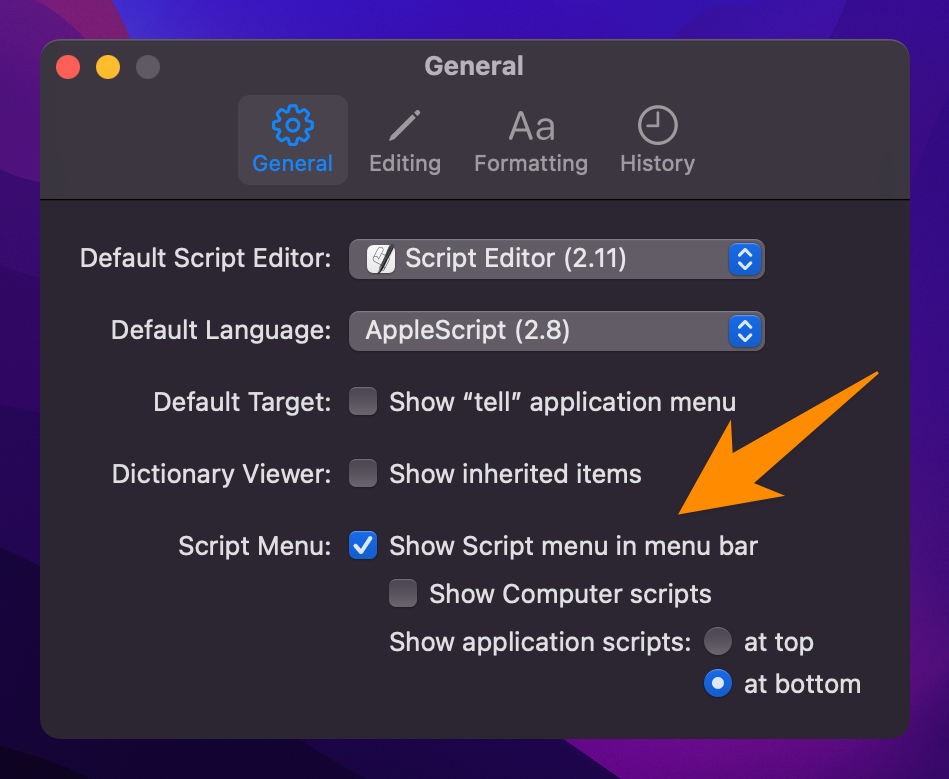
Open its settings and enable Show Script menu in menu bar:
Now click the File → New menu to open the script editor:
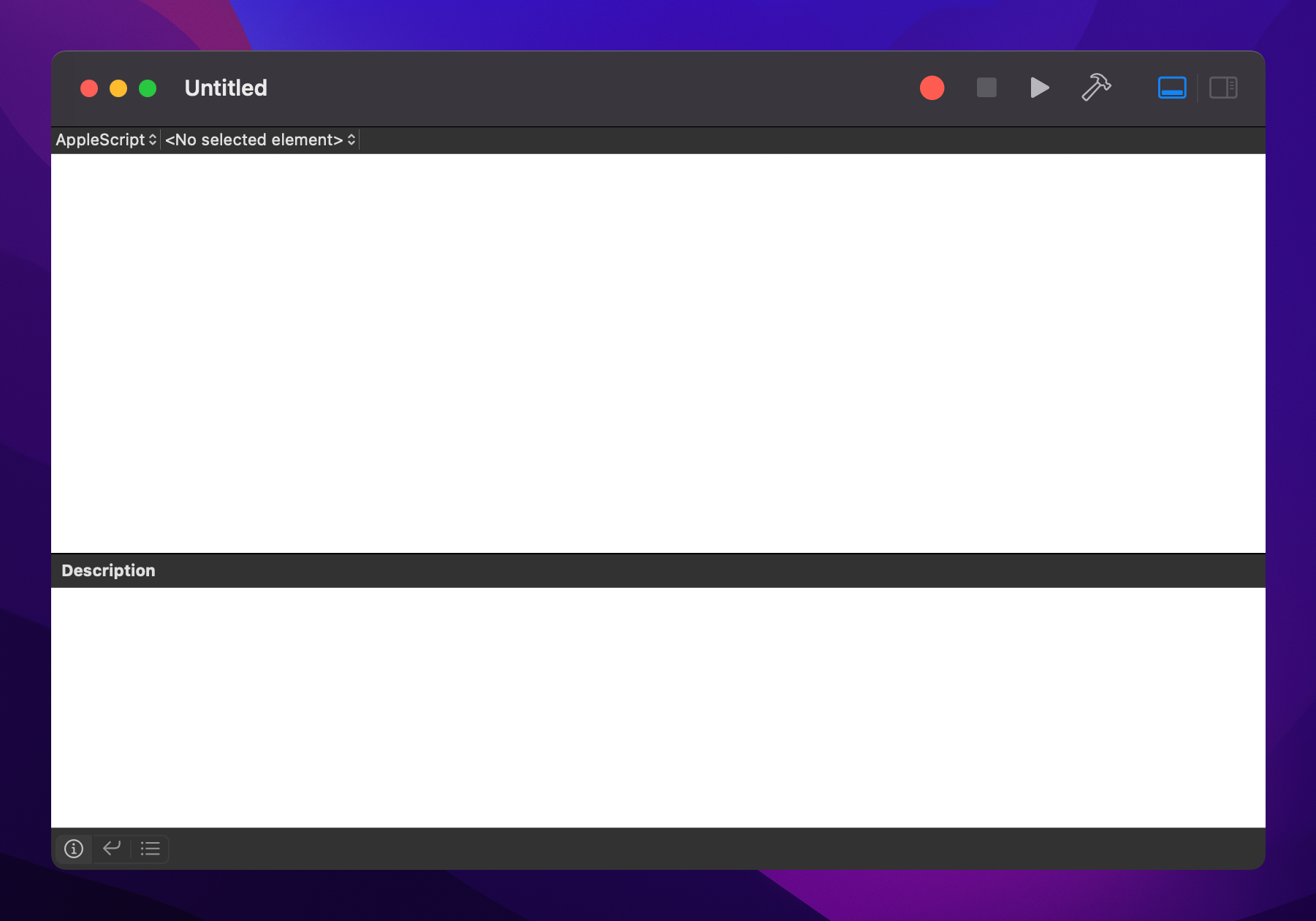
To run my Node.js script I added this line:
do shell script "cd /Users/myself/dev; /opt/homebrew/bin/node script.js"As a JS dev I must note that you can also use JavaScript for Automation (JXA) to do the same thing:
const app = Application.currentApplication()
app.includeStandardAdditions = true
app.doShellScript('cd /Users/myself/dev; /opt/homebrew/bin/node script.js')
but I prefer AppleScript in this case, feels more “native”.
I used cd so the .env file I put in that folder was picked up by Node.
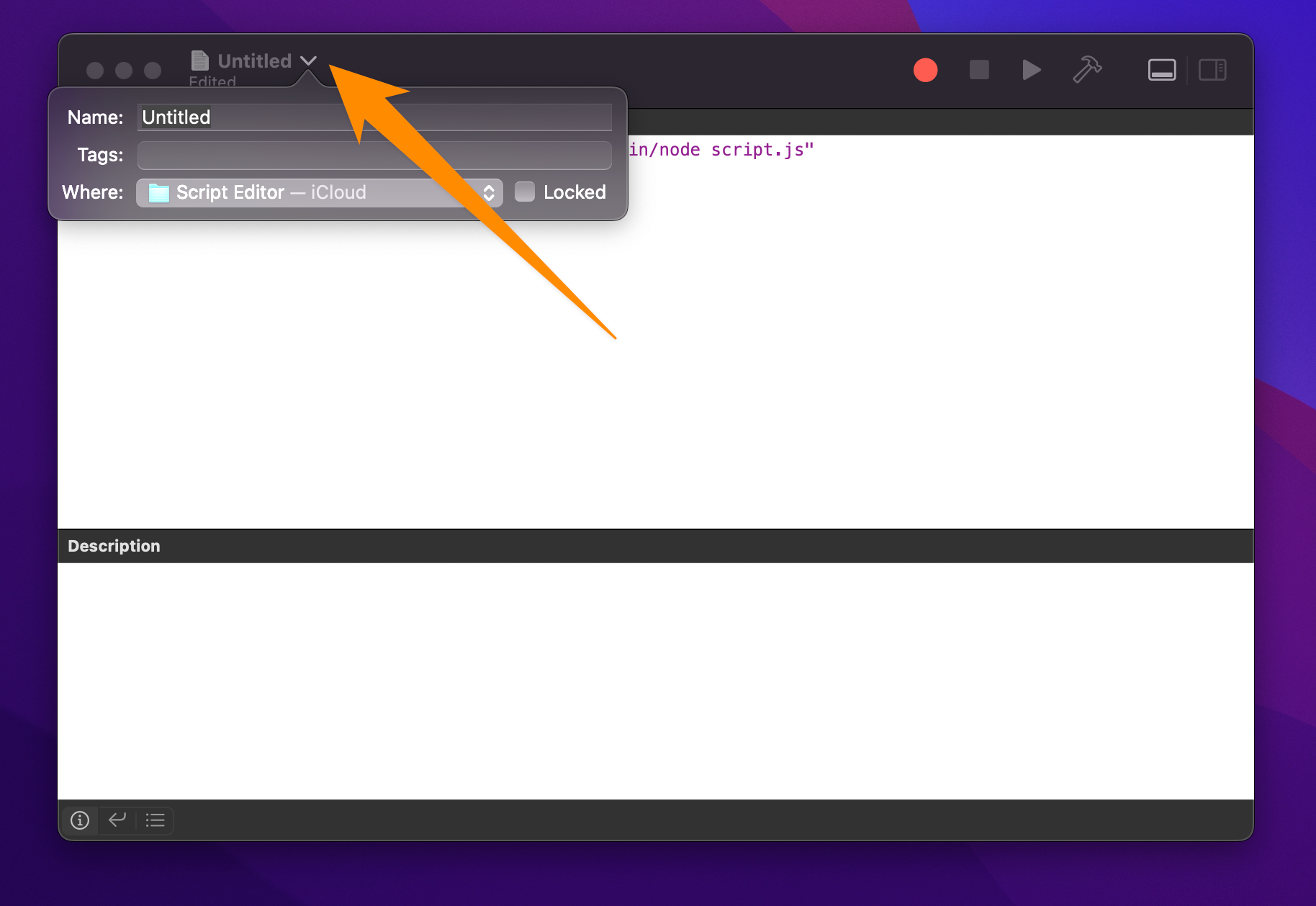
Then I clicked the script name, added a good name, and saved into my user’s scripts folder, which can be found in ~/Library/Scripts
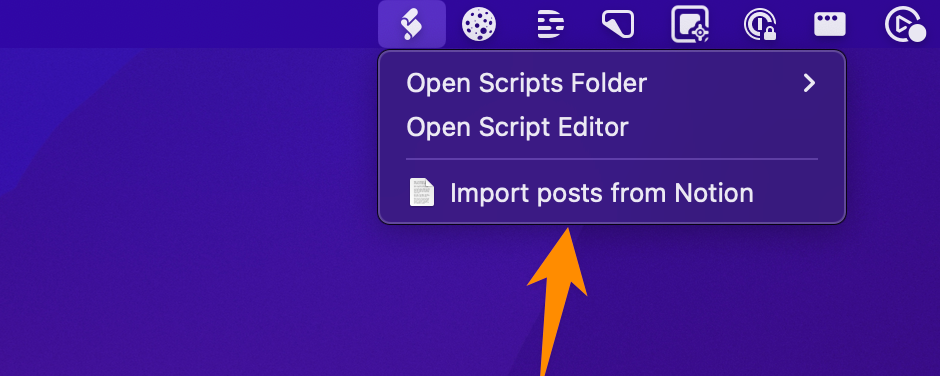
After all these steps, I was able to find my script in the menu bar, like this:
That’s it!
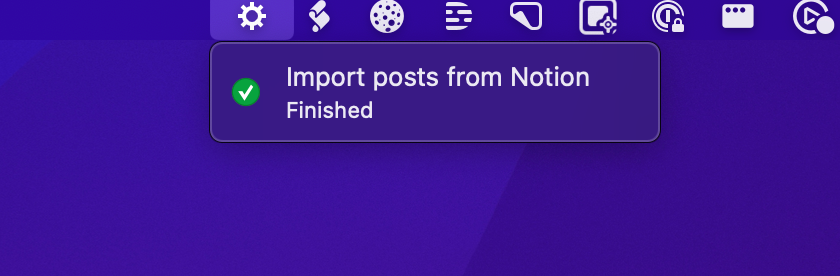
Now I can run it, and a spinning gear shows up, notifying me when it’s finished:
Pretty cool!