macOS: Reverting a file to a previous version, on a Mac

Join the AI Workshop to learn more about AI and how it can be applied to web development. Next cohort February 1st, 2026

The AI-first Web Development BOOTCAMP cohort starts February 24th, 2026. 10 weeks of intensive training and hands-on projects.


I was working on a Pages document this morning when I decided to save and immediately quit the application.

The moment I did it, I realized I did a mistake: the previous evening I did some edits to the cover of the document, removing the background image, and I forgot to revert.

I tried reopening it and of course cmd-Z didn’t work to revert the change - it could only work before quitting Pages.

Then I thought about using the backup which I usually do.

But then, I also found out a feature which I never used in many years of owning a Mac.

Some applications, including Pages, Numbers, and many other non-Apple apps that use documents, like MindNode, have a File -> Revert To menu.
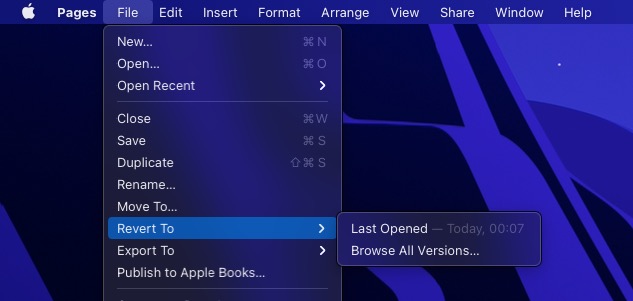
You can immediately revert to the latest saved version, but you can click “Browse All Versions…” to enter into the Time Machine view of that file:
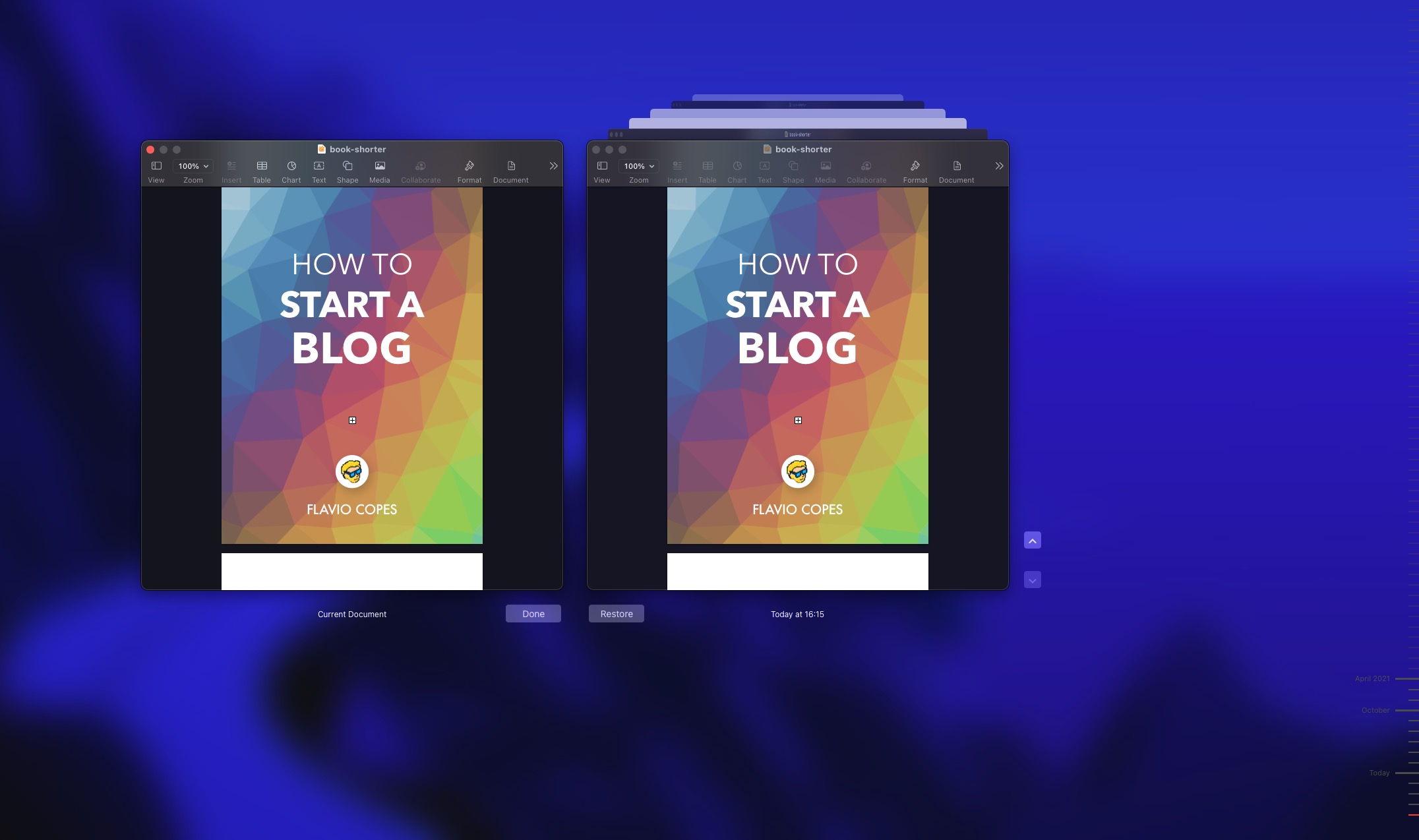
From here you can go back to any previous saved version.

Lessons in this unit:

0: Introduction
1: How to use the macOS terminal
2: Productivity gains of using a Mac and an iOS device
3: A way to set up automations in macOS easily
4: How to hide a file or folder in macOS Finder
5: How to install a local SSL certificate in macOS
6: ▶︎ Reverting a file to a previous version, on a Mac
7: Take screenshots as JPG on macOS
8: Convert an image or resize it using macOS Shortcuts
9: Concatenating videos on macOS
10: Fix files creation date in macOS
11: Freeing space on a Mac
12: How to add an “Open in Terminal” icon in macOS Finder
13: How to add an “Open in VS Code” icon in macOS Finder
14: How to find the bundle ID of a Mac app
15: How to Fix the "Your CLT does not support macOS 11" error in macOS
16: How to play a sound from the macOS command line
17: How to remove the shadow from window screenshots in macOS
18: Removing all Homebrew stuff
19: Run a Node.js script from your macOS menu bar