Join the AI Workshop and learn to build real-world apps with AI. A hands-on, practical program to level up your skills.
You’ve written an app that should use HTTPS, but it’s not working: you’re getting a warning when you try to access it using HTTPS, even though you created a local certificate.
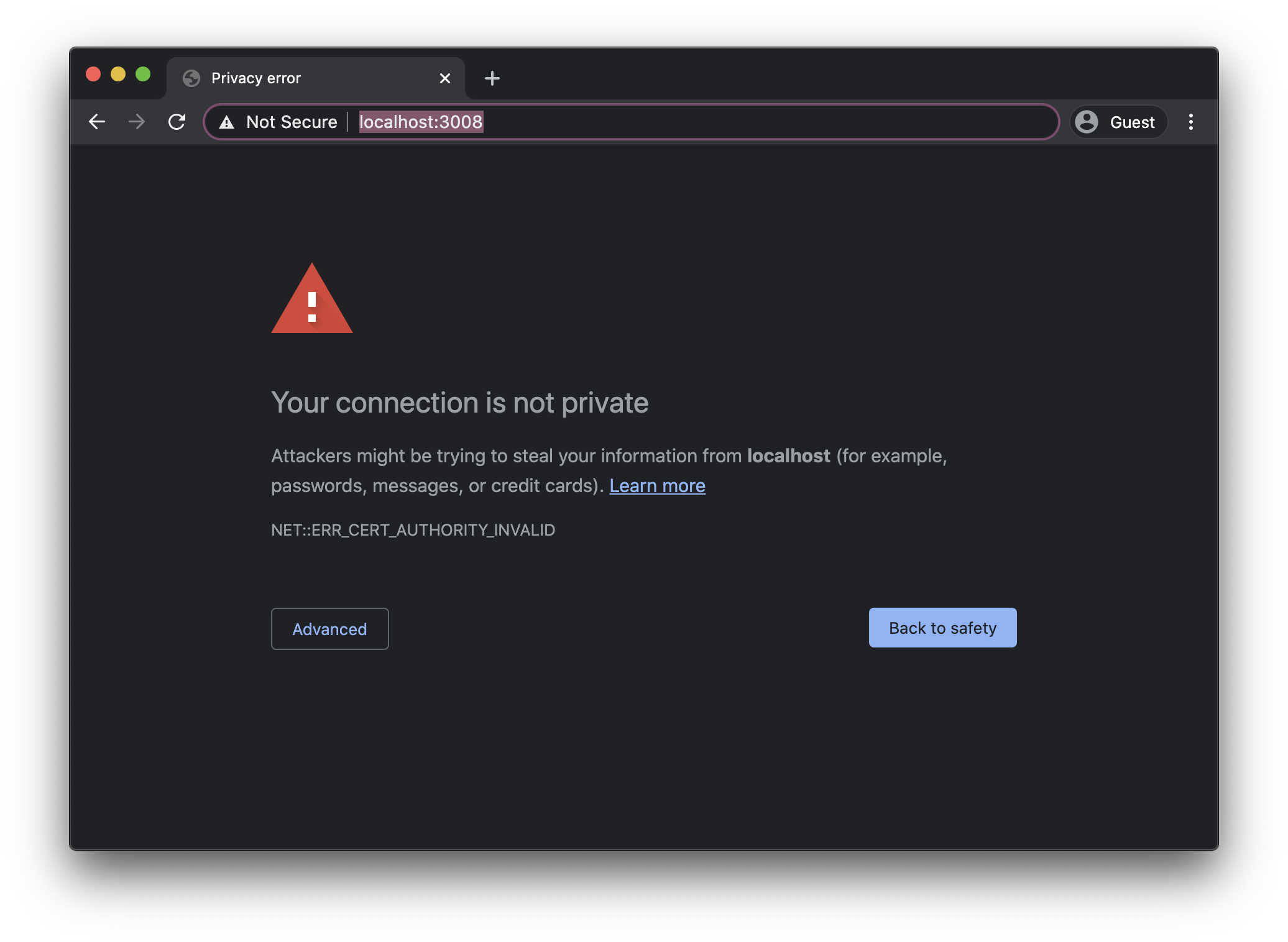
That’s because by default the browser does not trust local certificates.
We need to install it!
I assume you use Chrome in this section.
Click the “Not Secure” box near the address bar, and a little panel should show up:
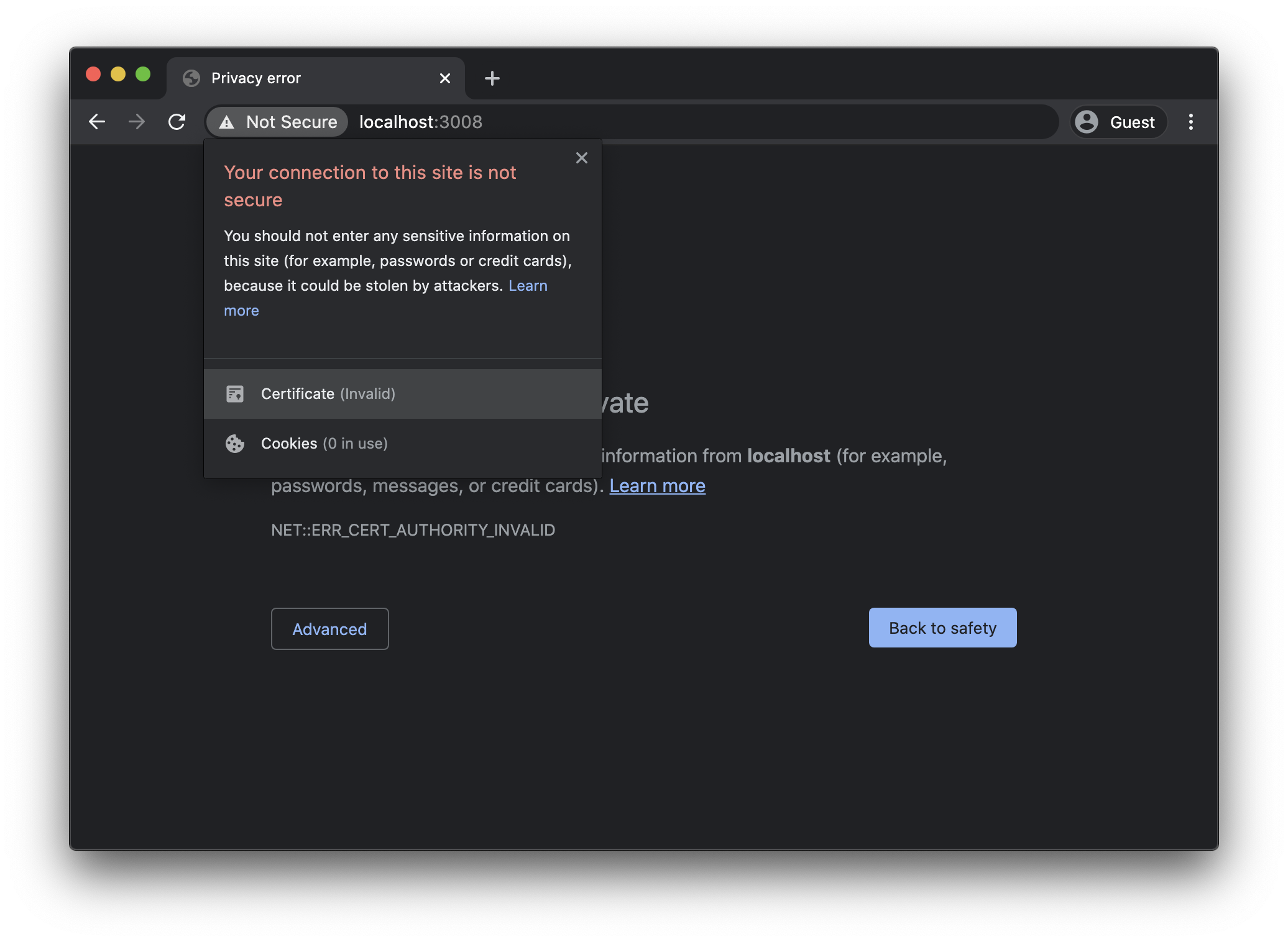
Click the Certificate item in the box, and you should see another panel show up, with the certificate details:
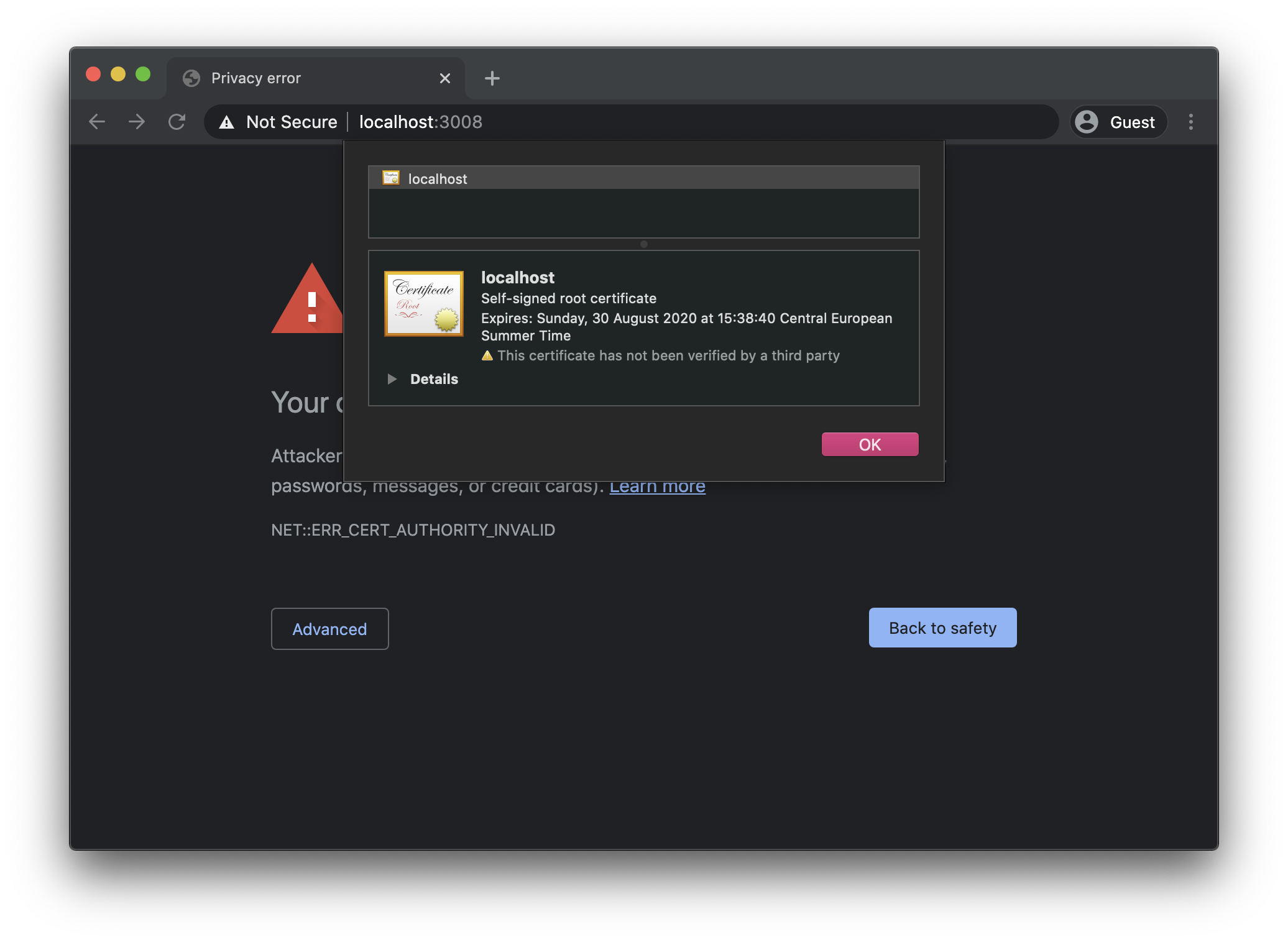
Now drag the certificate icon from there to the desktop, or any other folder you want. Literally drag and drop using the mouse.
Once you do so, find the file in the Finder, and double-click it.
You should see a prompt to install it:
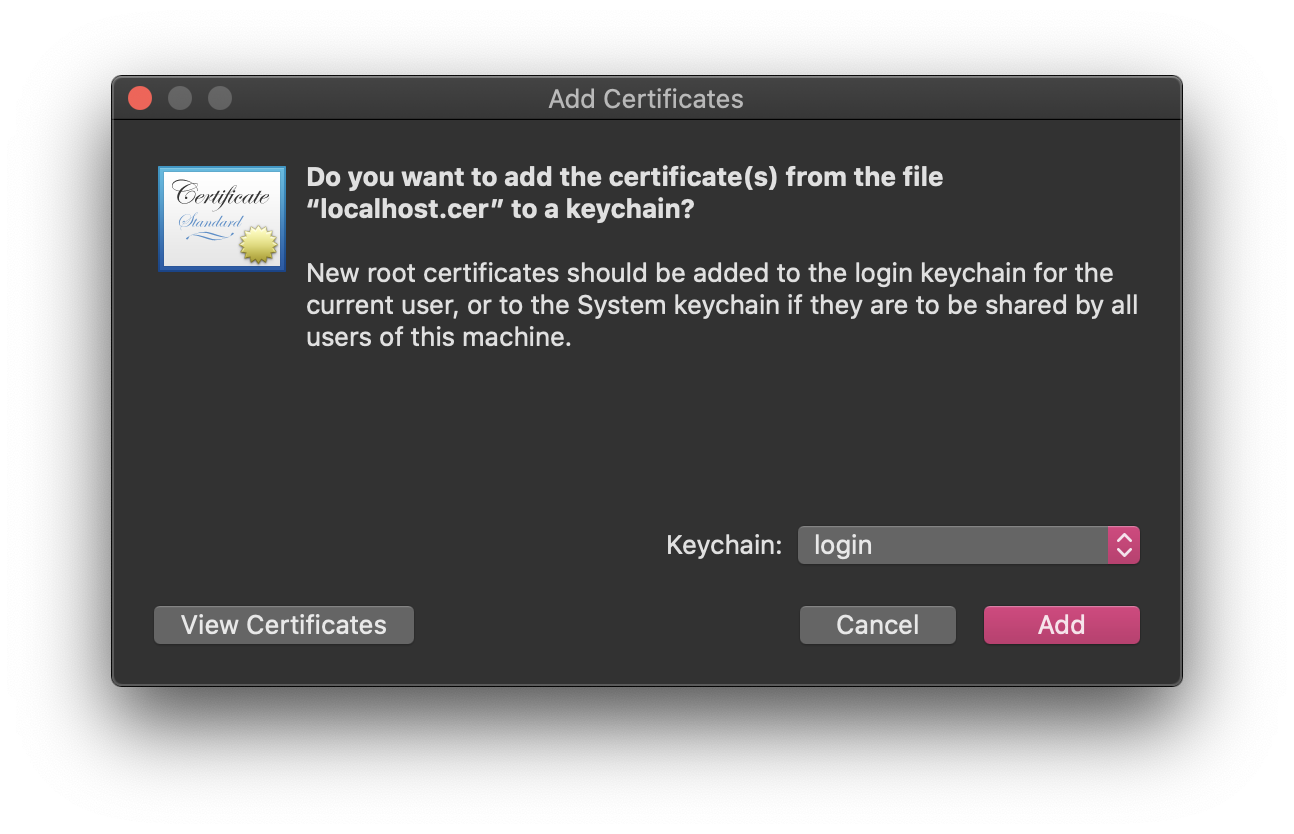
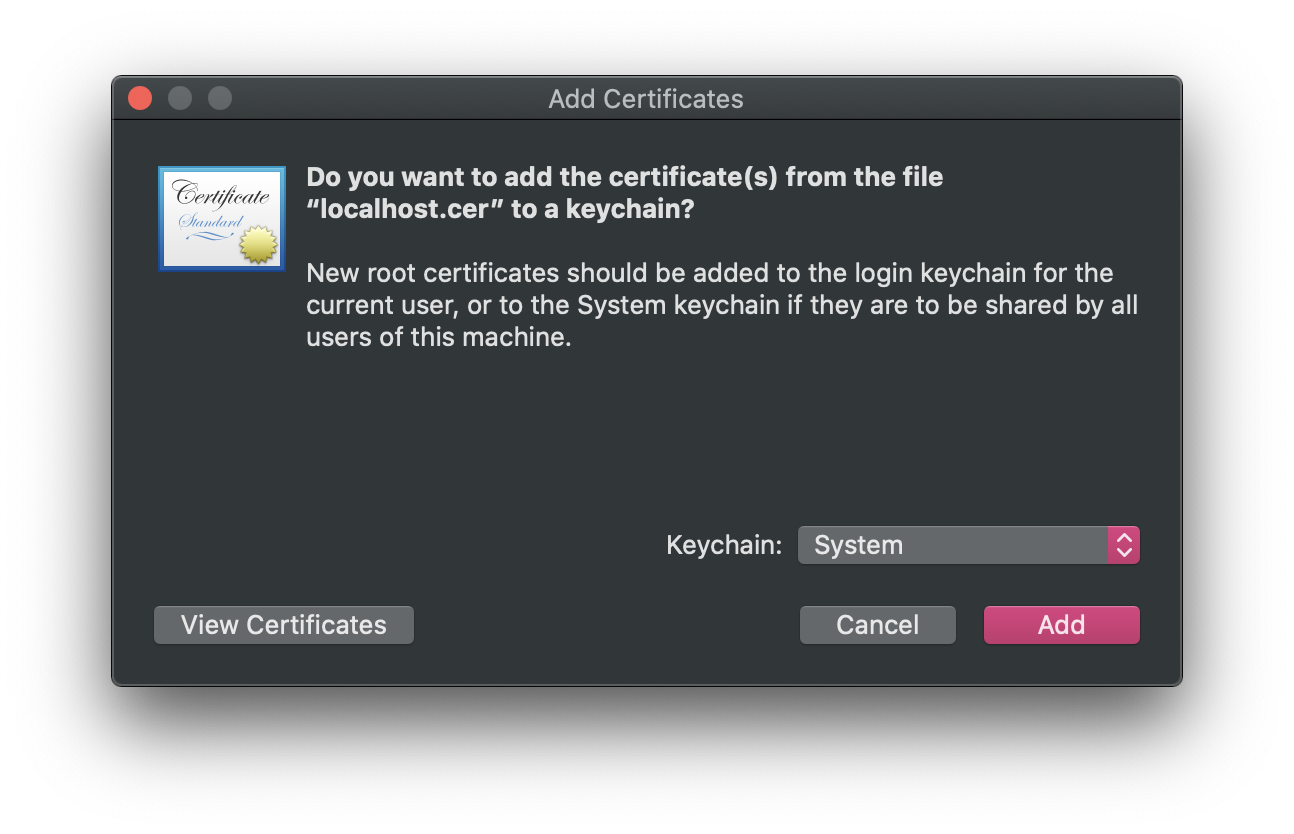
Where you see the Keychain: option, instead of login, choose System:
Press Add, now you should see the certificate in the System keychain, listed as localhost:
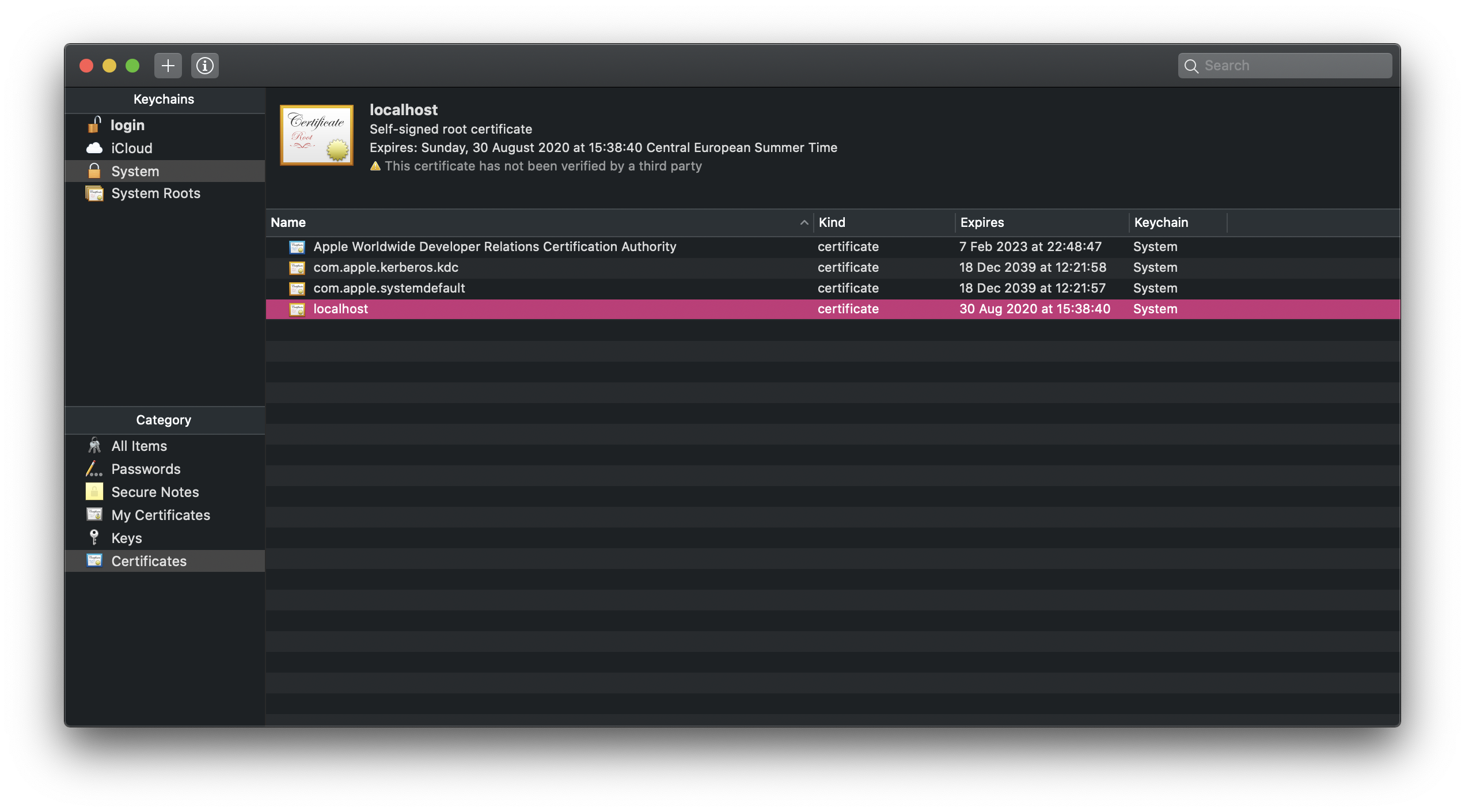
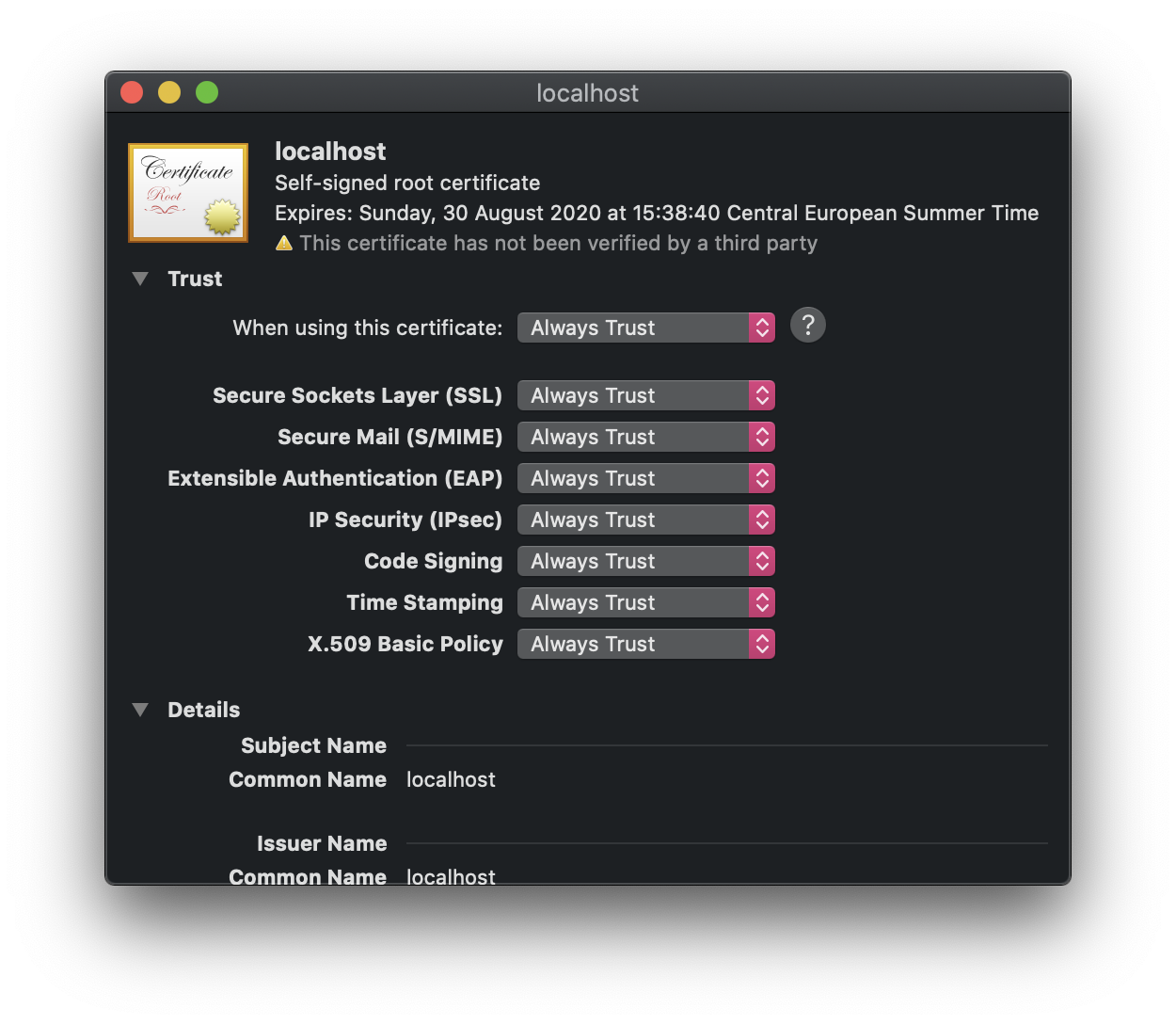
Now double-click that, and this window should show up:
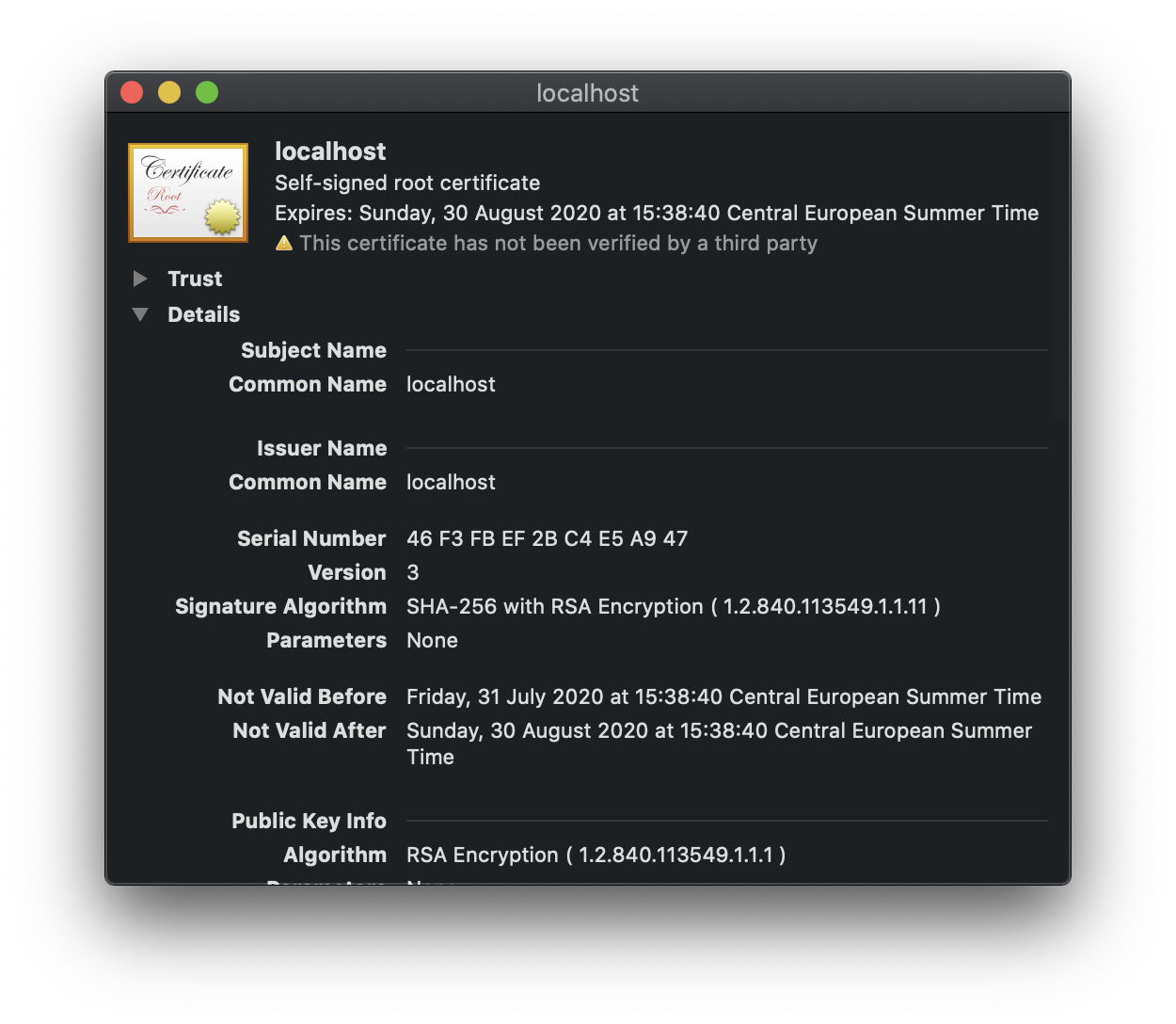
Click the arrow near Trust, and you should see this window, make sure you change “When using this certificate” to “Always Trust”.
That’s it! Now close the Keychain app (cmd-Q) and try reloading your Chrome tab, it should work!
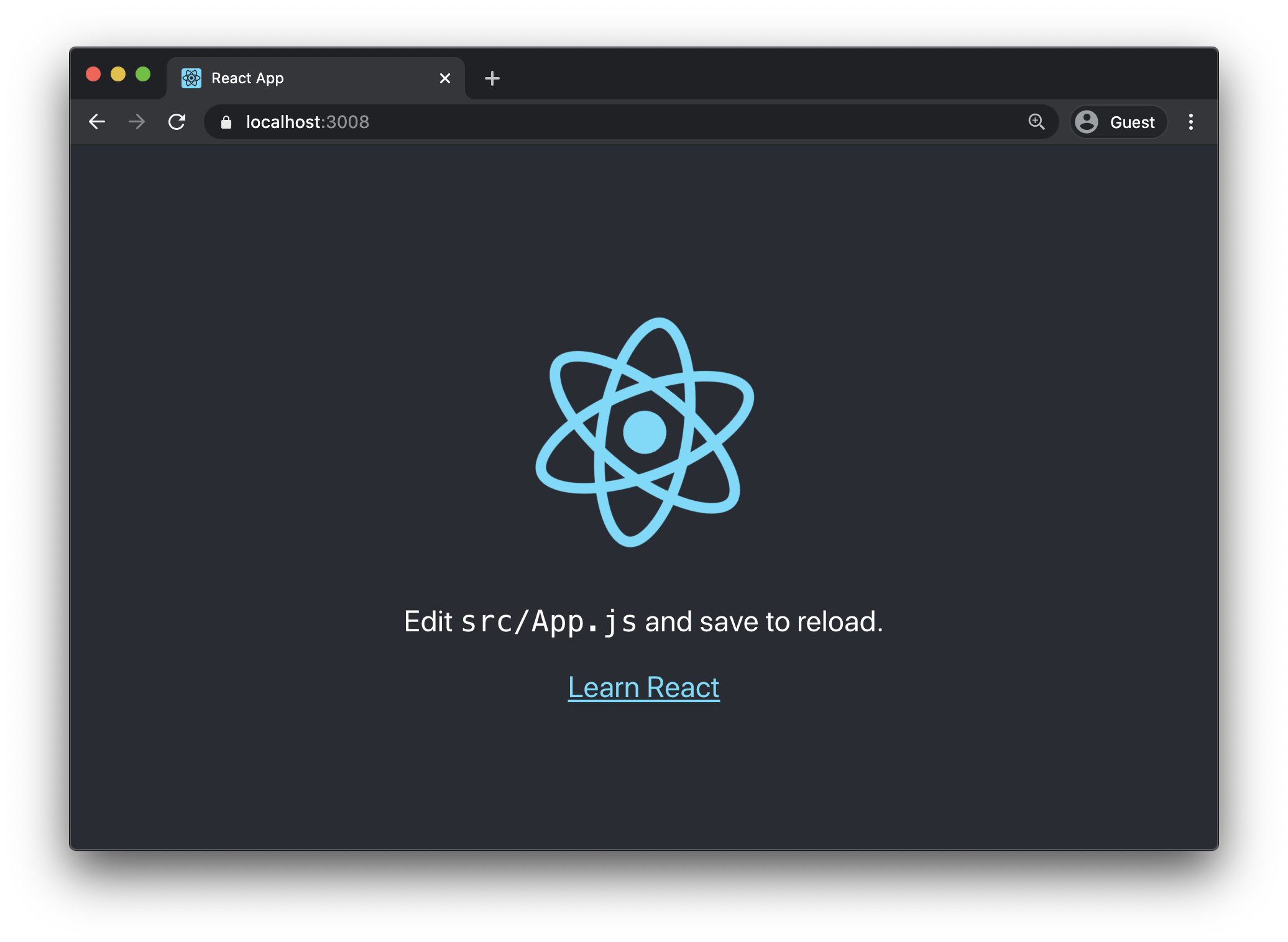
And it should now work across any browser you use.