Join the AI Workshop and learn to build real-world apps with AI. A hands-on, practical program to level up your skills.
While working on my new website, I had a simple need.
I was storing data in a SQLite database and I wanted to back it up once a day, while I’m working on it locally during development.
SQLite is great because it’s just a file. It’s not “somewhere on your computer” or “somewhere on a server” but you’re not really sure how.
So to back it up, you simply copy the file to a backup folder and that’s it.
I did this manually for some time but I also wanted to make this automatic to free my mind, and I wanted to avoid using cron jobs and shell scripts which I then tend to forget, and this was just a temporary thing after all, only for a couple weeks.
Not worth setting up a whole cron and bash script automation.
So the first thing I thought of was Automator. Probably the most under appreciated app on the Mac.
I use it all the time, to do little things like changing image formats and sizes.
I created an Application in Automator:
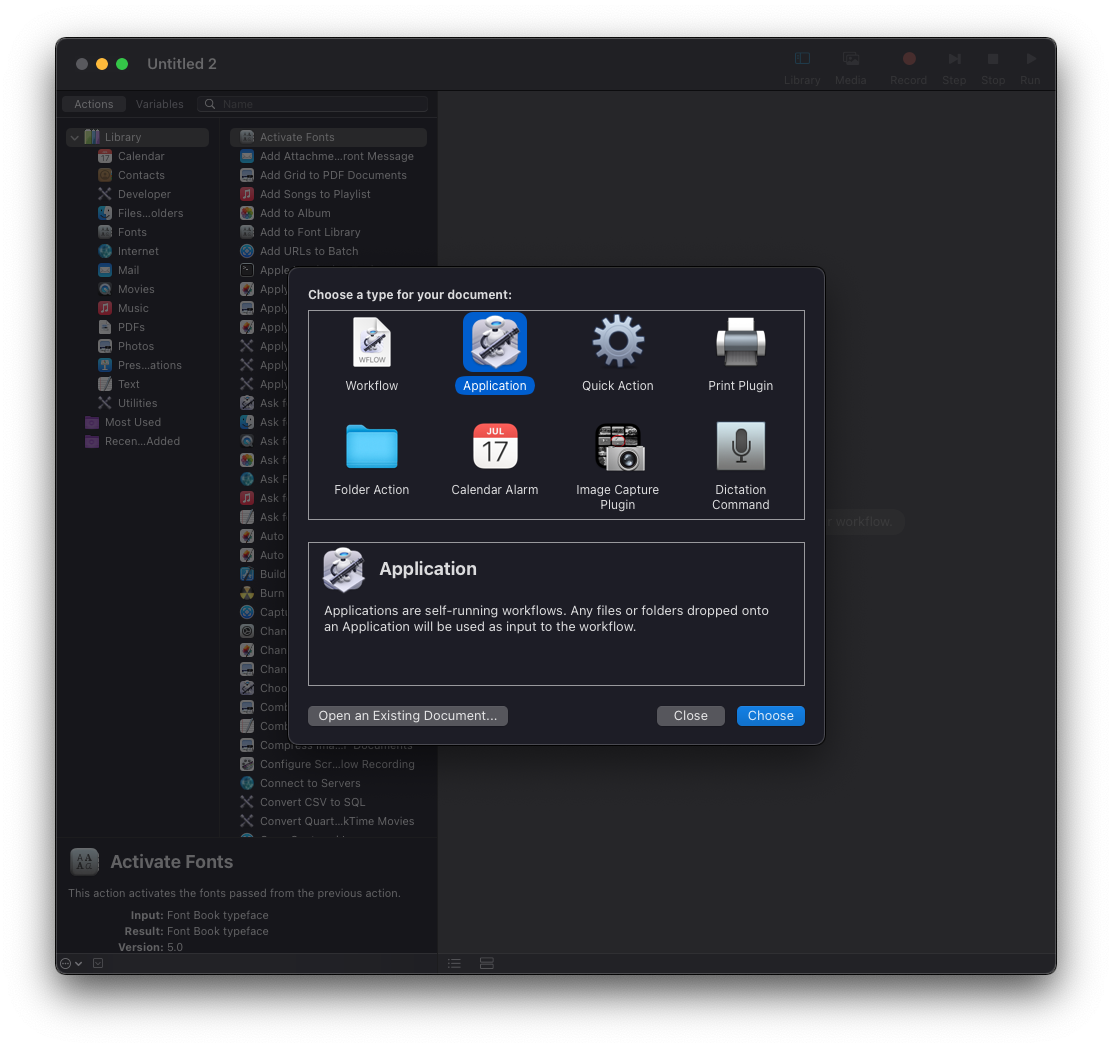
and I set it up like this, to get the file I wanted to back up, copy it to a backups folder, and add the date and time:
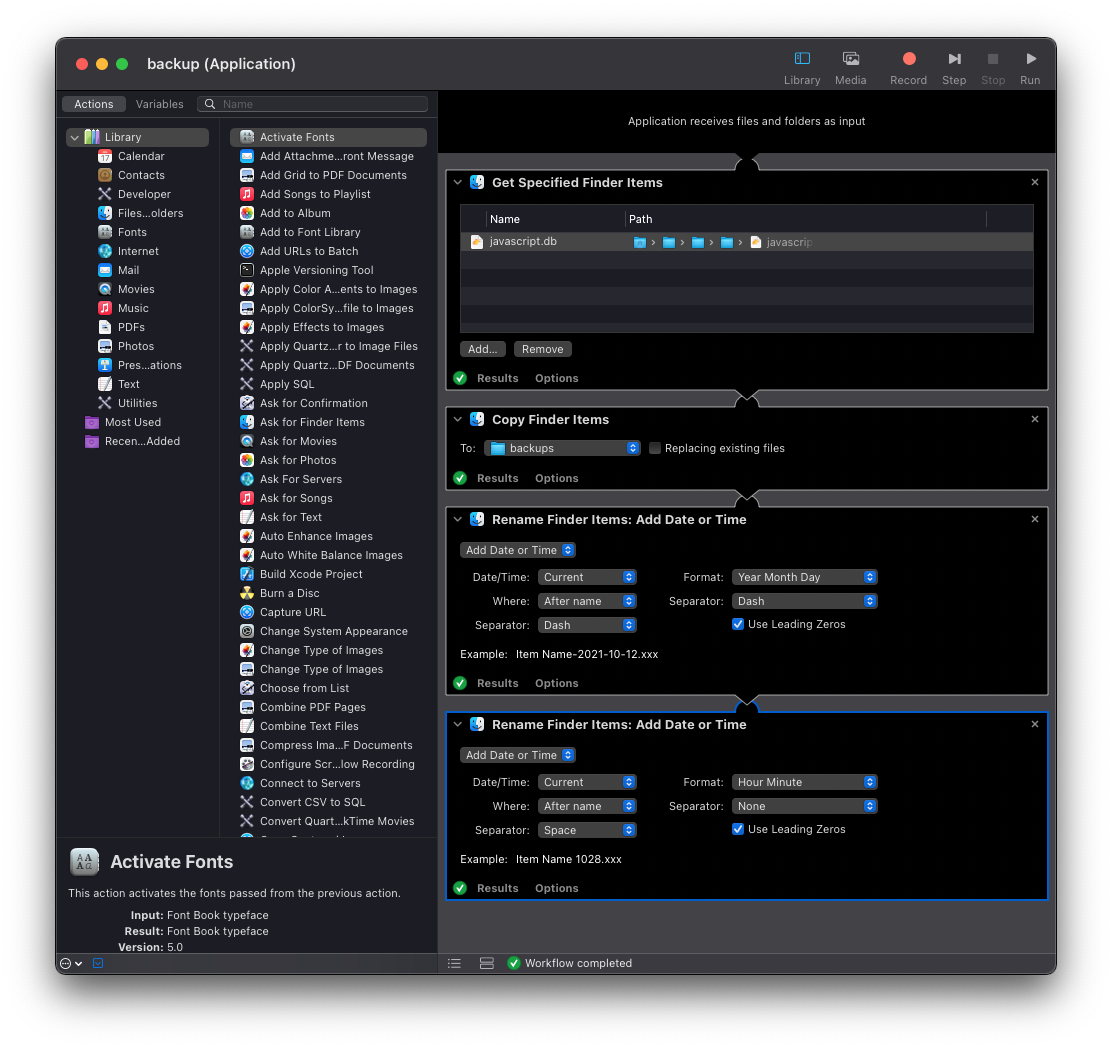
and I saved it as a backup.app.
Then I opened the calendar and in alert I set it to open this file.
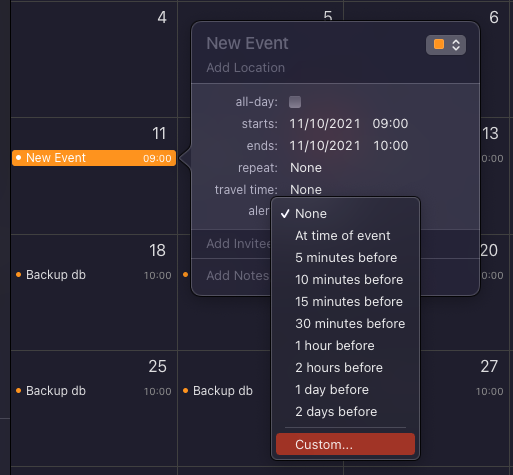
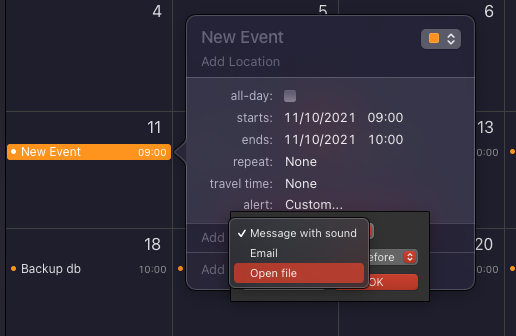
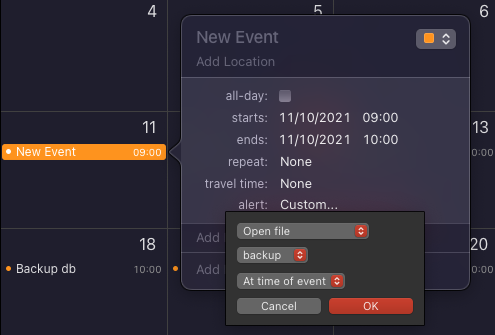
and I set it to repeat every day.
I added it to an Automations calendar so I know where all my automations are, and I also know where to disable them.
Then I set that whole calendar to be hidden to avoid cluttering my normal calendar view:
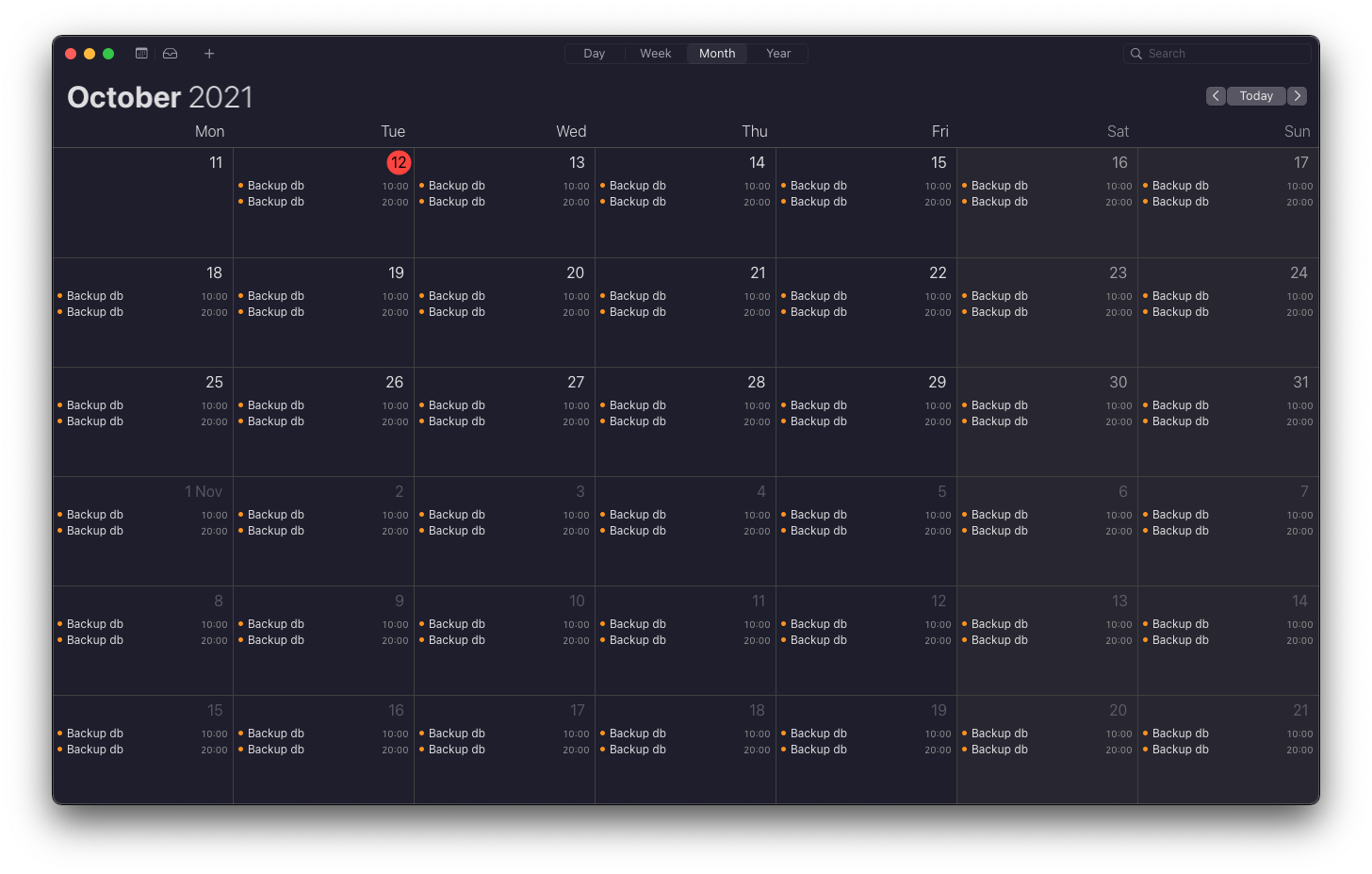
The only problem with this is that now the Mac will alert me with those events.
Setting “Ignore alerts” on the specific calendar didn’t work as the file that makes the backup was not called (which makes sense, since it’s set up as an alert).
I don’t know, it’s a way to do things, but not something you want for the long term. I just described how I did it.
Now with Shortcuts on macOS Monterey this might be even easier—not sure, I haven’t tried it yet.