macOS: How to find the bundle ID of a Mac app

Join the AI Workshop to learn more about AI and how it can be applied to web development. Next cohort February 1st, 2026

The AI-first Web Development BOOTCAMP cohort starts February 24th, 2026. 10 weeks of intensive training and hands-on projects.


I was running a script and I had the need to find the bundle ID of one app I had installed.

The bundle ID is the string that looks like a domain, but written in the opposite way.

Like com.apple.finder or com.microsoft.VSCode.

Here’s the script you can use:

osascript -e 'id of app "Finder"'
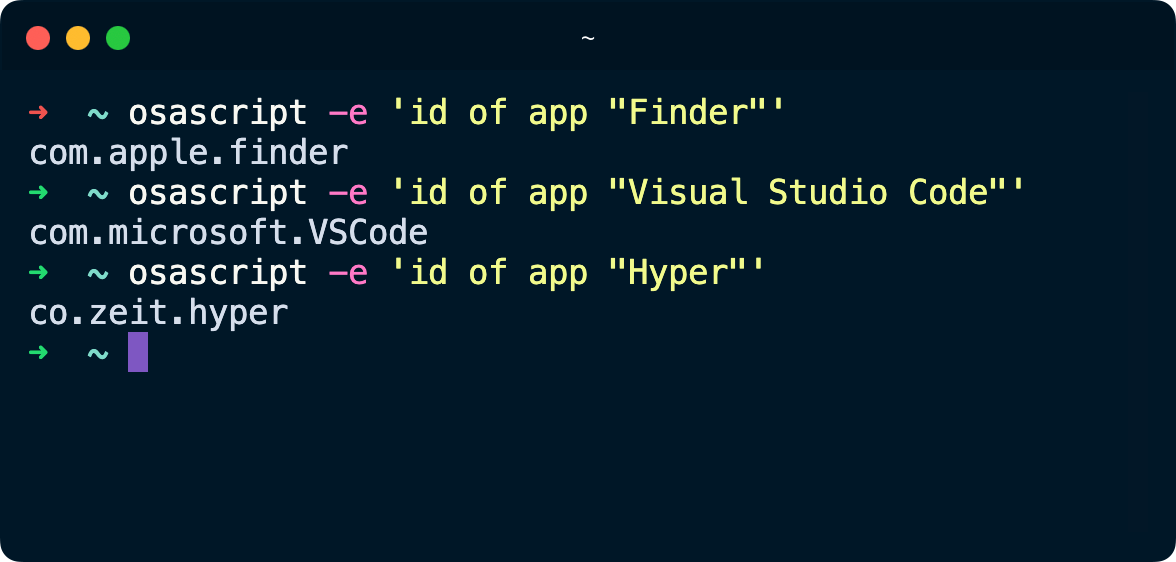
osascript is a tool that runs AppleScript. That AppleScript code, id of app "Finder", asks the Mac for the bundle ID of the app with the name we passed to it.

Lessons in this unit:

0: Introduction
1: How to use the macOS terminal
2: Productivity gains of using a Mac and an iOS device
3: A way to set up automations in macOS easily
4: How to hide a file or folder in macOS Finder
5: How to install a local SSL certificate in macOS
6: Reverting a file to a previous version, on a Mac
7: Take screenshots as JPG on macOS
8: Convert an image or resize it using macOS Shortcuts
9: Concatenating videos on macOS
10: Fix files creation date in macOS
11: Freeing space on a Mac
12: How to add an “Open in Terminal” icon in macOS Finder
13: How to add an “Open in VS Code” icon in macOS Finder
14: ▶︎ How to find the bundle ID of a Mac app
15: How to Fix the "Your CLT does not support macOS 11" error in macOS
16: How to play a sound from the macOS command line
17: How to remove the shadow from window screenshots in macOS
18: Removing all Homebrew stuff
19: Run a Node.js script from your macOS menu bar