Join the AI Workshop and learn to build real-world apps with AI. A hands-on, practical program to level up your skills.
Let’s say I’m in the Finder, I open a folder and I want to open it in the Terminal.
I decided to make it easy by adding an “Open in Terminal” icon in the Finder:
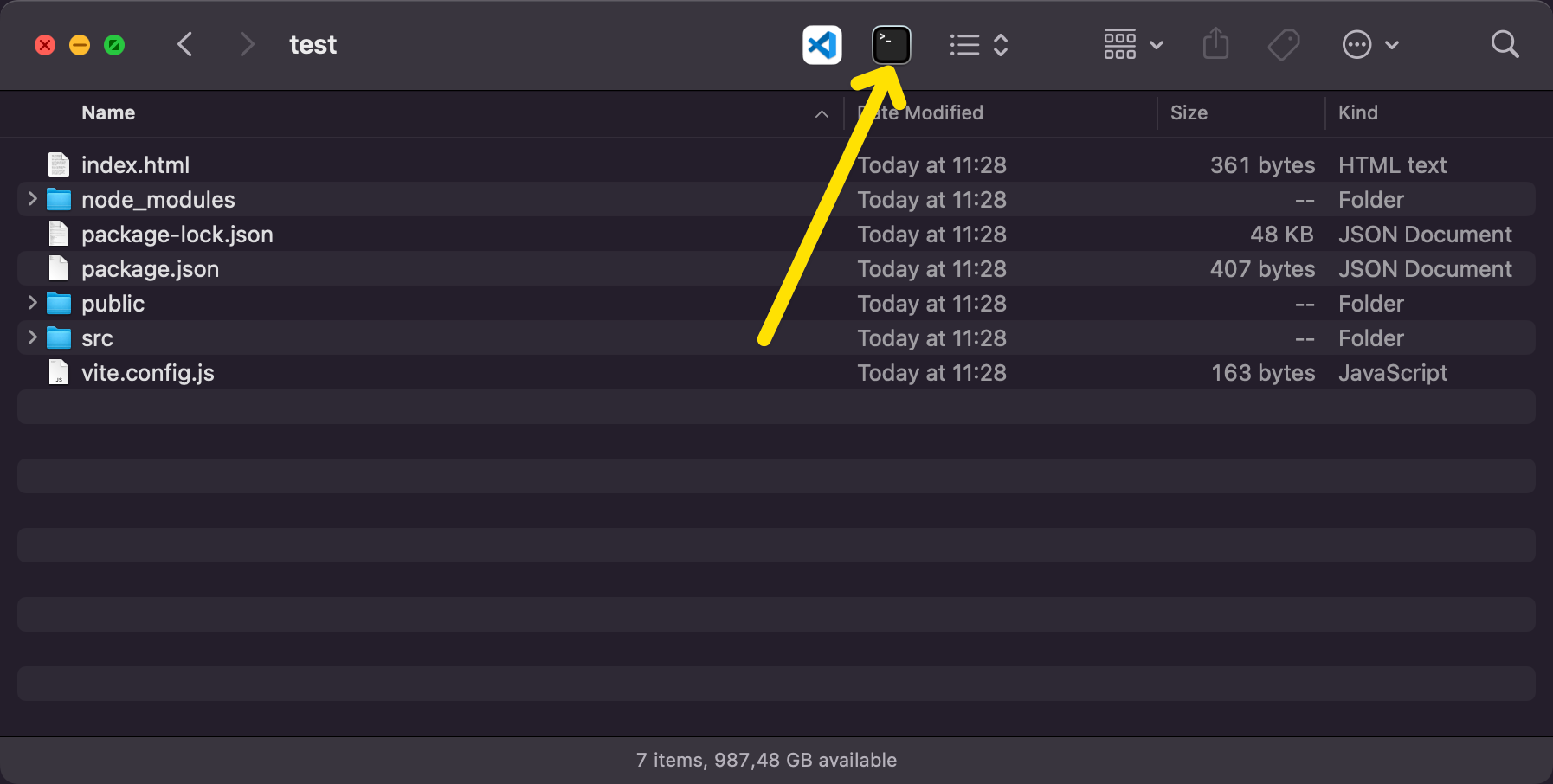
Here’s how you can do that too.
Open Automator. Pick “Application”
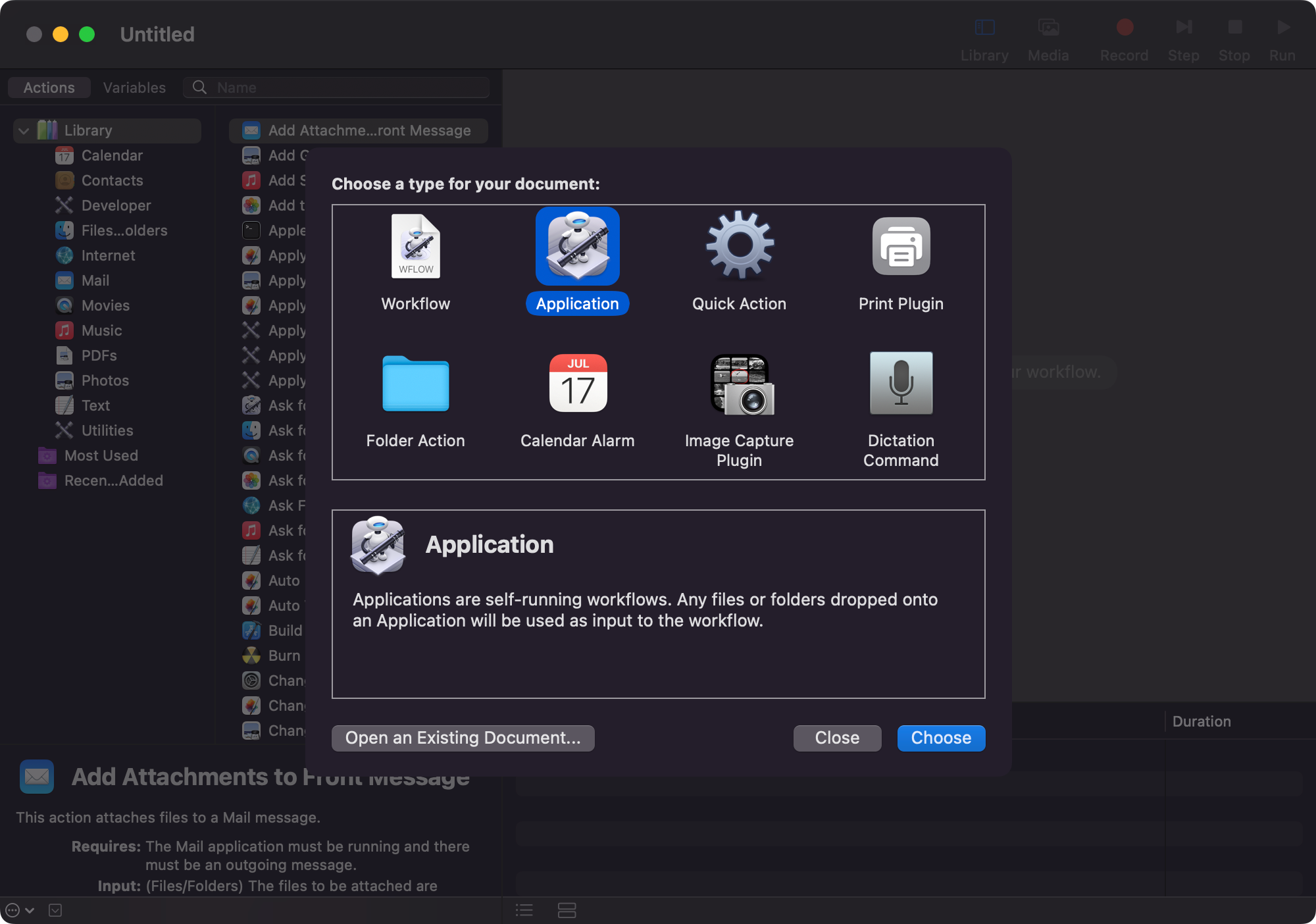
Search for “Run AppleScript” in the list of actions, and paste these lines:
on run {input, parameters}

	tell application "Finder"
		set myPath to (POSIX path of (target of front window as alias))
	end tell

	tell application "Terminal"
		do script "cd " & myPath
		activate
	end tell

	return input
end run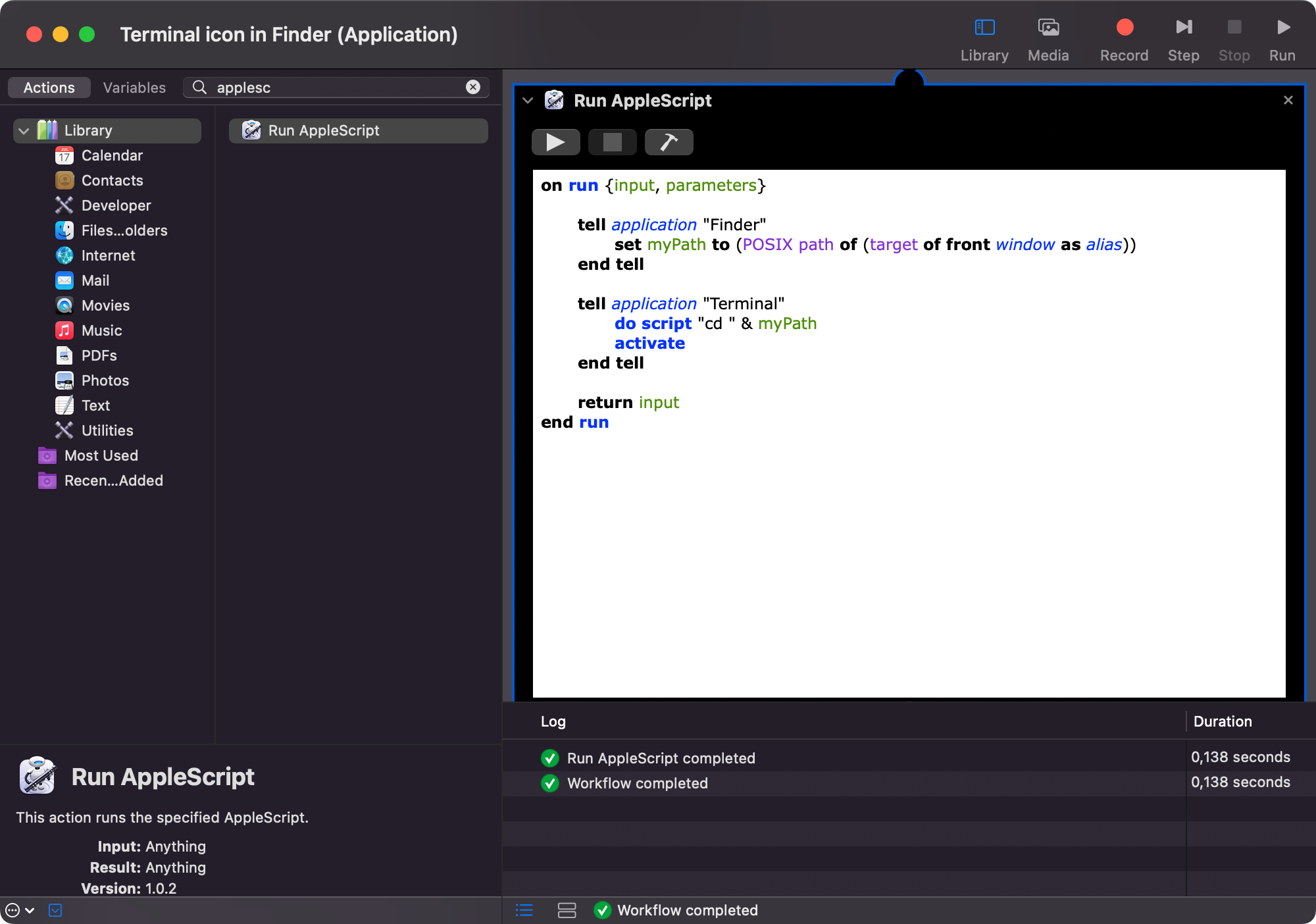
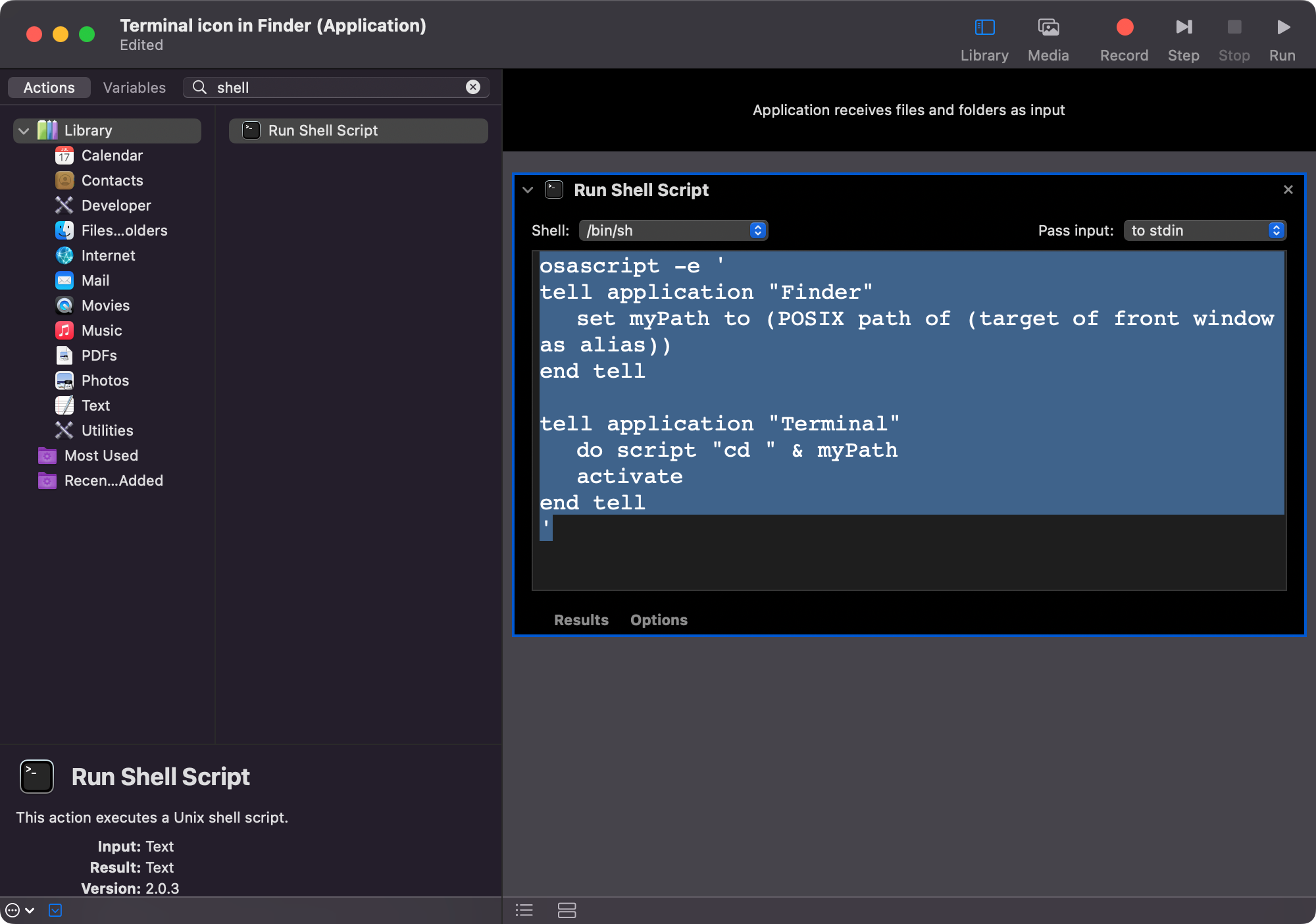
If you prefer you can use “Run Shell Script” instead, and write this bash script:
osascript -e '
tell application "Finder"
	set myPath to (POSIX path of (target of front window as alias))
end tell

tell application "Terminal"
	do script "cd " & myPath
	activate
end tell
'
The first runs osascript (which runs AppleScript) with the following AppleScript:
tell application "Finder"
	set myPath to (POSIX path of (target of front window as alias))
end tell
which basically gets the absolute path of the currently open folder and stores it to the myPath variable.
Then we open the Terminal app and we run the cd command to go into that folder.
Save this application in the Applications folder and then click Get Info to change its icon.
You can open Get Info on the Terminal app in the Utilities folder, and drag its icon to the top-left small icon to assign that icon to our new little app.
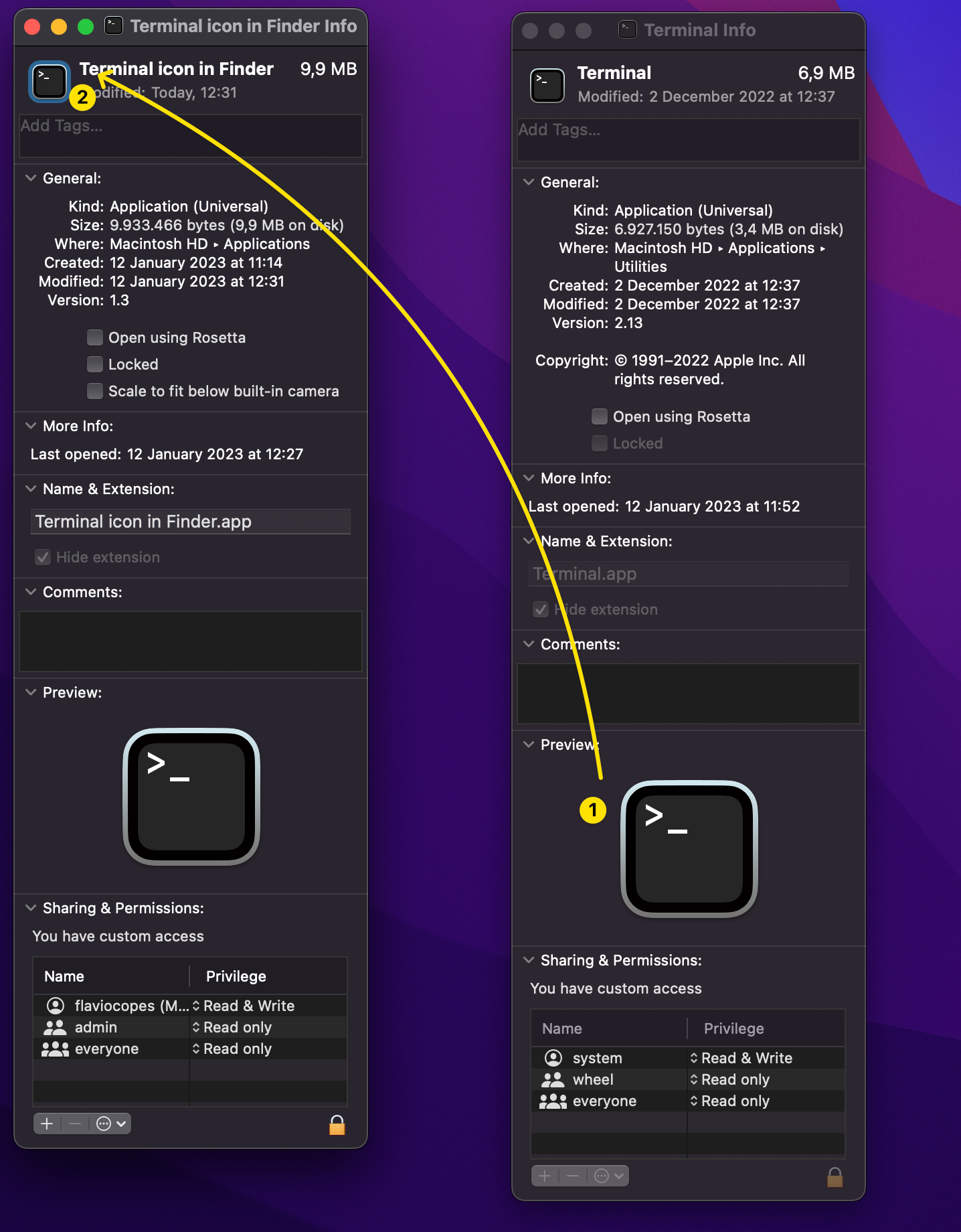
Finally, keep the ⌘ command key pressed and drag the app in the Finder toolbar.
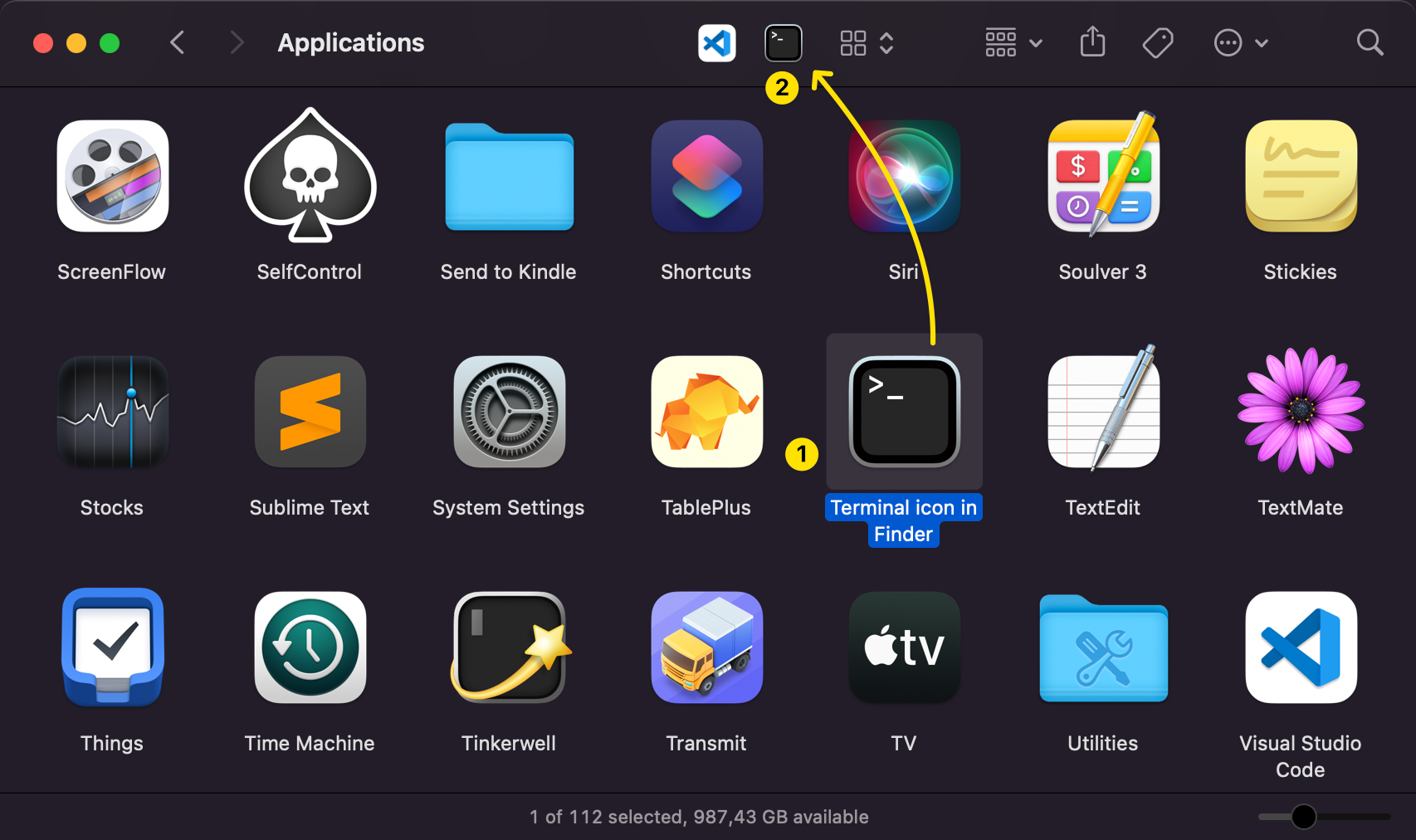
That’s it!