Join the AI Workshop and learn to build real-world apps with AI. A hands-on, practical program to level up your skills.
A quick guide to the top command, which lists processes in real time.
The top command is used to display dynamic real-time information about running processes in the system.
It’s really handy to understand what is going on.
Its usage is simple: just type top, and the terminal will show this view:
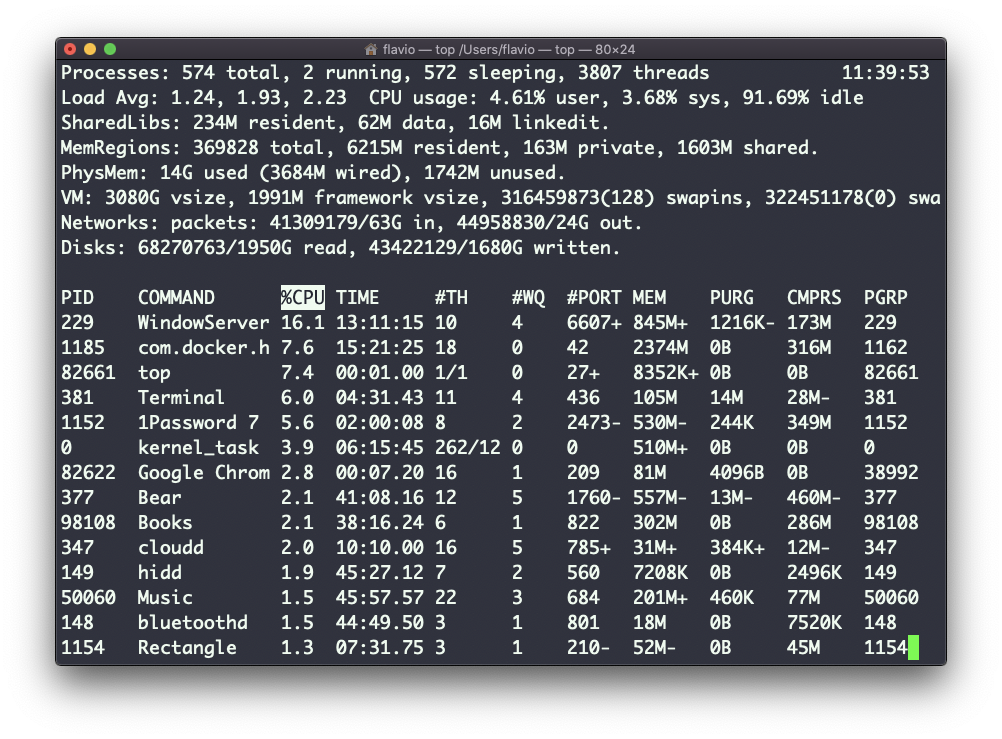
top keeps running until you quit. To quit, you can type the q letter or ctrl-C.
There’s a lot of information being given to us: the number of processes, how many are running or sleeping, the system load, the CPU usage, and a lot more.
Below, the list of processes taking the most memory and CPU is constantly updated.
By default, as you can see from the %CPU column highlighted, they are sorted by the CPU used.
You can add a flag to sort processes by memory used:
top -o memThis command works on Linux, macOS, WSL, and anywhere you have a UNIX environment