Join the AI Workshop and learn to build real-world apps with AI. A hands-on, practical program to level up your skills.
Your computer is running, at all times, tons of different processes.
You can inspect them all using the ps command:
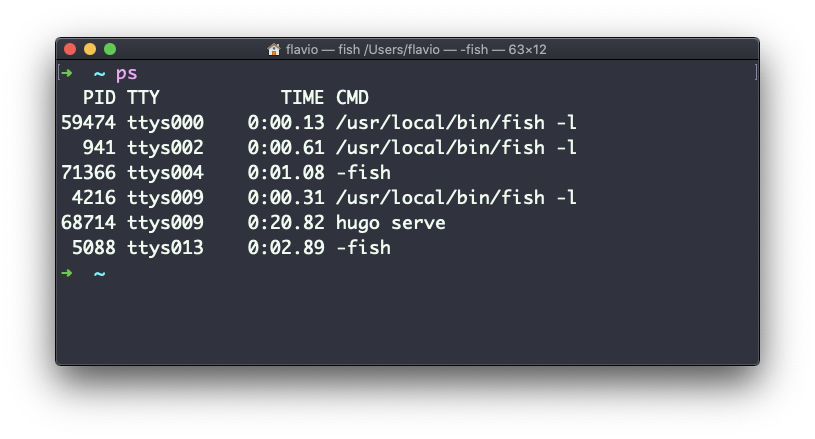
This is the list of user-initiated processes currently running in the current session.
Here I have a few fish shell instances, mostly opened by VS Code inside the editor, and an instance of Hugo running the development preview of a site.
Those are just the commands assigned to the current user. To list all processes we need to pass some options to ps.
The most common I use is ps ax:
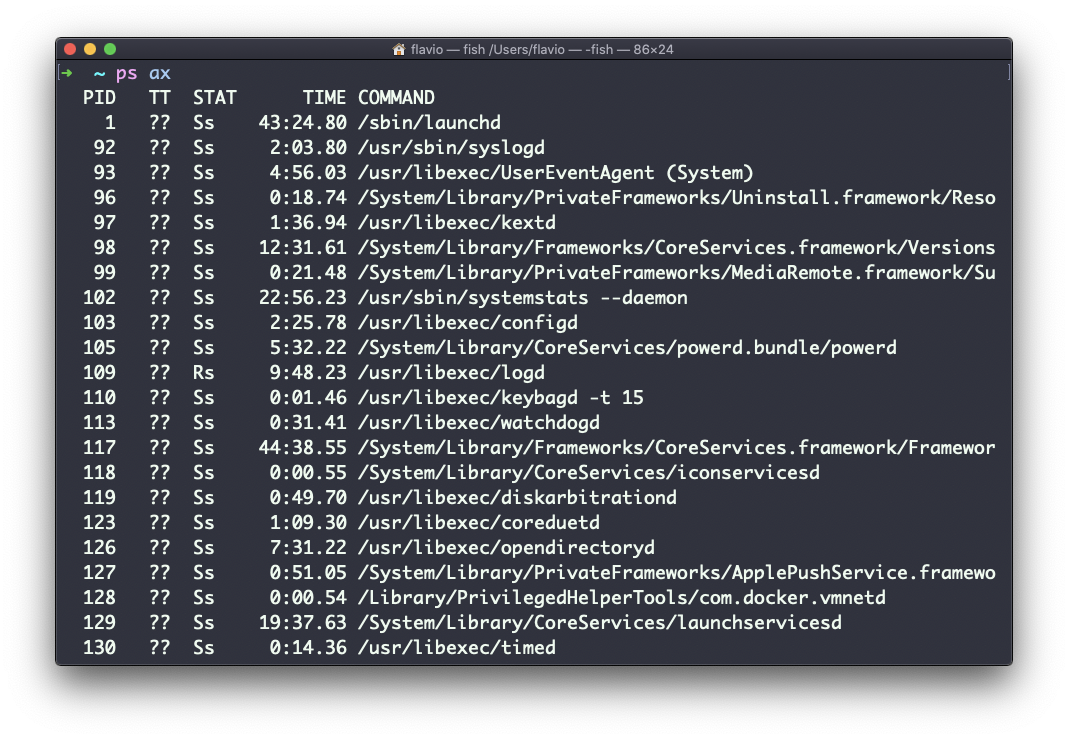
The
aoption lists processes of all users, not just our own. Thexoption shows processes not attached to any terminal (e.g. daemons).
As you can see, the longer commands are cut. Use the command ps axww to continue the command listing on a new line instead of cutting it:
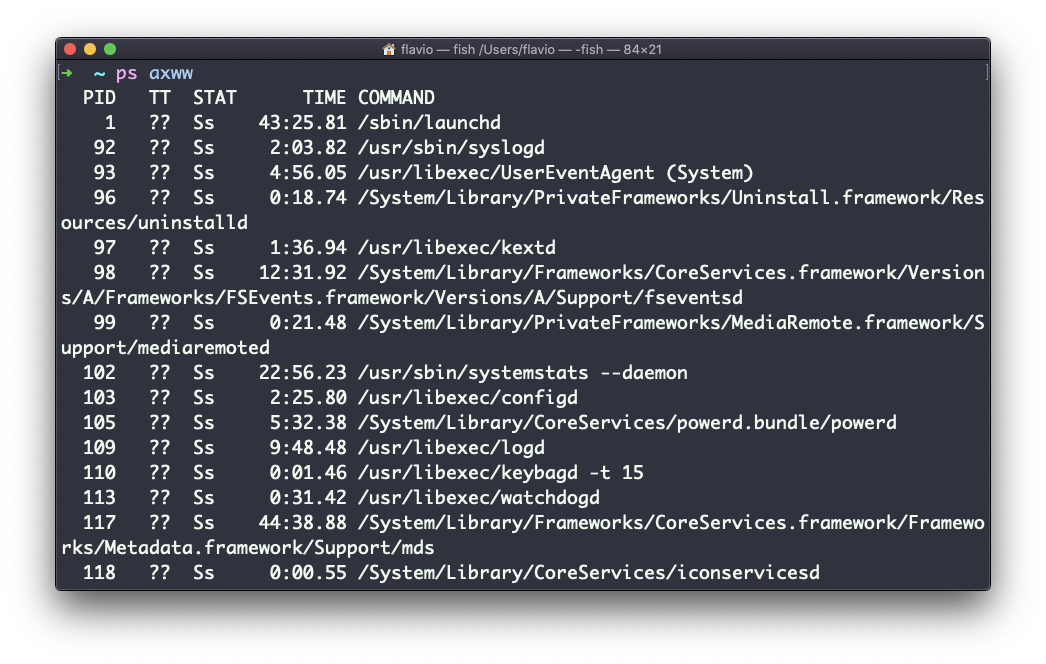
You need to specify
wtwice to get full-width output, it’s not a typo.
You can search for a specific process combining grep with a pipe, like this:
ps axww | grep "VS Code"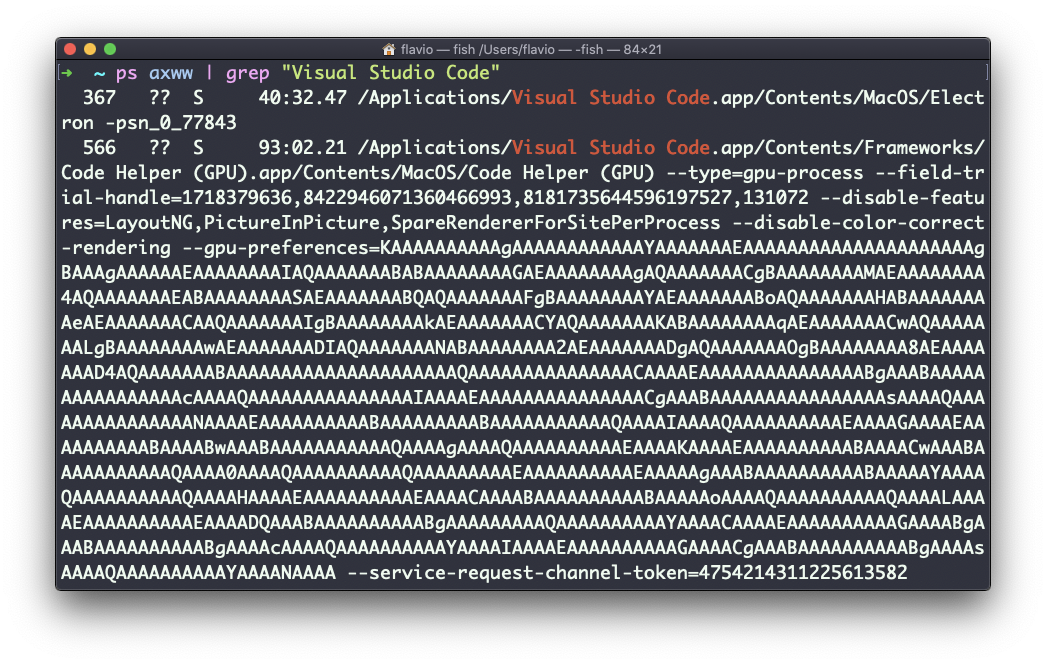
The columns returned by ps represent some key information.
The first column is PID, the process ID. This is key when you want to reference this process in another command, for example to kill it.
Then we have TT that tells us the terminal id used.
Then STAT tells us the state of the process:
I a process that is idle (sleeping for longer than about 20 seconds)
R a runnable process
S a process that is sleeping for less than about 20 seconds
T a stopped process
U a process in uninterruptible wait
Z a dead process (a zombie)
If you have more than one letter, the second represents further information, which can be very technical.
It’s common to have + which indicates the process is in the foreground in its terminal. s means the process is a session leader.
TIME tells us how long the process has been running.
This command works on Linux, macOS, WSL, and anywhere you have a UNIX environment