Join the AI Workshop and learn to build real-world apps with AI. A hands-on, practical program to level up your skills.
While you’re logged in to the terminal shell with one user, you might have the need to switch to another user.
For example you’re logged in as root to perform some maintenance, but then you want to switch to a user account.
You can do so with the su command:
su <username>For example: su flavio.
If you’re logged in as a user, running su without anything else will prompt to enter the root user password, as that’s the default behavior.
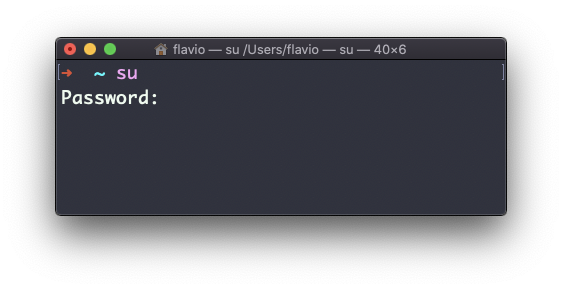
su will start a new shell as another user.
When you’re done, typing exit in the shell will close that shell, and will return to your previous user’s shell.
The
sucommand works on Linux. On macOS it will not work unless you enable the root user (tip: you can usesudoinstead)