Join the AI Workshop and learn to build real-world apps with AI. A hands-on, practical program to level up your skills.
The ping command pings a specific network host, on the local network or on the Internet.
You use it with the syntax ping <host> where <host> could be a domain name, or an IP address.
Here’s an example pinging google.com:
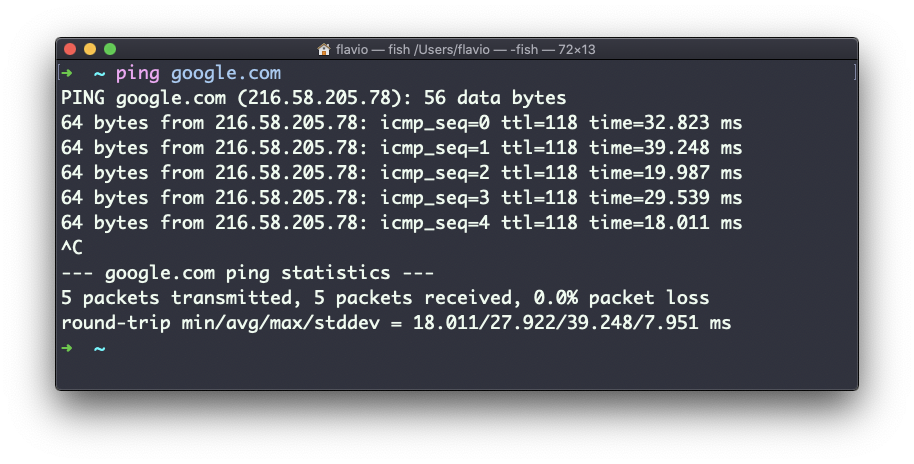
The command sends a request to the server, and the server returns a response.
ping keeps sending the request every second, by default, and will keep running until you stop it with ctrl-C, unless you pass the number of times you want to try with the -c option: ping -c 2 google.com.
Once ping is stopped, it will print some statistics about the results: the percentage of packets lost, and statistics about the network performance.
As you can see the screen prints the host IP address, and the time that it took to get the response back.
Not all servers respond to ping; sometimes the request times out:
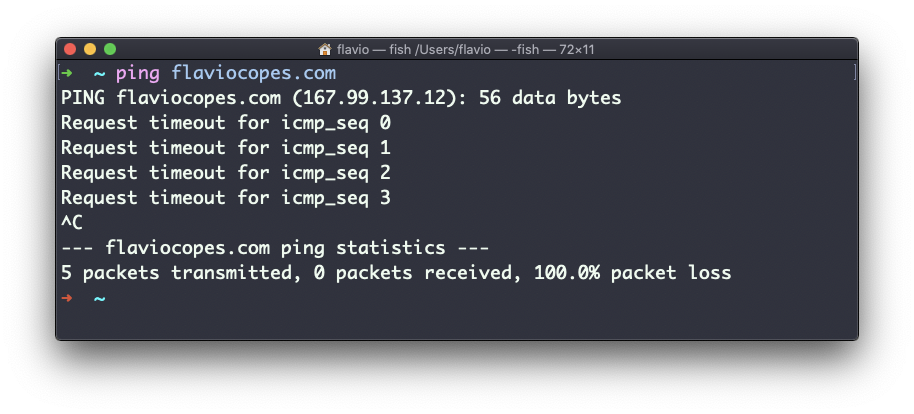
Sometimes this is done on purpose, to “hide” the server, or just to reduce the load. The ping packets can also be filtered by firewalls.
ping works using the ICMP protocol (Internet Control Message Protocol), a network layer protocol just like TCP or UDP.
The request sends a packet to the server with the ECHO_REQUEST message, and the server returns a ECHO_REPLY message. I won’t go into details, but this is the basic concept.
Pinging a host is useful to know if the host is reachable (supposing it implements ping), and how distant it is in terms of how long it takes to get back to you. Usually the nearer the server is geographically, the less time the response takes to reach you, for simple physical laws that cause a longer distance to introduce more delay in the cables.
The ping command works on Linux, macOS, WSL, and anywhere you have a UNIX environment