Join the AI Workshop and learn to build real-world apps with AI. A hands-on, practical program to level up your skills.
Every time we run a command, that’s memorized in the history.
You can display all the history using:
historyThis shows the history with numbers:
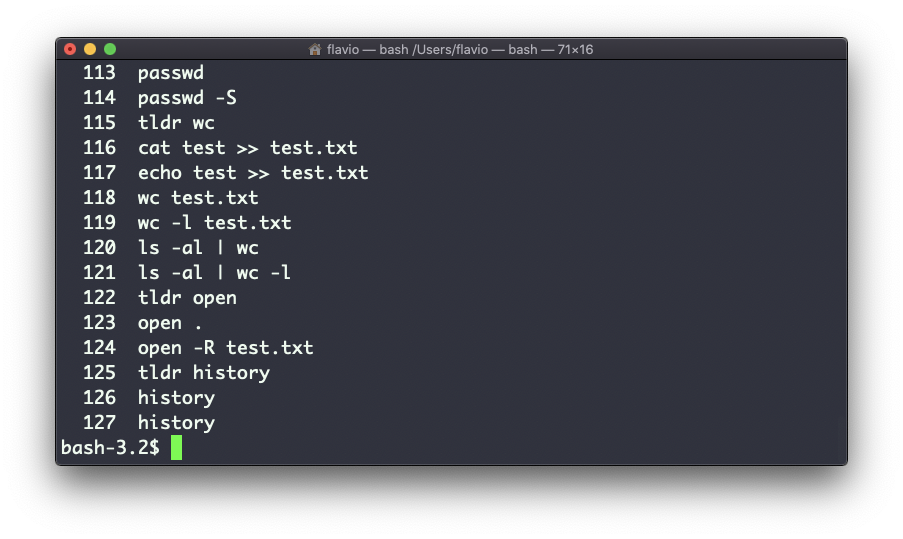
You can use the syntax !<command number> to repeat a command stored in the history, in the above example typing !121 will repeat the ls -al | wc -l command.
Typically the last 500 commands are stored in the history.
You can combine this with grep to find a command you ran:
history | grep docker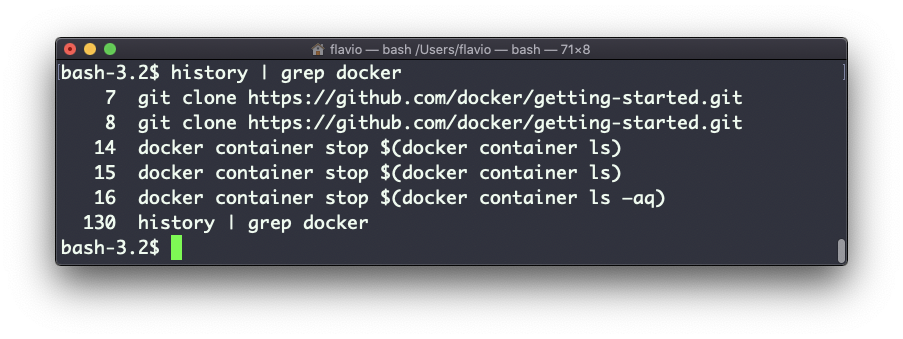
To clear the history, run history -c
The
historycommand works on Linux, macOS, WSL, and anywhere you have a UNIX environment