Join the AI Workshop and learn to build real-world apps with AI. A hands-on, practical program to level up your skills.
It’s common to always run a program with a set of options you like using.
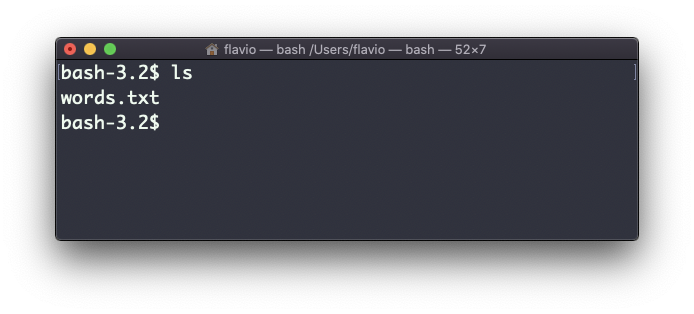
For example, take the ls command. By default it prints very little information:
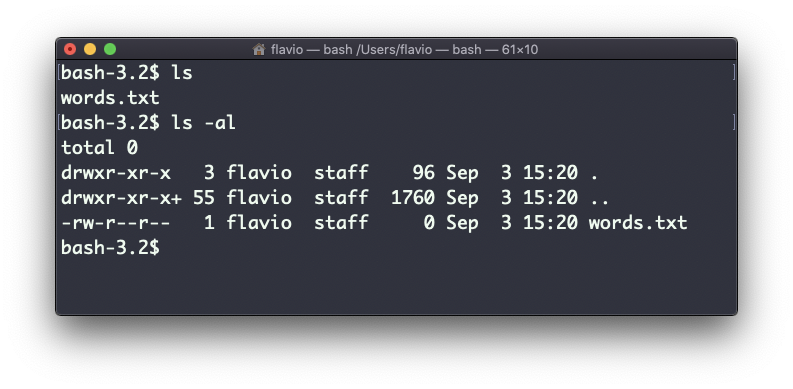
while using the -al option it will print something more useful, including the file modification date, the size, the owner, and the permissions, also listing hidden files (files starting with a .):
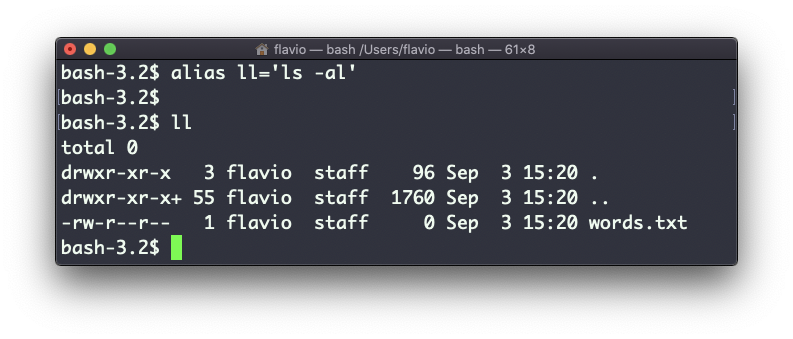
You can create a new command, for example I like to call it ll, that is an alias to ls -al.
You do it in this way:
alias ll='ls -al'Once you do, you can call ll just as if it were a regular UNIX command:
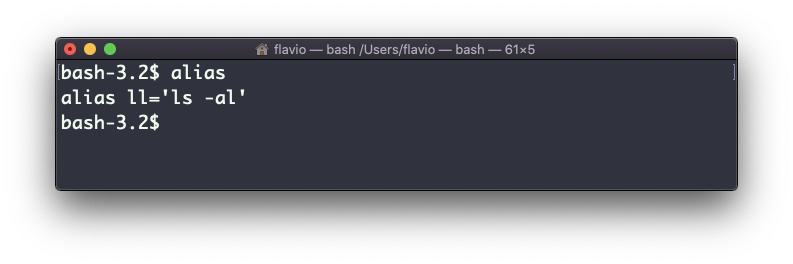
Now calling alias without any option will list the aliases defined:
The alias will work until the terminal session is closed.
To make it permanent, you need to add it to the shell configuration, which could be ~/.bashrc or ~/.profile or ~/.bash_profile if you use the Bash shell, depending on the use case.
Be careful with quotes if you have variables in the command: with double quotes the variable is resolved when the alias is defined; with single quotes it’s resolved when the alias is run. Those 2 are different:
alias lsthis="ls $PWD"
alias lscurrent='ls $PWD'
$PWD refers to the current directory the shell is in. If you now navigate away to a new folder, lscurrent lists the files in the new folder, lsthis still lists the files in the folder you were when you defined the alias.
The
aliascommand works on Linux, macOS, WSL, and anywhere you have a UNIX environment