Join the AI Workshop and learn to build real-world apps with AI. A hands-on, practical program to level up your skills.
Canvas provides methods to draw text with custom fonts, colors, and styles.
Setting up the canvas
Set the canvas size using CSS or the HTML width/height attributes:
<canvas width="200" height="400"></canvas>Make sure you also set the width/height properties of the canvas object in JavaScript to avoid blurry text rendering:
canvas.width = 1800
canvas.height = 1200
Getting a reference to the canvas
Get a reference to the canvas element:
const canvas = document.querySelector('canvas')Create a context object from it:
const context = canvas.getContext('2d')Drawing text with fillText
Now we can call the fillText() method of the context object:
context.fillText('hi!', 100, 100)The parameters are:
- The text to draw
- The x coordinate of the starting point
- The y coordinate of the starting point
Make sure the x and y coordinates fall within the canvas bounds.
Styling the text
You can pass additional properties before calling fillText() to customize the appearance:
context.font = 'bold 70pt Menlo'
context.fillStyle = '#ccc'
context.fillText('hi!', 100, 100)
The font property
The font property accepts a string with the same format as the CSS font property:
context.font = '148px Courier New'
context.font = 'bold 48px Arial'
context.font = 'italic 24px Georgia'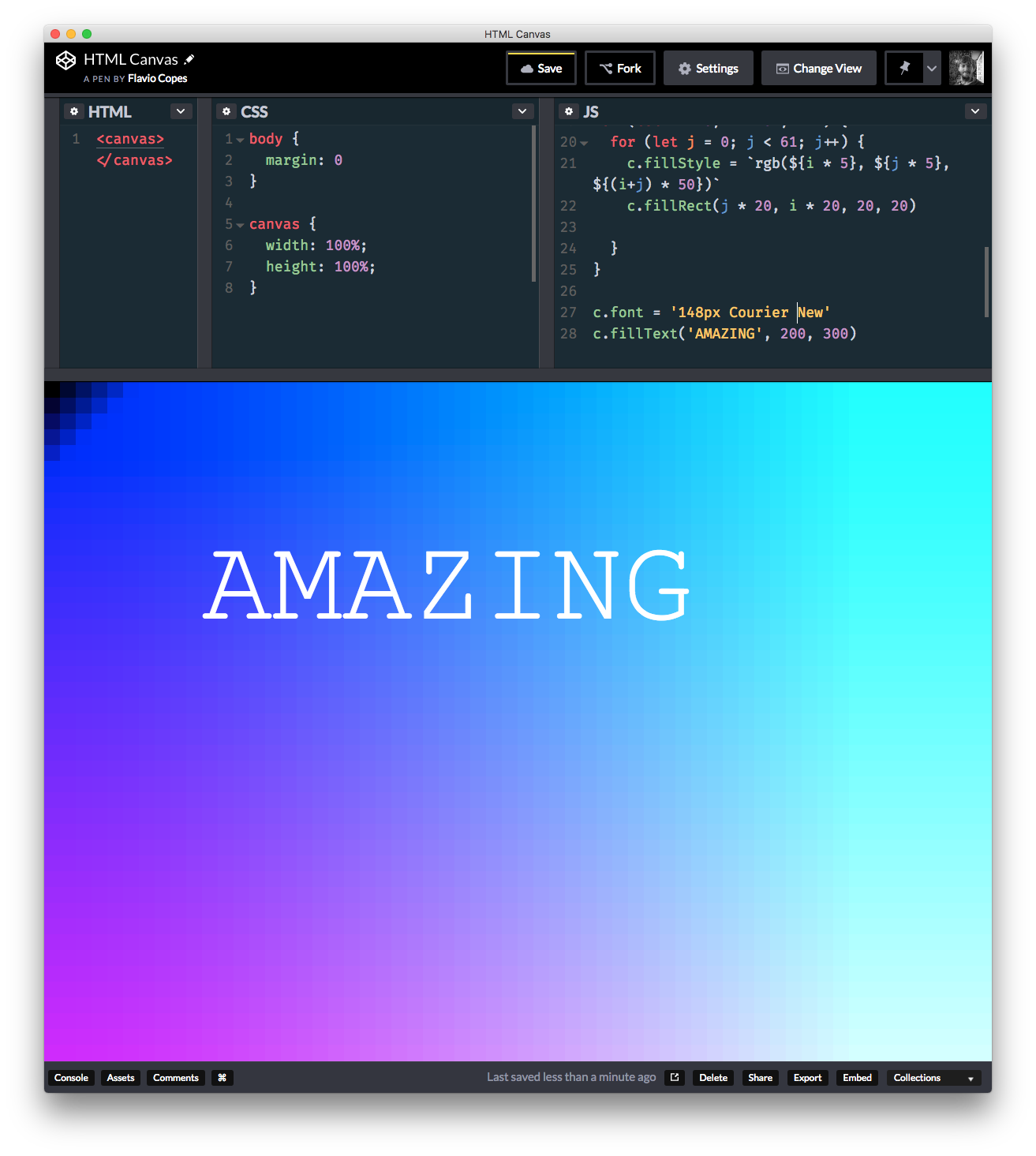
Text color
Use fillStyle to set the text color:
context.fillStyle = 'red'
context.fillStyle = '#ff0000'
context.fillStyle = 'rgb(255, 0, 0)'
Drawing text outlines with strokeText
Use strokeText() to draw just the outline of text:
context.strokeStyle = 'blue'
context.lineWidth = 2
context.strokeText('Hello', 100, 100)
Text alignment and baseline
There are additional properties you can change related to text:
textAlign
Controls horizontal alignment. Values: start (default), end, left, right, center
context.textAlign = 'center'textBaseline
Controls vertical alignment. Values: top, hanging, middle, alphabetic (default), ideographic, bottom
context.textBaseline = 'middle'direction
Controls text direction. Values: ltr, rtl, inherit (default)
context.direction = 'ltr'Measuring text
Use measureText() to get the width of text before drawing it:
context.font = '48px Arial'
const metrics = context.measureText('Hello World')
console.log(metrics.width) // e.g., 280
This is useful for centering text or wrapping text to multiple lines.
Example: Centered text
const canvas = document.querySelector('canvas')
const context = canvas.getContext('2d')

const text = 'Hello Canvas!'
context.font = '48px Arial'
context.fillStyle = 'white'
context.textAlign = 'center'
context.textBaseline = 'middle'

context.fillText(text, canvas.width / 2, canvas.height / 2)
Example: Text with shadow
context.font = '72px Impact'
context.fillStyle = 'white'

context.shadowColor = 'rgba(0, 0, 0, 0.5)'
context.shadowOffsetX = 4
context.shadowOffsetY = 4
context.shadowBlur = 8

context.fillText('Shadow Text', 100, 100)Lessons in this unit:
| 0: | Introduction |
| 1: | Getting started with HTML Canvas |
| 2: | Loading and drawing images on canvas |
| 3: | ▶︎ Writing text on canvas |