Join the AI Workshop and learn to build real-world apps with AI. A hands-on, practical program to level up your skills.
Pushing your commits to GitHub means they are now saved on github.com (which, as you can see, also serves as a handy backup for your code in case anything goes wrong on your machine).
There you go:
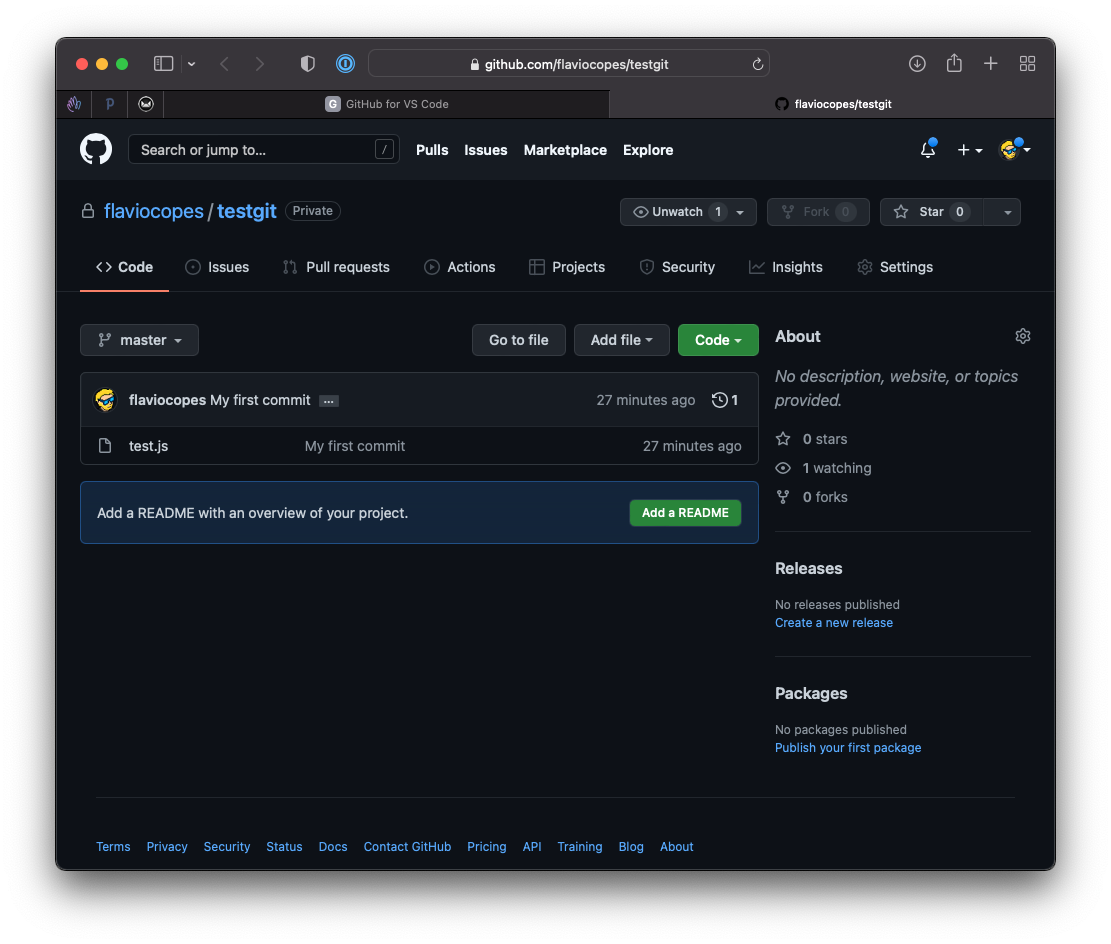
There’s a lot on this page, but the first thing we’ll look at is a little icon with a clock and the number 1:
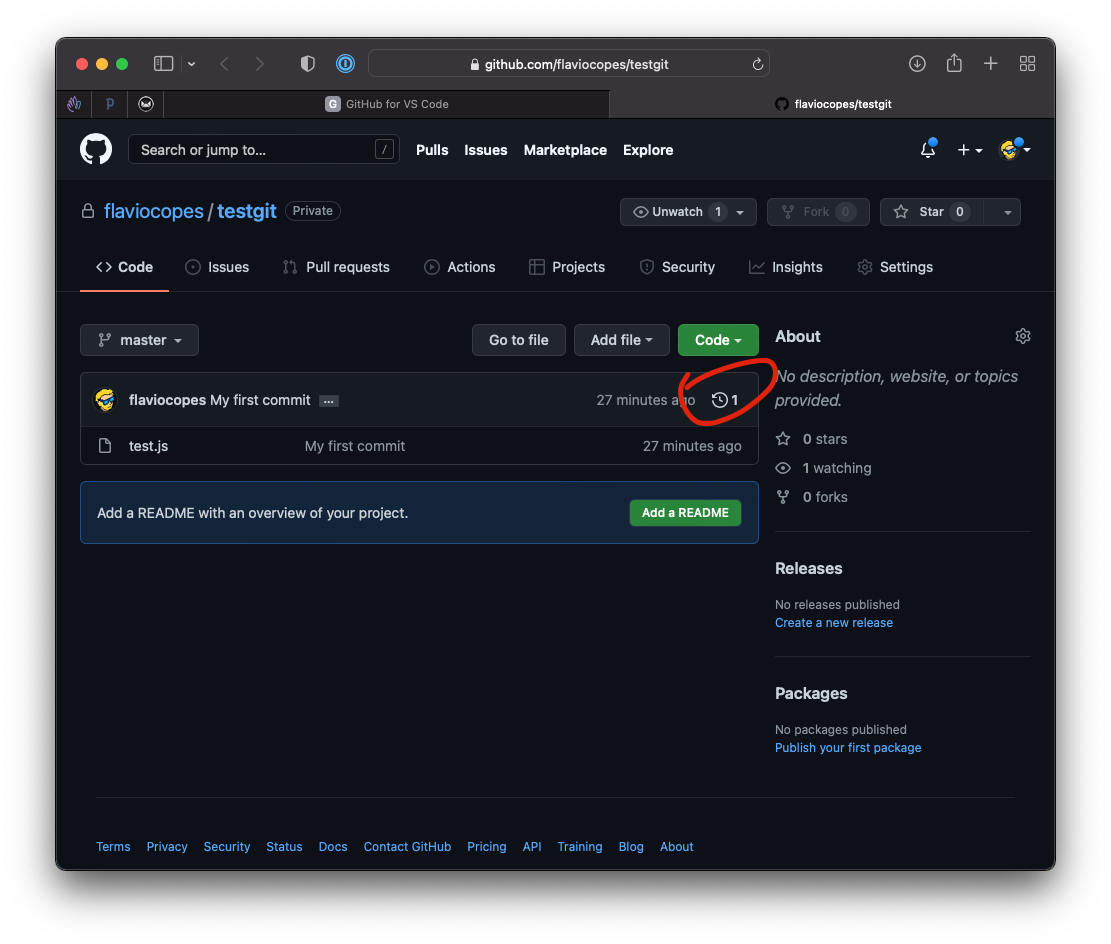
Click that, and you’ll have a view of all the commits made to this repository.
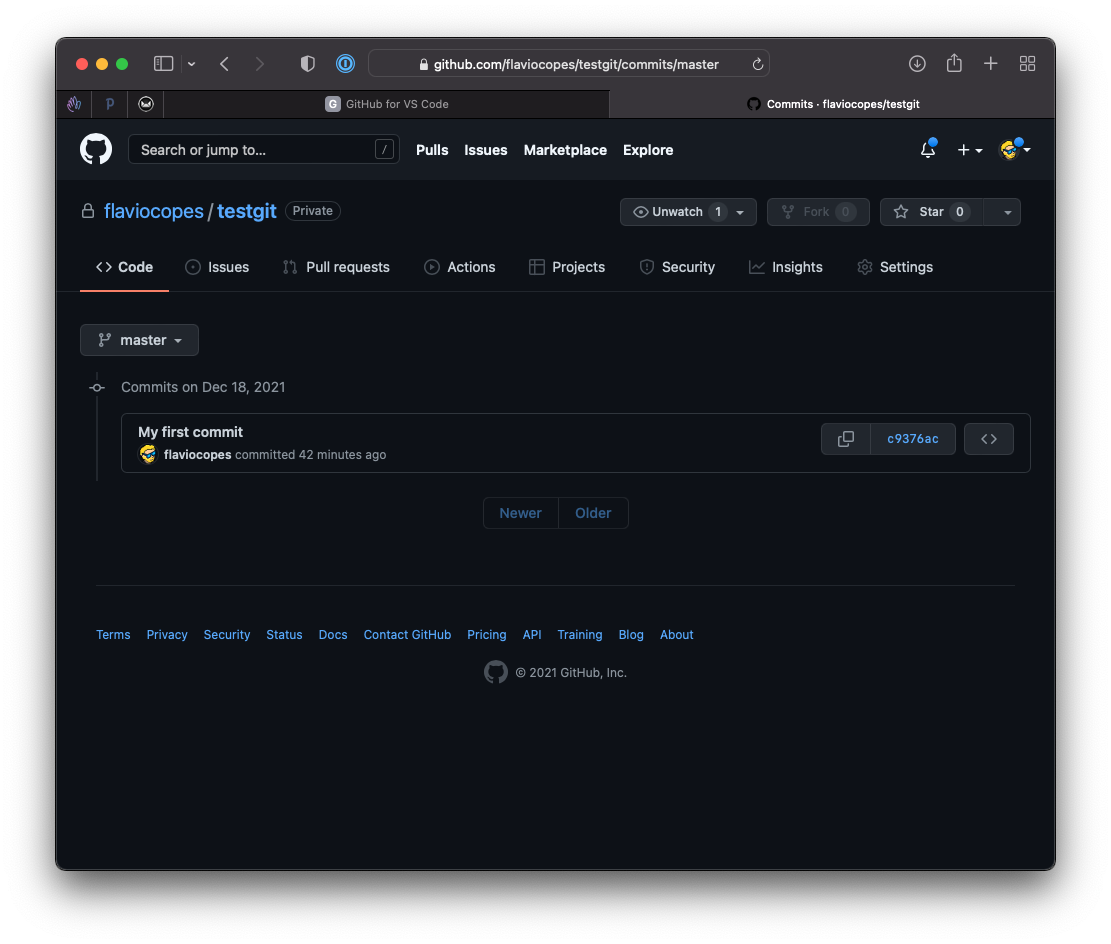
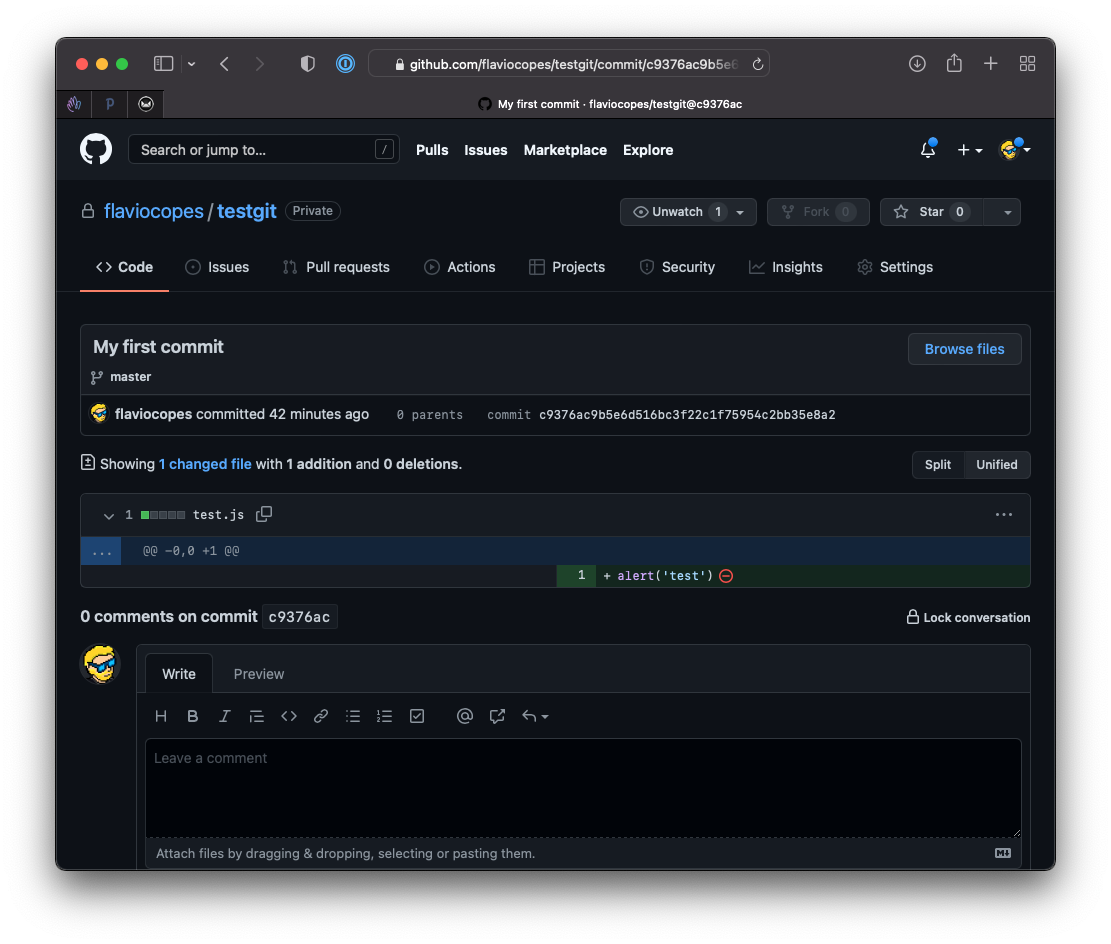
Over time, this view will have a long list of commits, and clicking the commit ID on the right will show the specific changes you made in each commit.