Join the AI Workshop and learn to build real-world apps with AI. A hands-on, practical program to level up your skills.
I was setting up a new editor and I was trying the GitHub push workflow.
I committed my changes, pressed “Push” and I got a dialog window to enter my GitHub username and password.
On GitHub I have 2FA set up, so you can’t just log in using those credentials.
What I had to do was create a personal access token that’s tied to the app, with the permission needed.
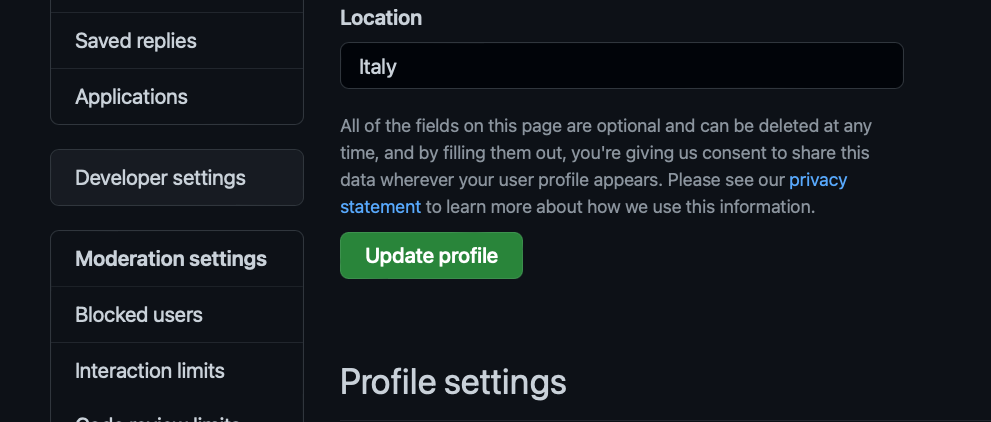
So I went to the GitHub settings, located Developer Settings:
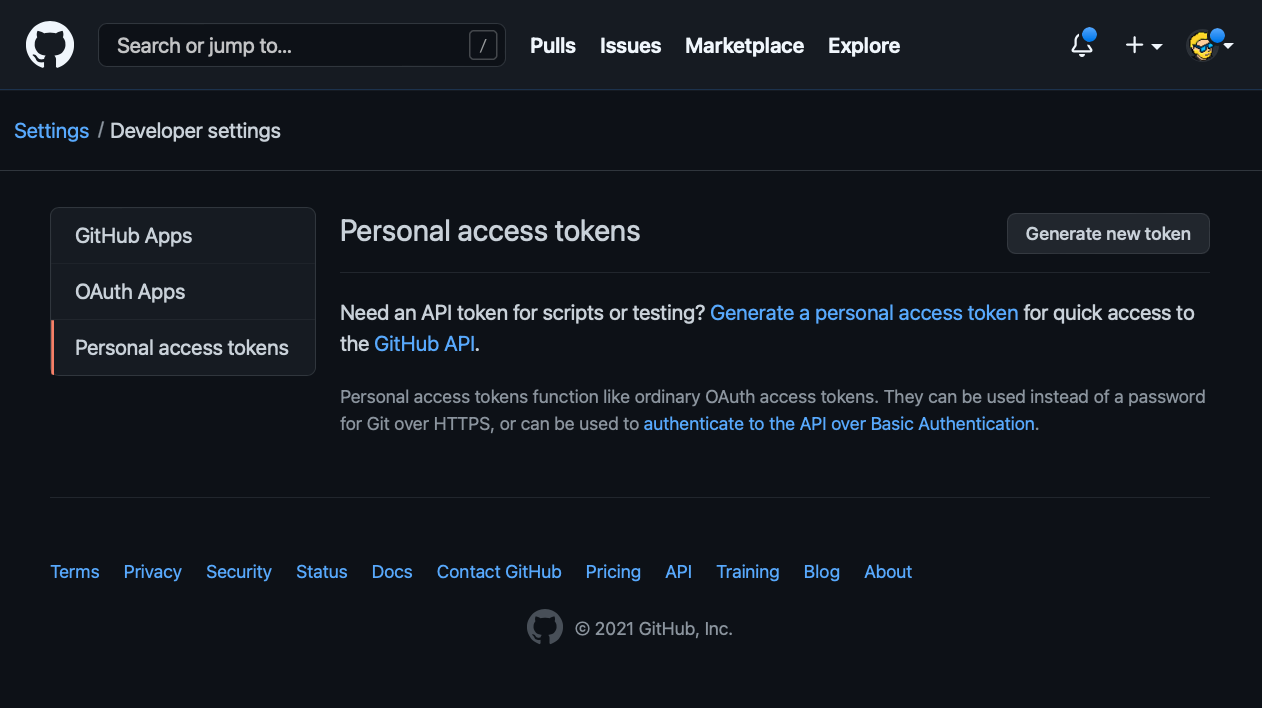
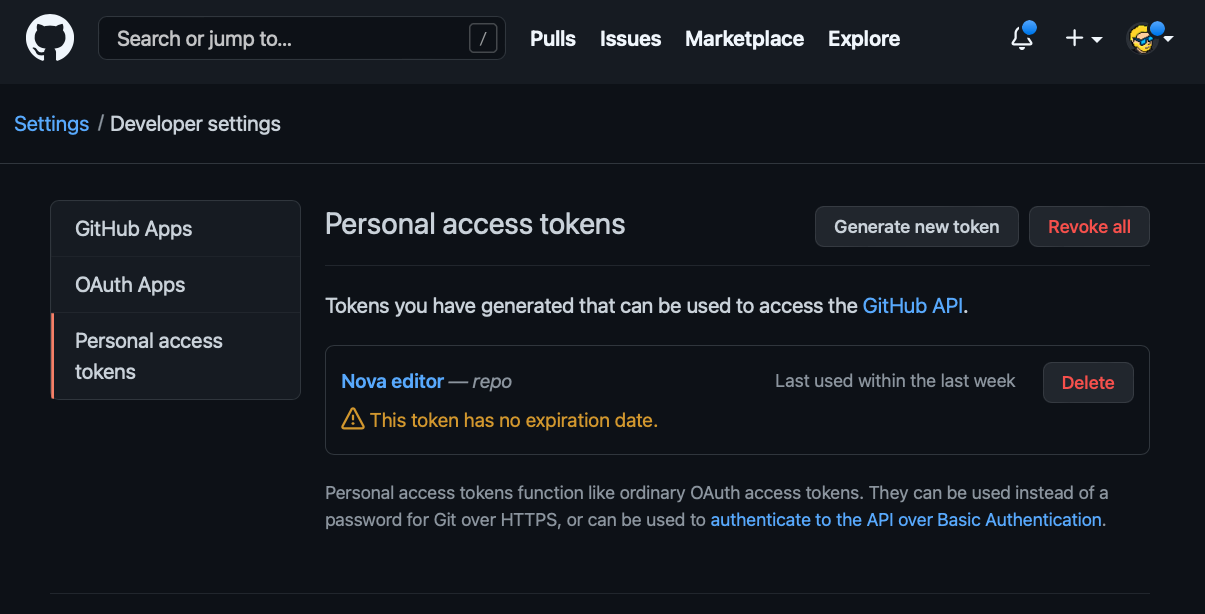
Clicked Personal access tokens:
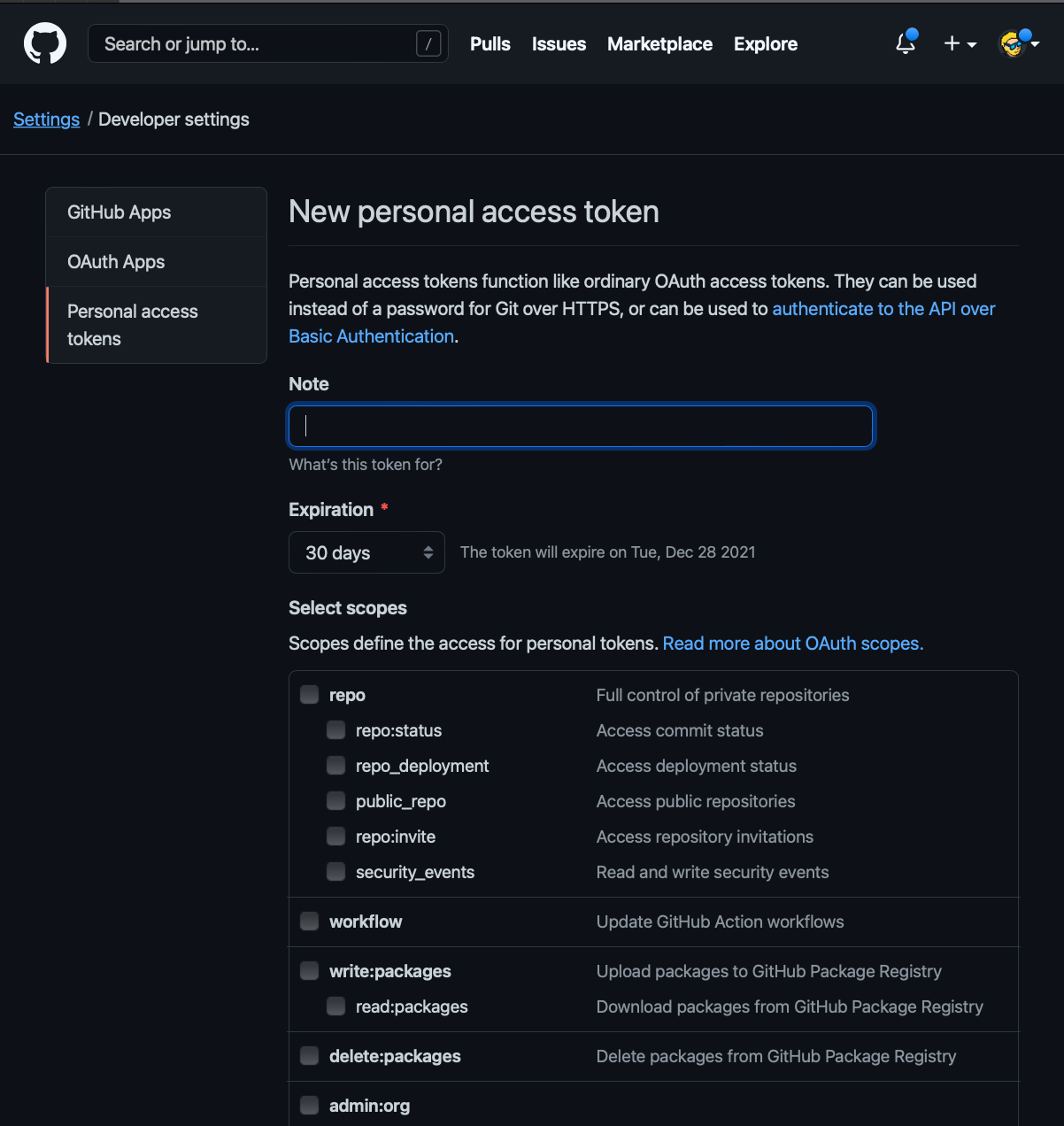
Now add a name so you’ll remember what this token is for, set the expiration to “No expiration” and enable the repo scope. That’s the only one you need:
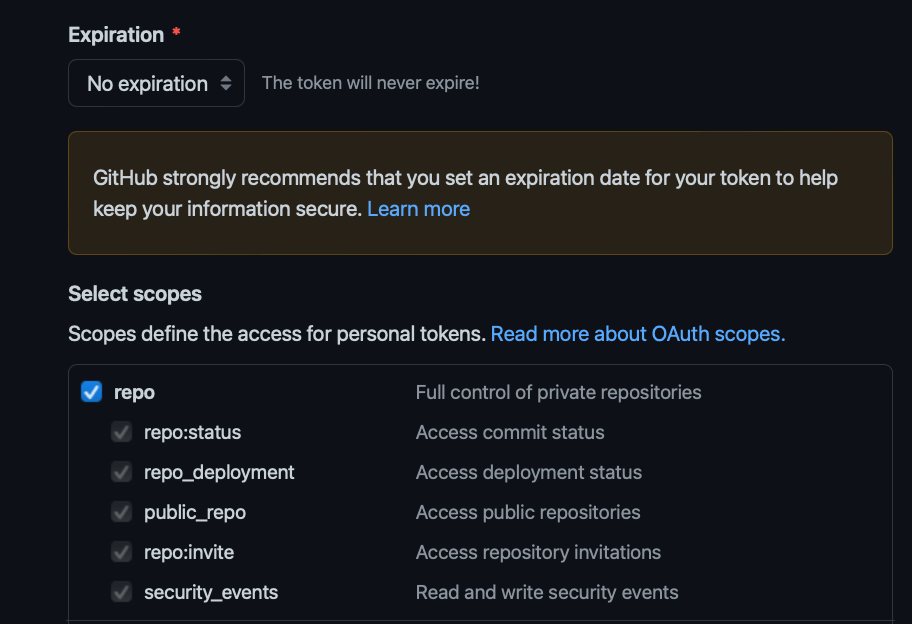
Save and you’ll be able to see the token.
Now enter this token as the password in the username/password dialog window.
You’re set.