Join the AI Workshop and learn to build real-world apps with AI. A hands-on, practical program to level up your skills.
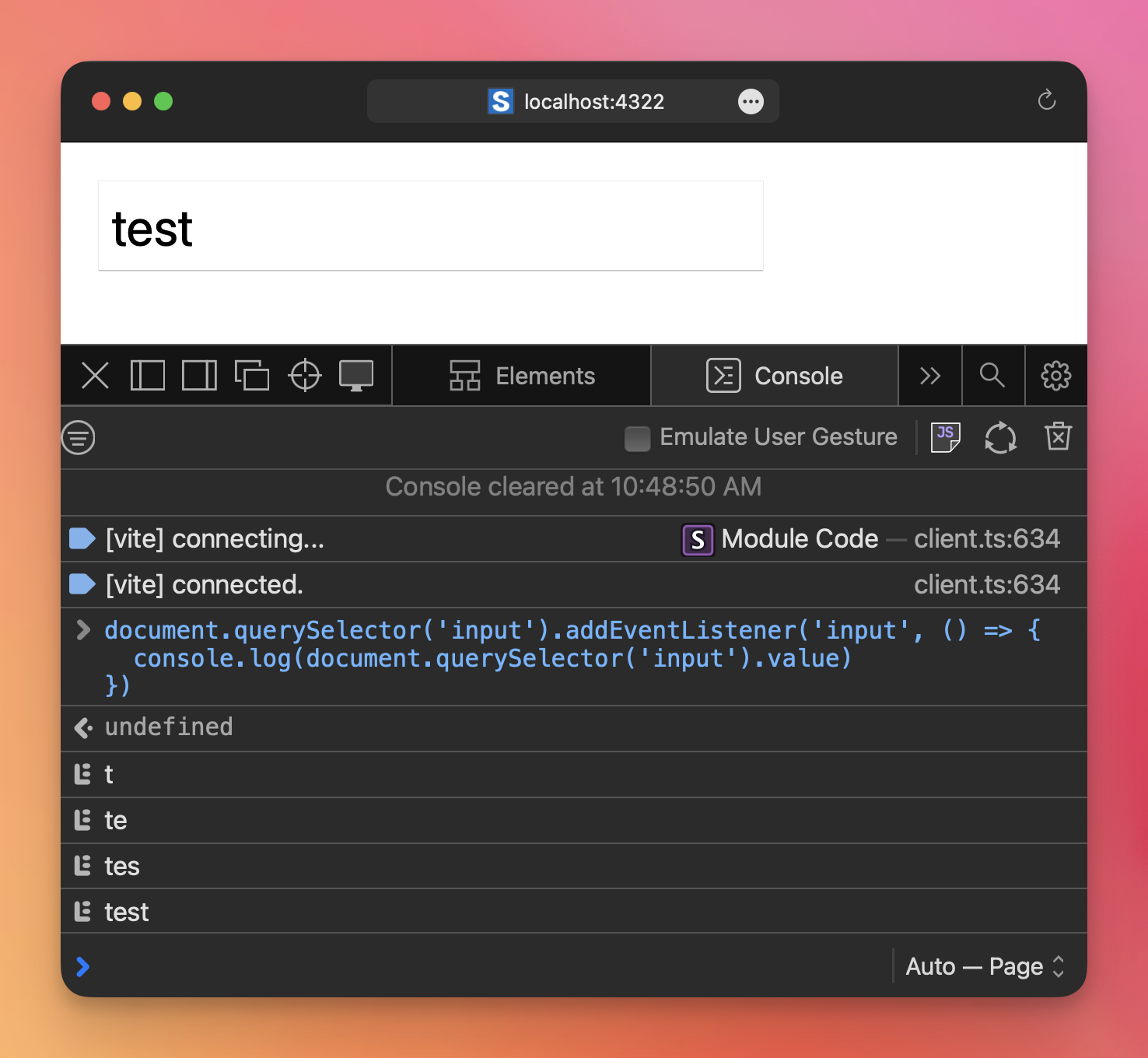
For example we can add an event on the input field to listen for the input event, and print the content of the input field every time it updates:
document
  .querySelector('input')
  .addEventListener('input', () => {
  console.log(document.querySelector('input').value)
})
It’s common to assign an id attribute to an input element to get its value:
<form>
  <input type="text" name="city" id="city" />
</form>
Now you can access the element using #city, which is useful when you have more than one input field on the page.
document
  .querySelector('#city')
  .addEventListener('input', () => {
  console.log(document.querySelector('#city').value)
})
The addEventListener callback accepts an event object and you can reference the element using event.target instead of using document.querySelector() again:
document
  .querySelector('#city')
  .addEventListener('input', event => {
  console.log(event.target.value)
})
There are other kinds of events we can “tune in” other than input:
changewill fire when the content of the input field changes, after the user has finished changing it (for text input fields, this means when the input loses focus - the user clicked another thing on the page, finished editing it) (link to MDN)keyupandkeydownreact to key presses (link to MDN)- …and more
Lessons in this unit:
| 0: | Introduction |
| 1: | Inspect the value of an item |
| 2: | ▶︎ Listen to events on input fields |
| 3: | Intercepting a form submit event using JavaScript |
| 4: | Redirect to a link when user selects option in a select |