Join the AI Workshop and learn to build real-world apps with AI. A hands-on, practical program to level up your skills.
Once you start a Docker container, if you go and click the Docker icon in the toolbar and choose Dashboard, you will see it in Docker Desktop:
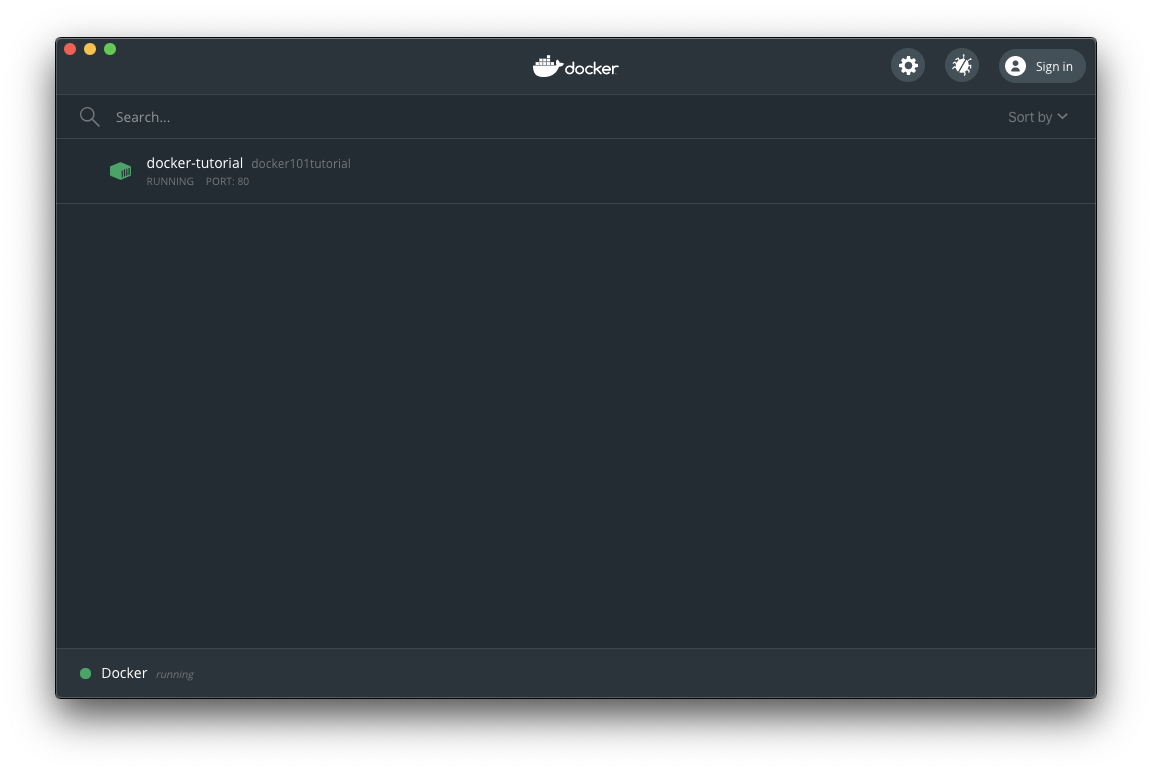
Now if you hover the container with the mouse, you will see 5 buttons:
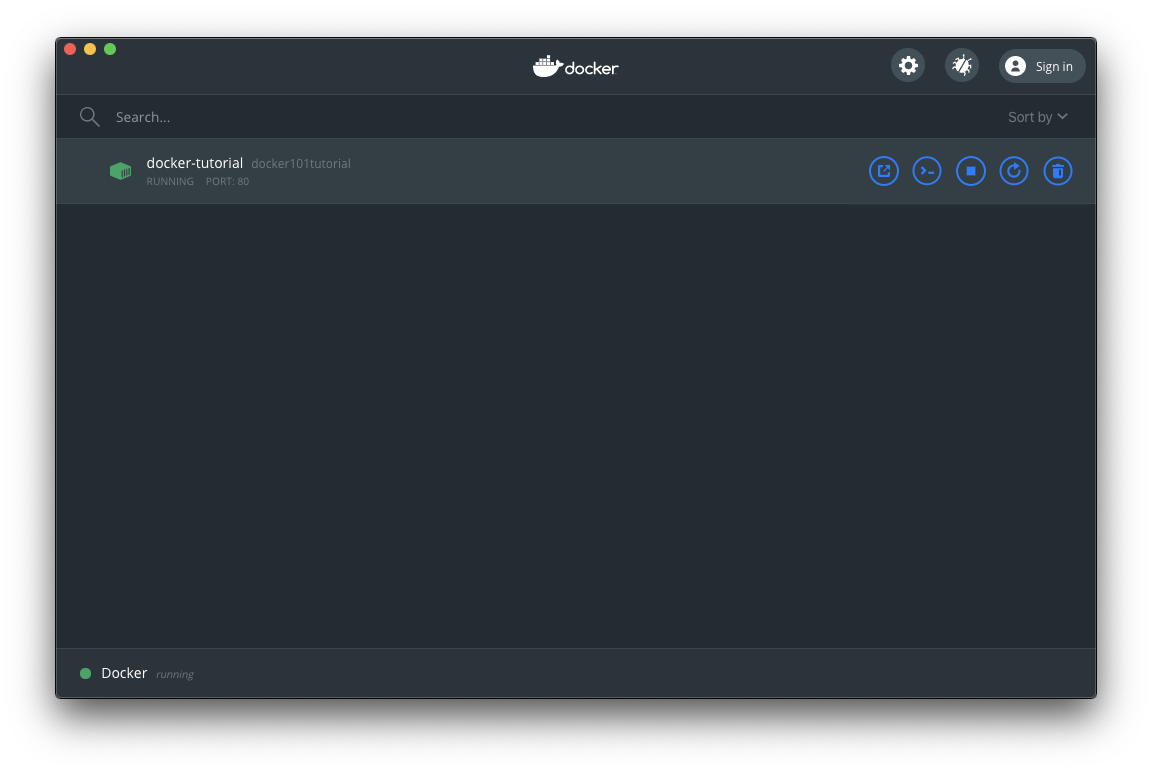
They are:
- Open in browser
- CLI
- Stop
- Restart
- Delete
You can manage your container lifecycle through them.
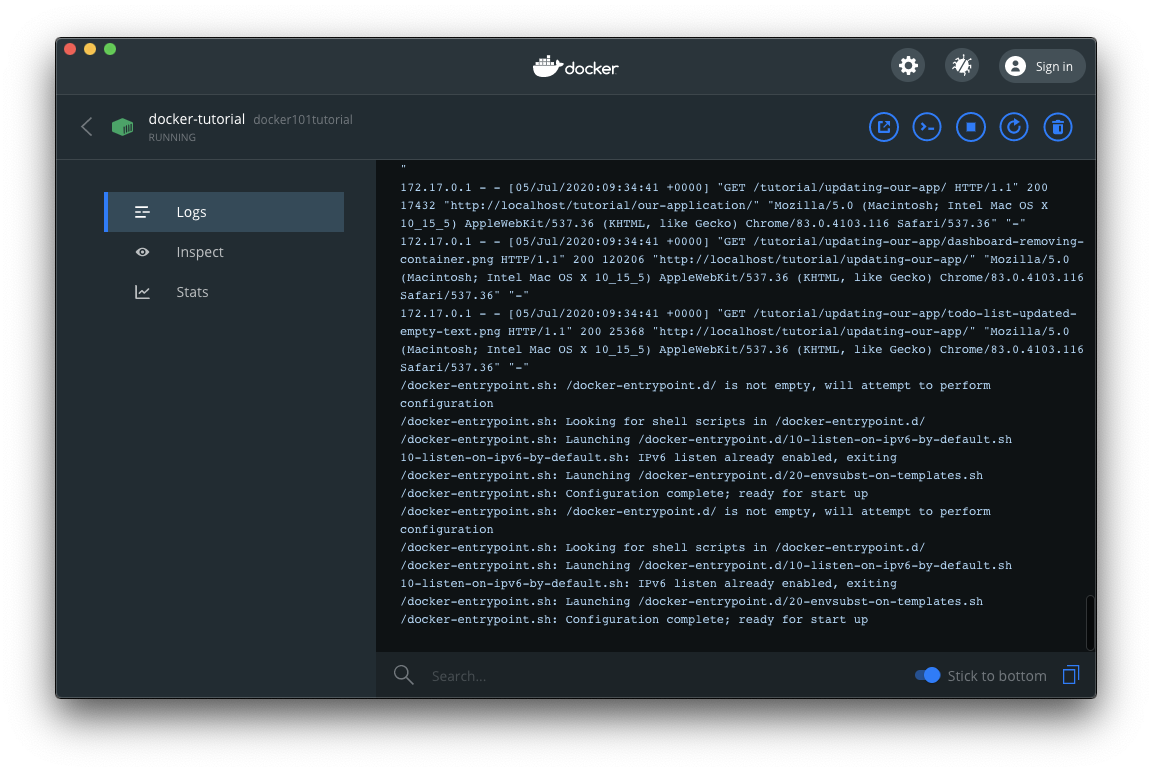
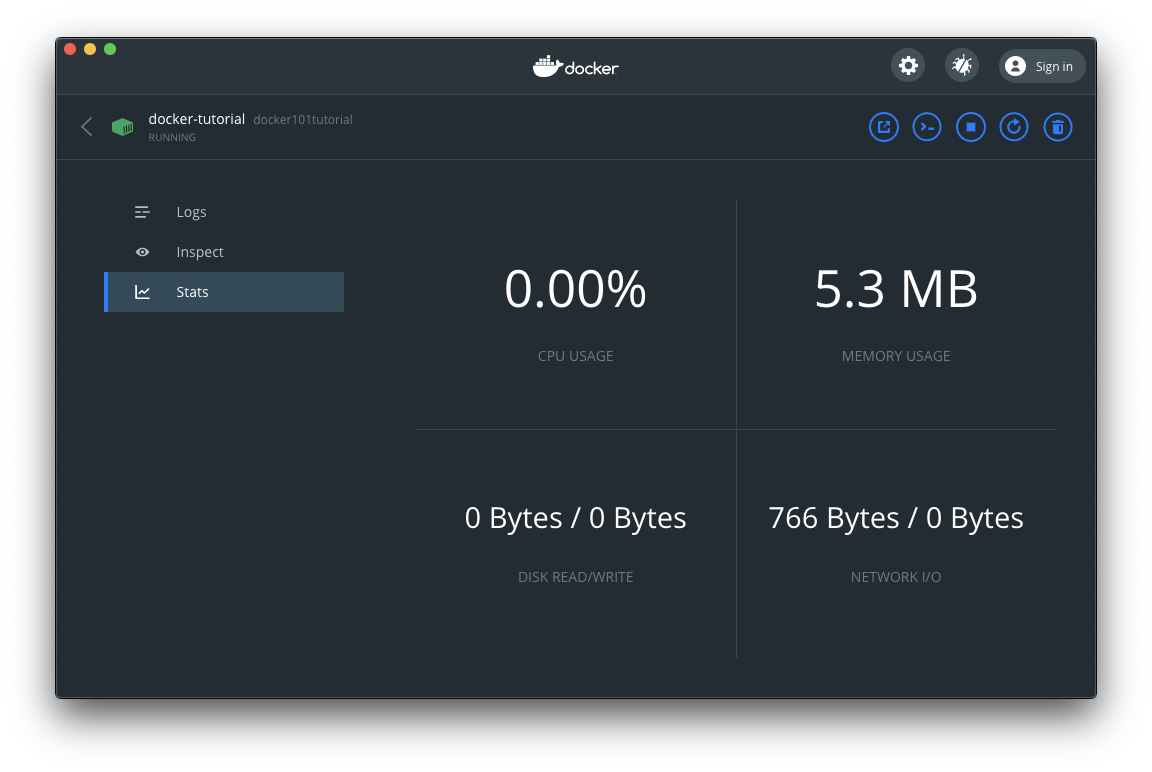
Clicking a container name in the list will reveal more data, including the Logs panel:
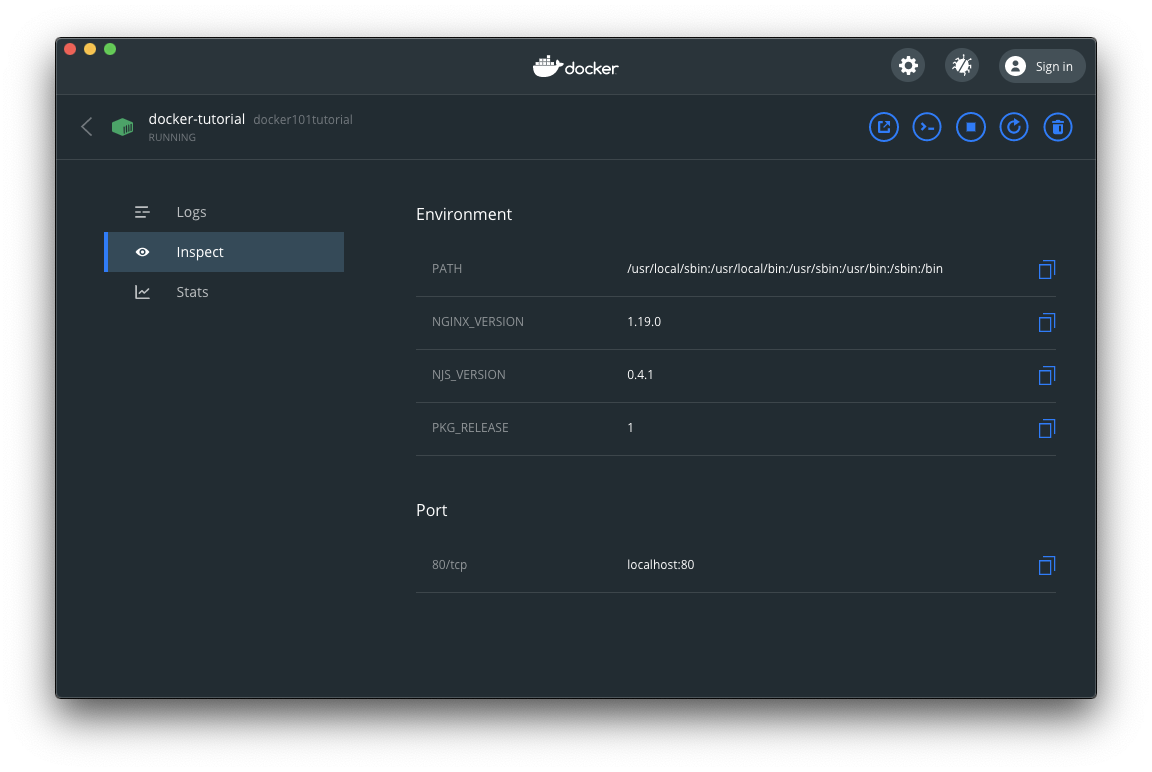
An inspector that tells you useful information about the container:
And stats about the container CPU, Memory, Network and Disk usage:
Go back and click the Open in browser button and the http://localhost/tutorial URL will open (http://localhost redirects to http://localhost/tutorial in this app):
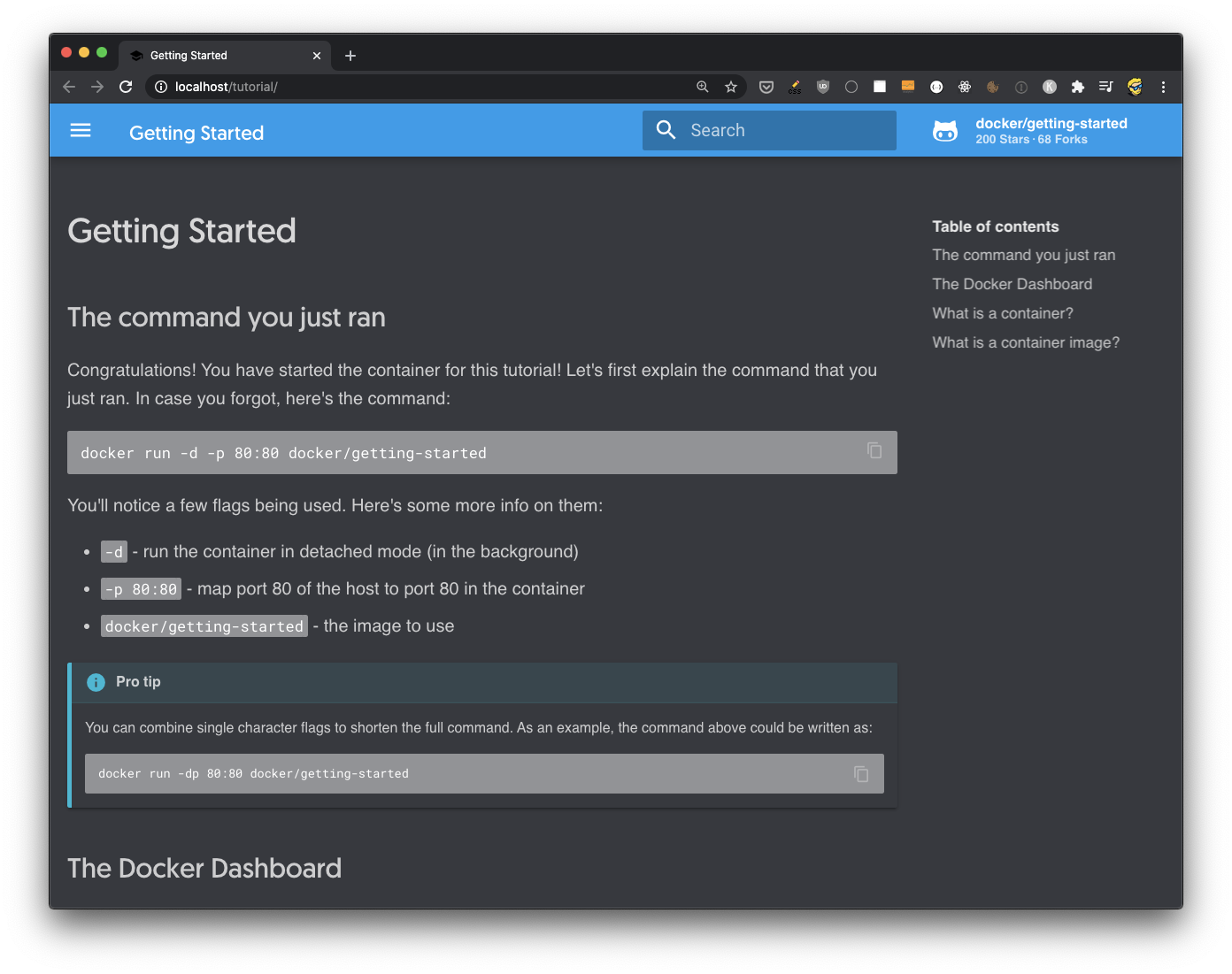
This is the content of a website that’s provided by our sample image. Now go back to Docker Desktop and press the Stop button
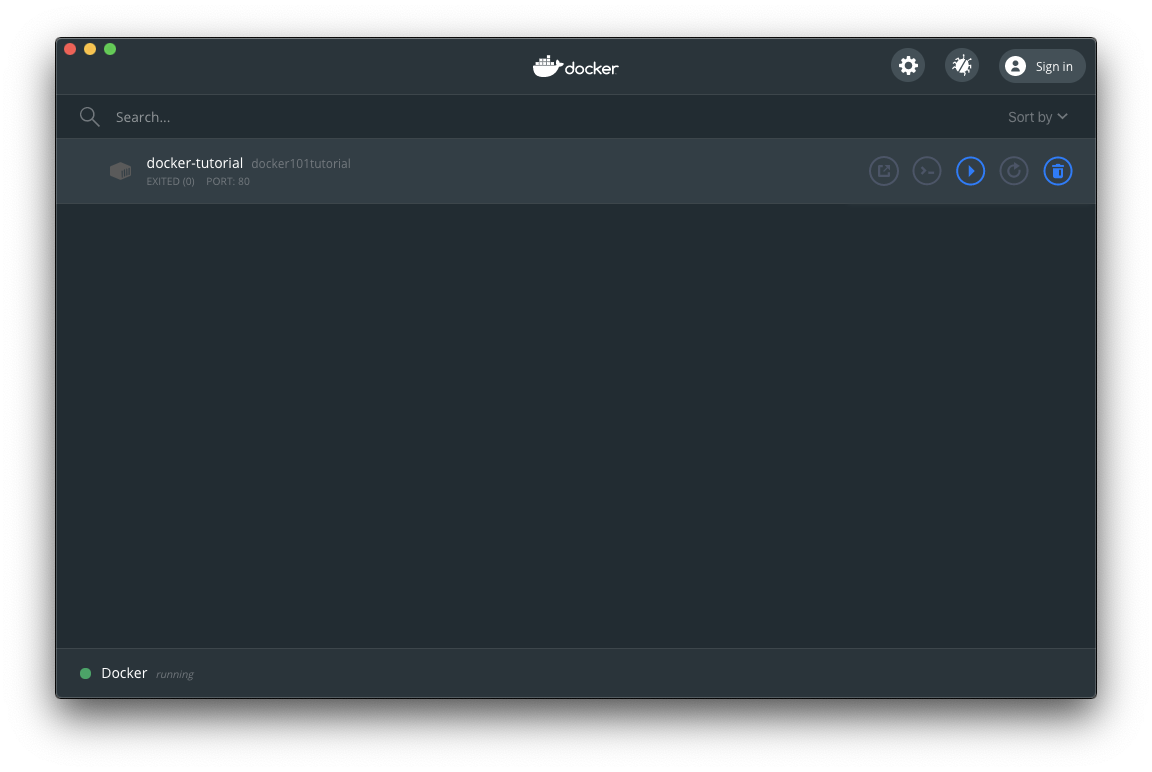
and refresh the page, it no longer works:
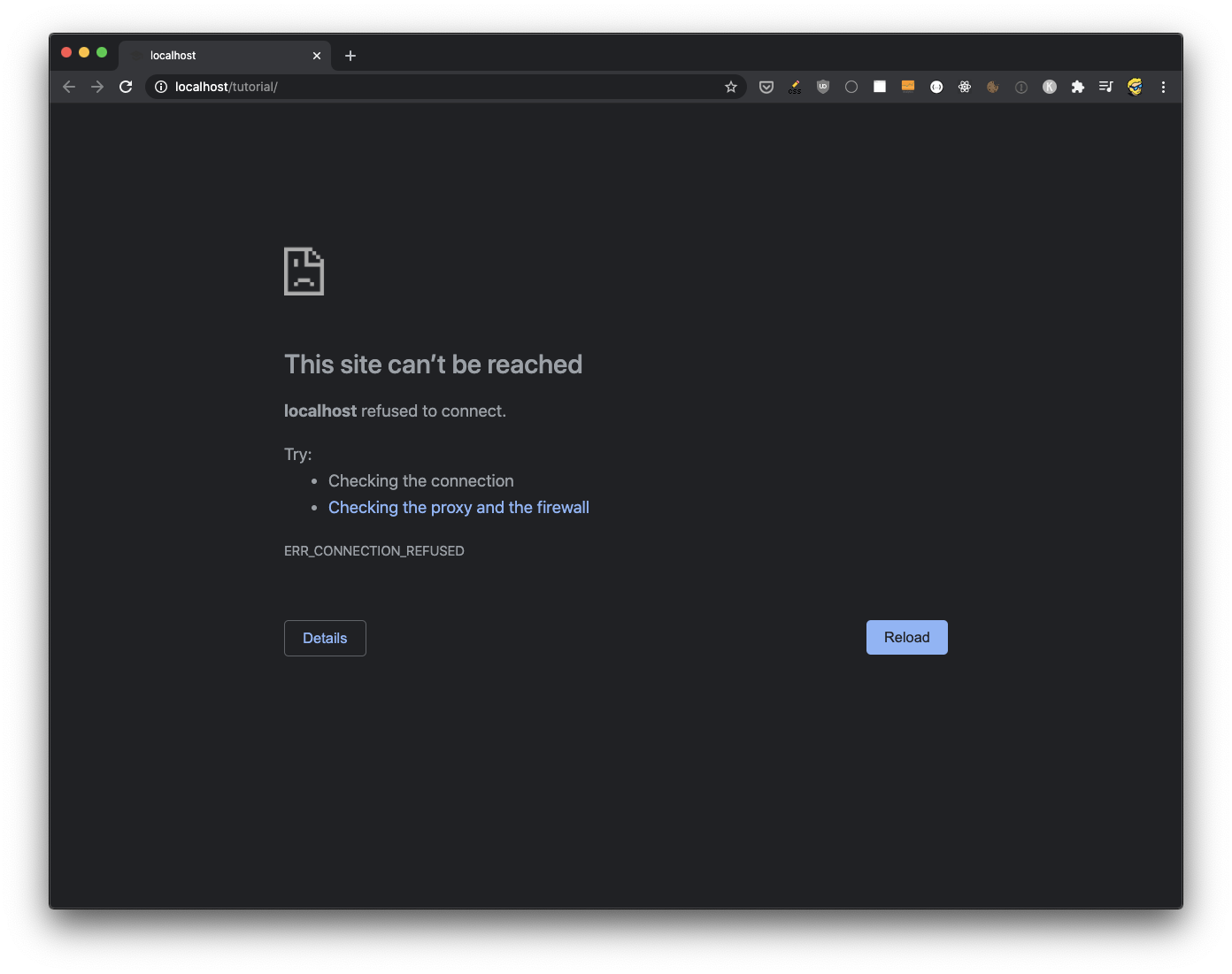
Go back to Docker Desktop and press the Start button, it will work again.
Try pressing the CLI button. A new terminal window will open and you will automatically be connected to the Docker Container, as the root user:
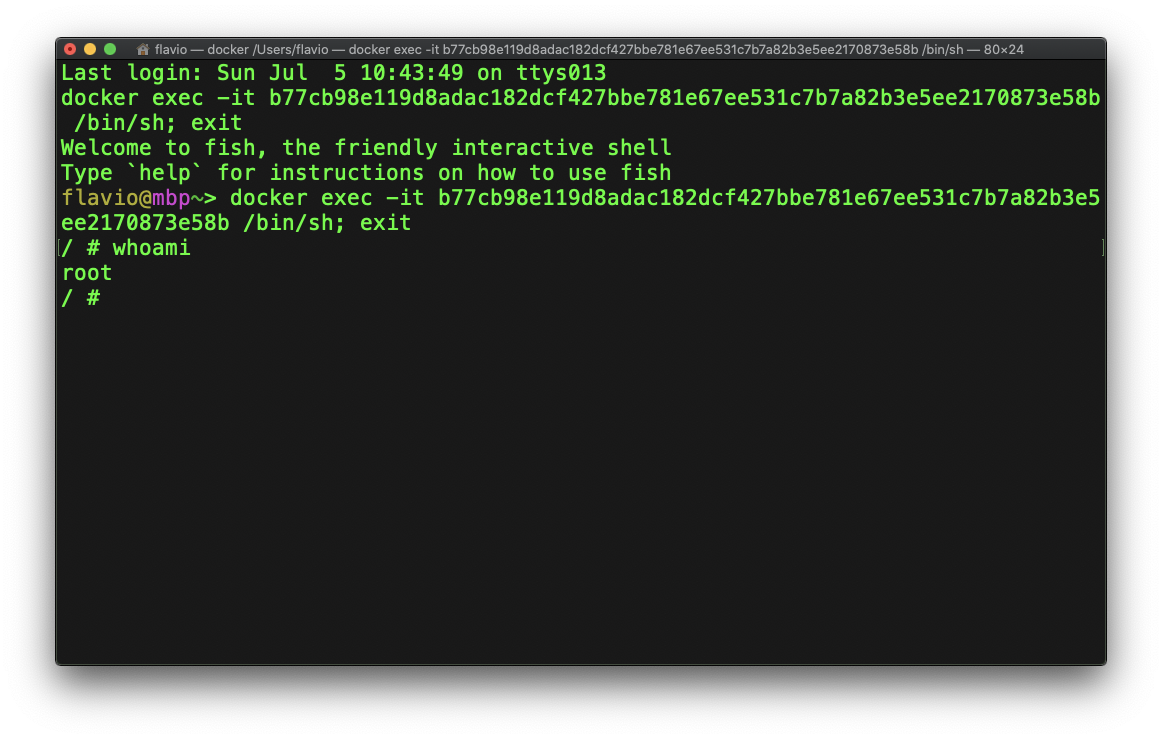
In the above picture the whoami command returns the current user name.