CSS Tips: How to remove all CSS from a page at once

Join the AI Workshop to learn more about AI and how it can be applied to web development. Next cohort February 1st, 2026

The AI-first Web Development BOOTCAMP cohort starts February 24th, 2026. 10 weeks of intensive training and hands-on projects.


I wanted to see how a page looked like without CSS.

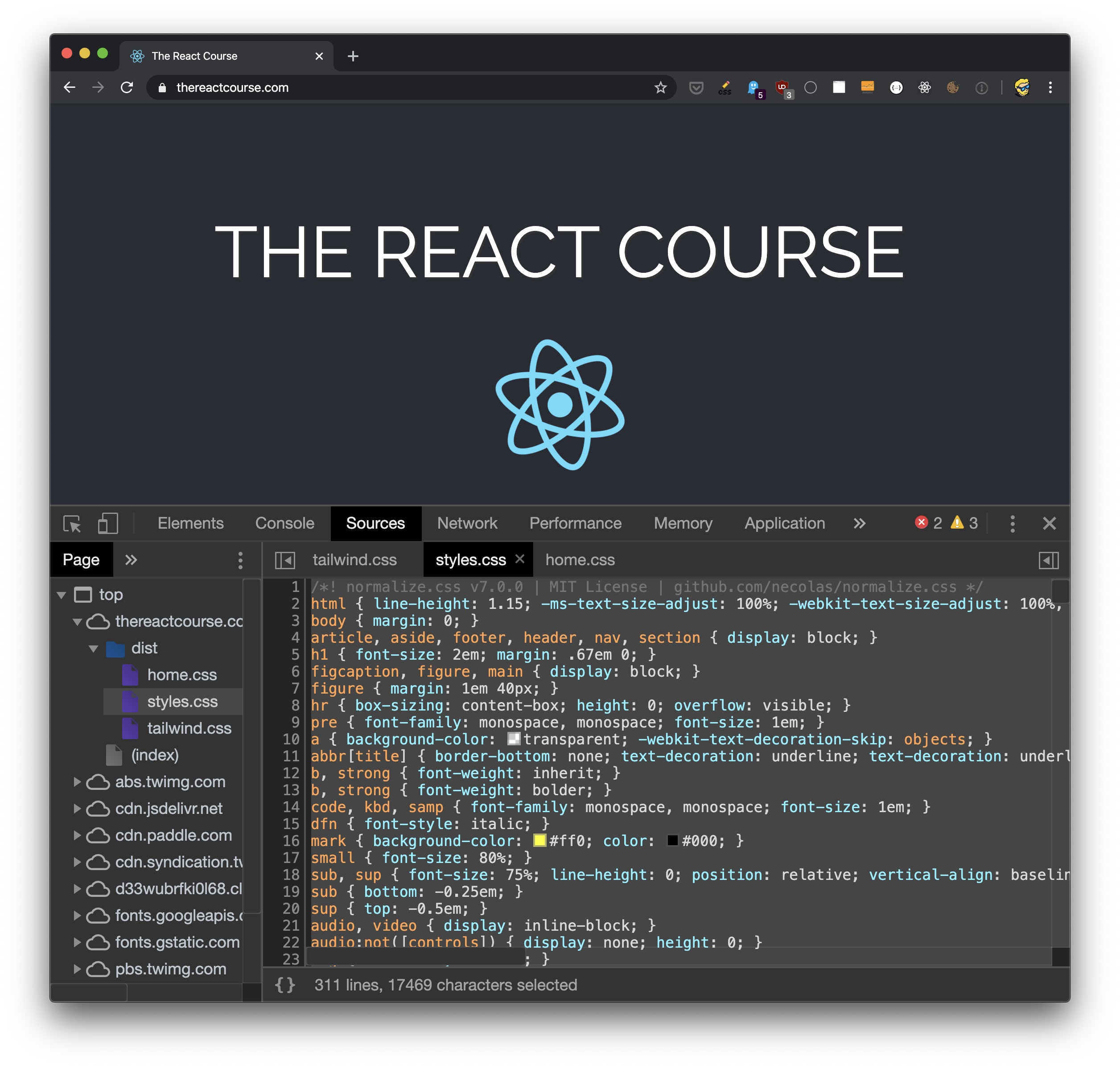
One way I know is to open the DevTools, in the Sources panel you’ll see the list of CSS files. You can remove the content in the CSS file in there, and the page will change. For example here’s my <thereactcourse.com> site.

It has 3 CSS files, and I can go and delete the whole content of one:

and this is what happens, the page changes because we removed the CSS:
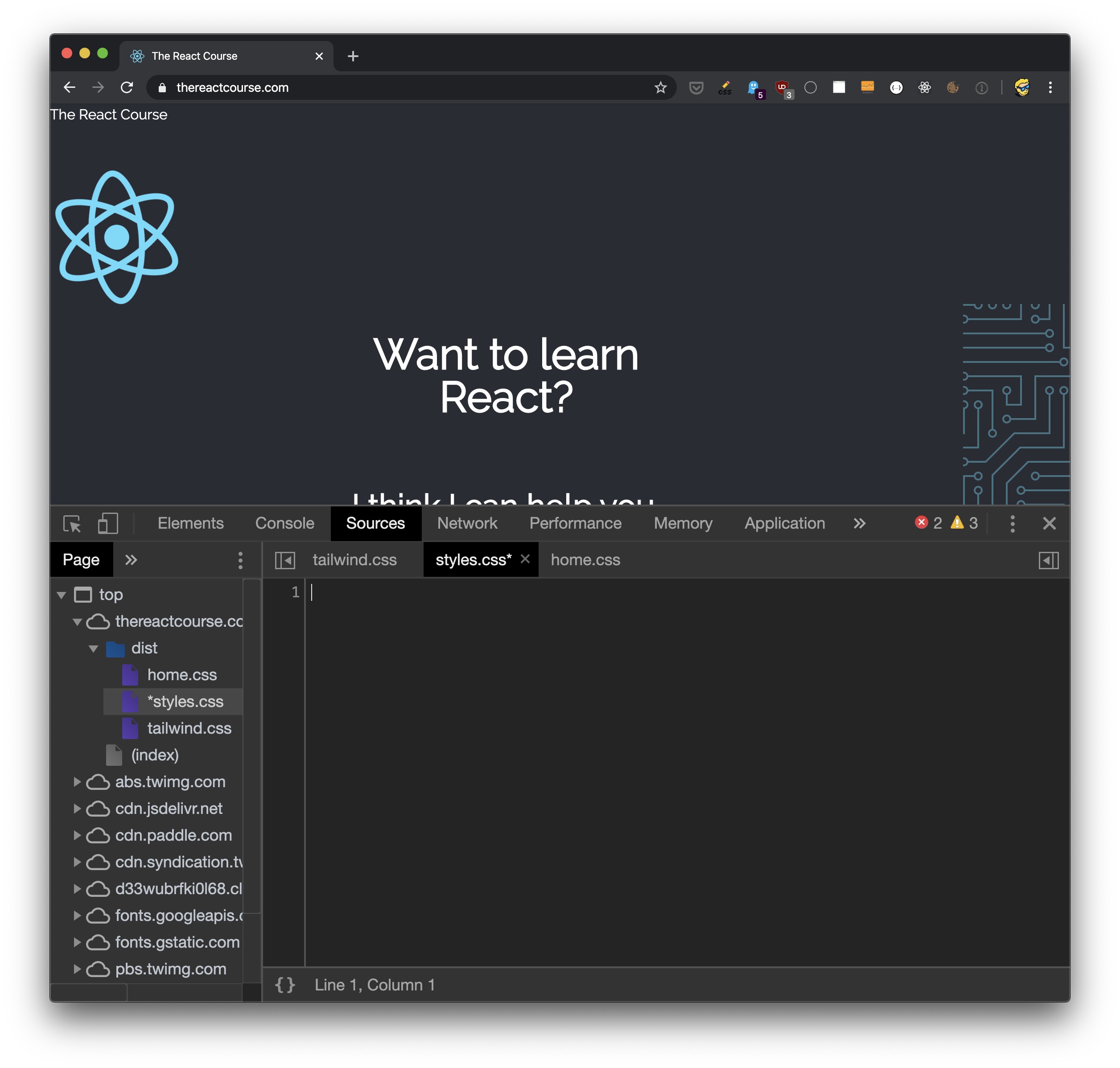
Note that this just changes the browser’s version of the CSS, does not interact in any way with your file, even if it’s local

But some sites today embed the CSS in a style tag (including mine), and some have loads of CSS files scattered around, and it’s not practical.

Open the console and run this command:

document
  .querySelectorAll('style,link[rel="stylesheet"]')
  .forEach((item) => item.remove())

This removes both inline and linked CSS.

Lessons in this unit:

0: Introduction
1: How to center an element with CSS
2: CSS Border inside the element
3: What are good CSS Breakpoint values for Responsive Design?
4: How to debug CSS by bisecting
5: How to disable text selection using CSS
6: How to put an item at the bottom of its container using CSS
7: CSS, how to select elements that do NOT have a class
8: How to stick an element on the bottom of the page with flexbox
9: How to apply padding to multiple lines in CSS
10: Making a table responsive using CSS
11: CSS url()
12: How to make an element smaller or bigger with CSS
13: Customizing visited links
14: Fix extra space after inline element
15: How to create a sidebar that’s sticky but also scrolls
16: How to embed YouTube videos using the correct aspect ratio
17: Responsive pre tags in CSS
18: Responsive YouTube Video Embeds
19: ▶︎ How to remove all CSS from a page at once
20: How I added Dark Mode to my website
21: How to add a simple dark mode