Join the AI Workshop and learn to build real-world apps with AI. A hands-on, practical program to level up your skills.
Centering an element in CSS is a task that is very different if you need to center horizontally or vertically.
In this post I explain the most common scenarios and how to solve them. If a new solution is provided by Flexbox I ignore the old techniques because we need to move forward, and Flexbox has been supported by browsers for years, including IE10.
2024 update
Center horizontally
Text
Text is very simple to center horizontally using the text-align property set to center:
p {
  text-align: center;
}
Blocks
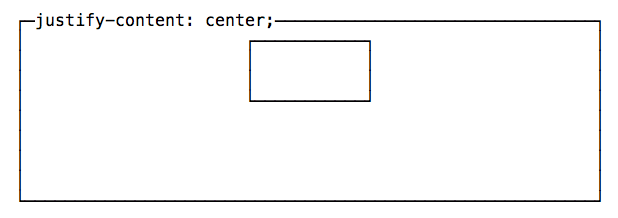
The modern way to center anything that is not text is to use Flexbox:
#mysection {
  display: flex;
  justify-content: center;
}
Any element inside #mysection will be horizontally centered.
Here is the alternative approach if you don’t want to use Flexbox.
Anything that is not text can be centered by applying an automatic margin to left and right, and setting the width of the element:
section {
  margin: 0 auto;
  width: 50%;
}
The above margin: 0 auto; is a shorthand for:
section {
  margin-top: 0;
  margin-bottom: 0;
  margin-left: auto;
  margin-right: auto;
}
Remember to set the item to display: block if it’s an inline element.
Center vertically
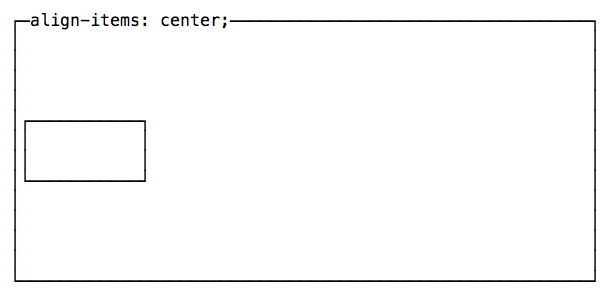
Traditionally this has always been a difficult task. Flexbox now provides us a great way to do this in the simplest possible way:
#mysection {
  display: flex;
  align-items: center;
}
Any element inside #mysection will be vertically centered.
Center both vertically and horizontally
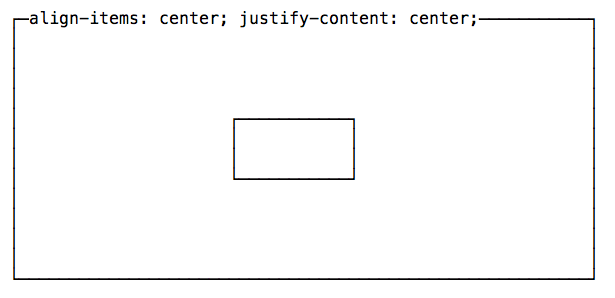
Flexbox techniques to center vertically and horizontally can be combined to completely center an element in the page.
#mysection {
  display: flex;
  align-items: center;
  justify-content: center;
}
The same can be done using CSS Grid:
body {
  display: grid;
  place-items: center;
  height: 100vh;
}