Join the AI Workshop and learn to build real-world apps with AI. A hands-on, practical program to level up your skills.
Setting position: absolute on an element will remove it from the document’s flow, and it will no longer follow the original page positioning flow.
Remember in relative positioning that we noticed the space originally occupied by an element was preserved even if it was moved around?
With absolute positioning, as soon as we set position: absolute on .box, its original space is now collapsed, and only the origin (the starting X and Y coordinates) remain the same.
.box {
  position: absolute;
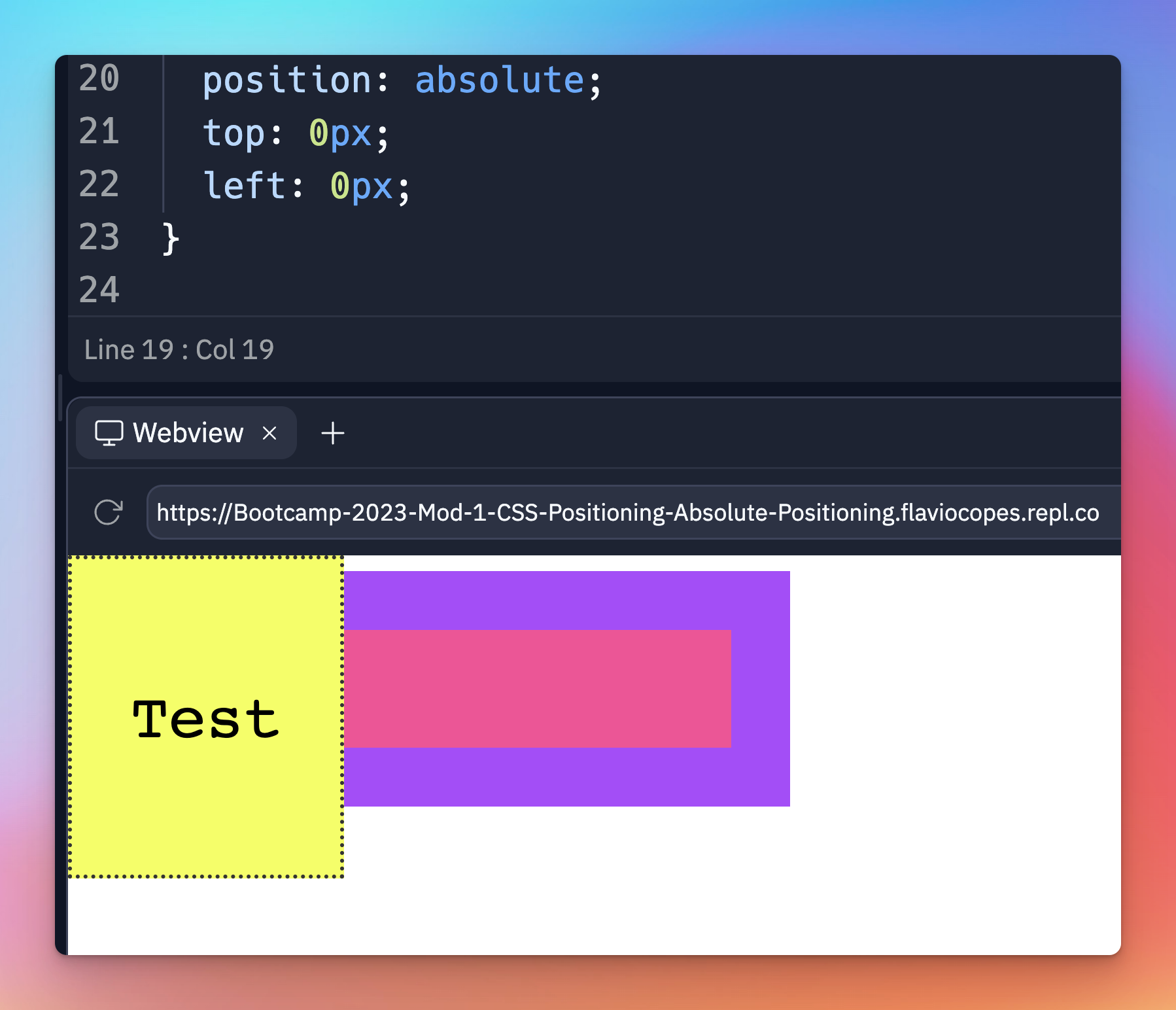
}We can now move the box around as we please, using the top, right, bottom, left properties:
.box {
  position: absolute;
  top: 0px;
  left: 0px;
}
or
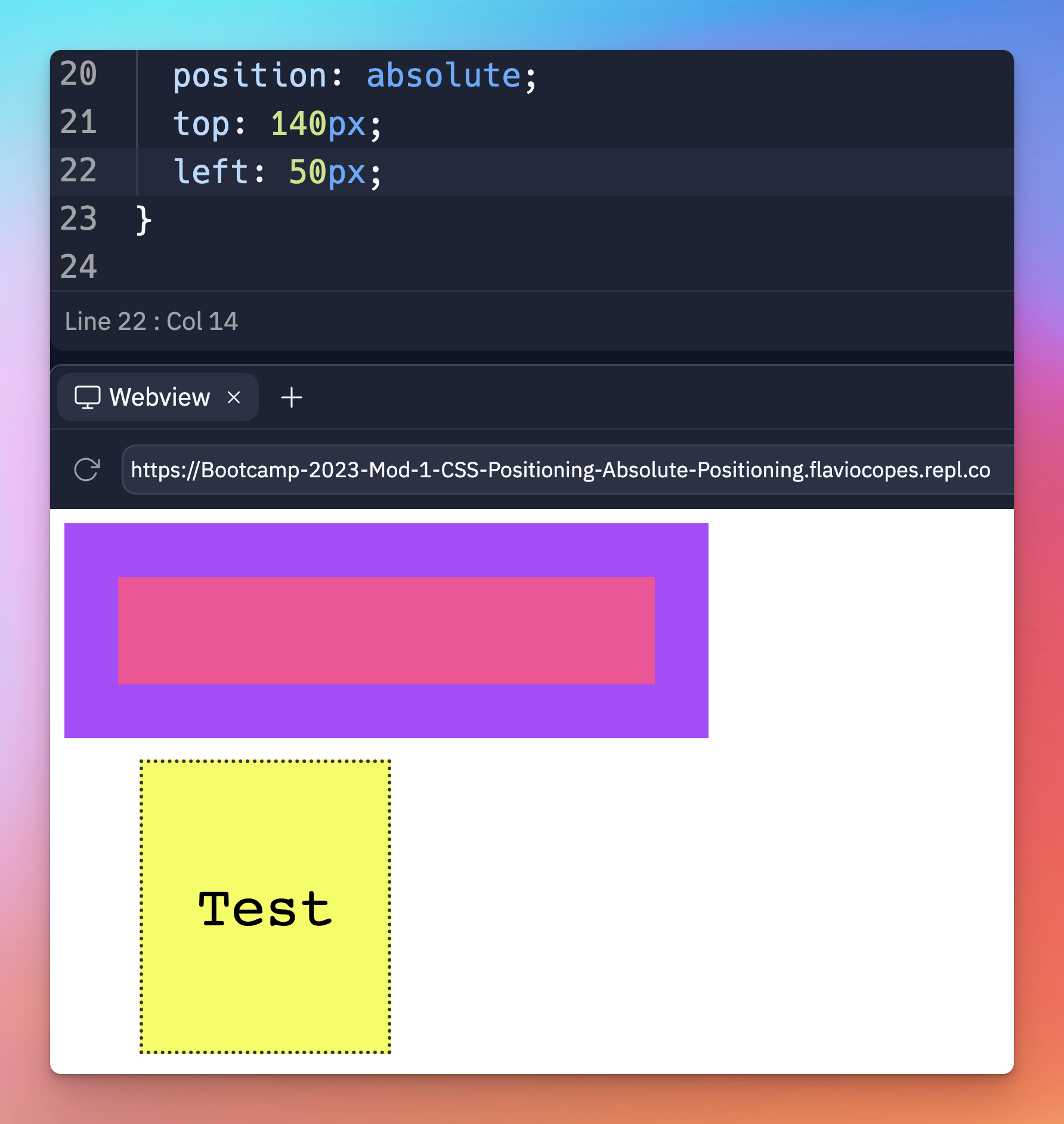
.box {
  position: absolute;
  top: 140px;
  left: 50px;
}
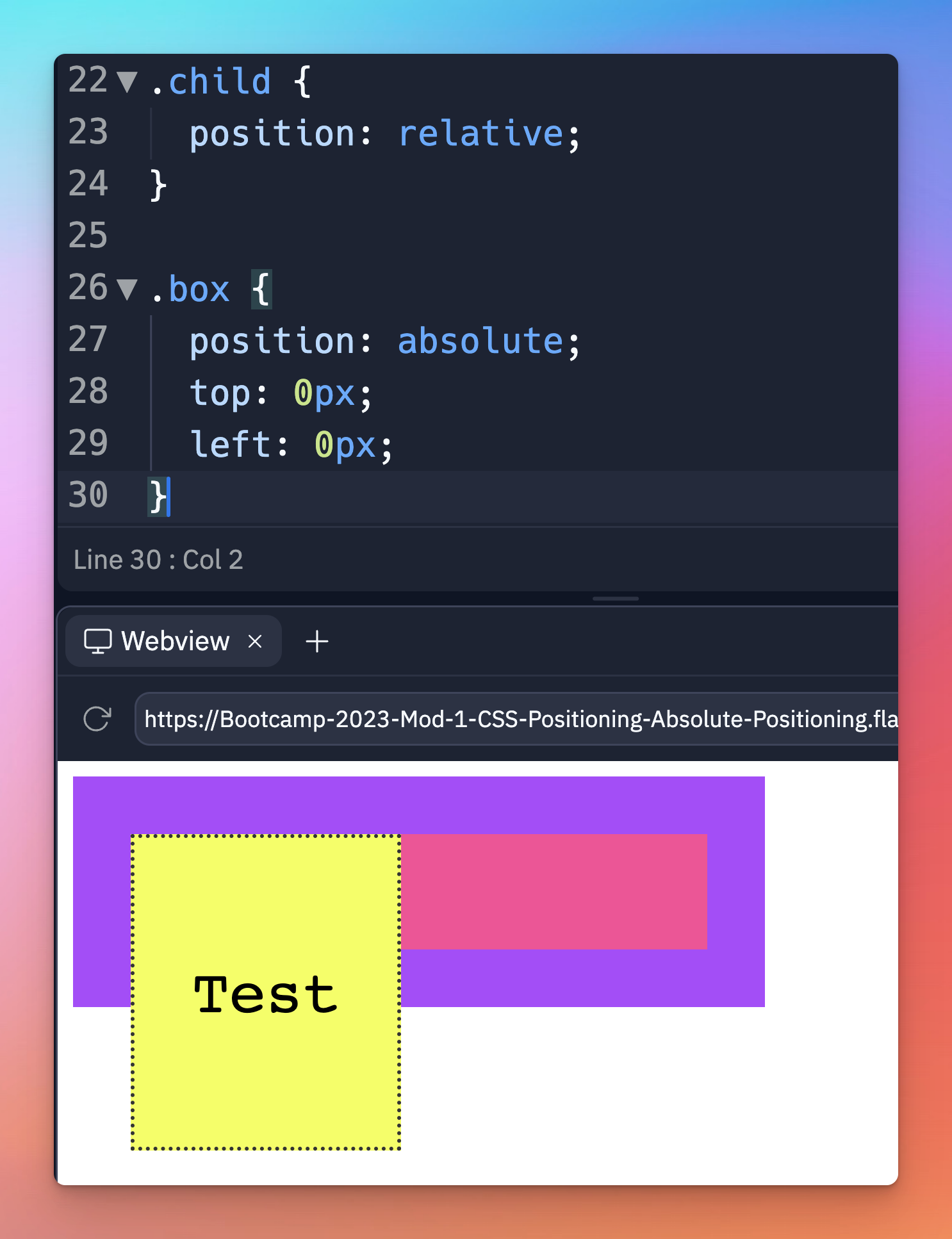
The coordinates are relative to the closest container that is not static (which, remember, is the default).
This means that if we add position: relative to the .child element, and we set top and left to 0, the box will not be positioned at the top left margin of the window, but rather it will be positioned at the 0, 0 coordinates of .child:
.child {
  position: relative;
}

.box {
  position: absolute;
  top: 0px;
  left: 0px;
}
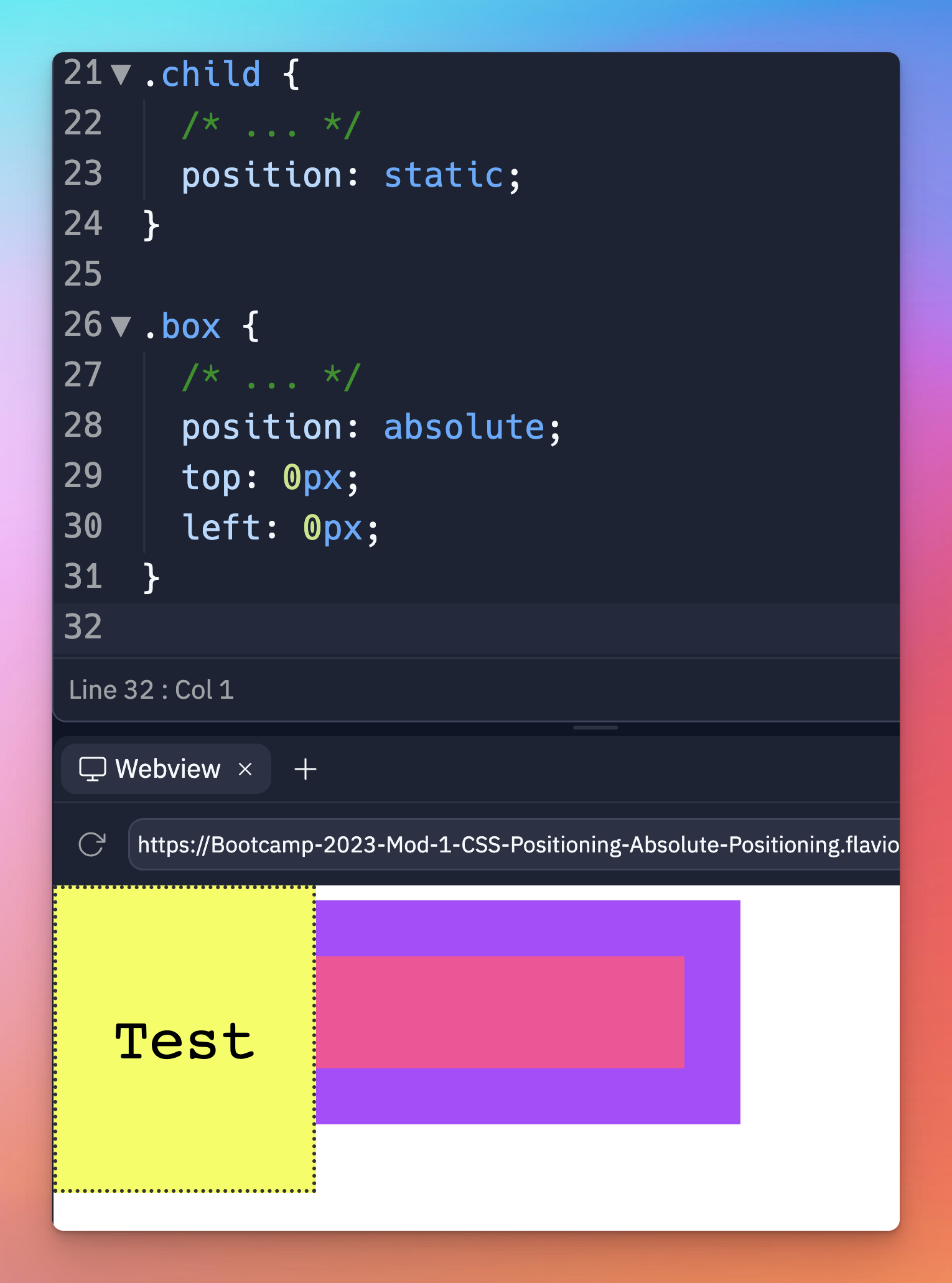
Here’s what happens if .child is static (the default):
.child {
  /* ... */
  position: static;
}

.box {
  /* ... */
  position: absolute;
  top: 0px;
  left: 0px;
}
Like for relative positioning, you can use z-index to alter the z-axis placement.
Lessons in this unit:
| 0: | Introduction |
| 1: | Relative positioning |
| 2: | ▶︎ Absolute positioning |
| 3: | Fixed positioning |
| 4: | Sticky positioning |