Join the AI Workshop and learn to build real-world apps with AI. A hands-on, practical program to level up your skills.
I wrote about how to upload an image to S3.
After I had the S3 bucket ready, and the image was uploaded and then the URL was stored in my database, I realized the image was not publicly accessible for reading.
The image was there, but could not be seen by anyone.
If I tried to access it, all I got was something like:
<Error>
<Code>AccessDenied</Code>
<Message>Access Denied</Message>
<RequestId>E5FBYNEYEFNZH</RequestId>
<HostId>
iImqC8XkvmPP4/BJxNGDZrPrDr7us1u3UeZqH8prlv3dk69R9m7uOaaaZDvTLAtne2rLkRWZ4=
</HostId>
</Error>
Ok, I thought, it’s a permission issue.
So first I tried to edit the “Block public access” setting, disabling the block I had:
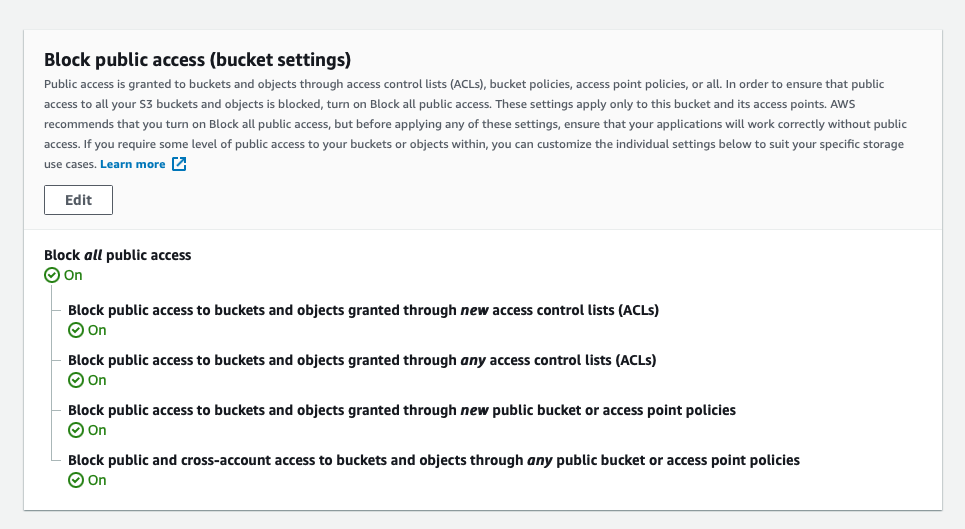
But this didn’t work. The image was still inaccessible.
So I went and set the Everyone (public access) setting to Read in a single file permission:
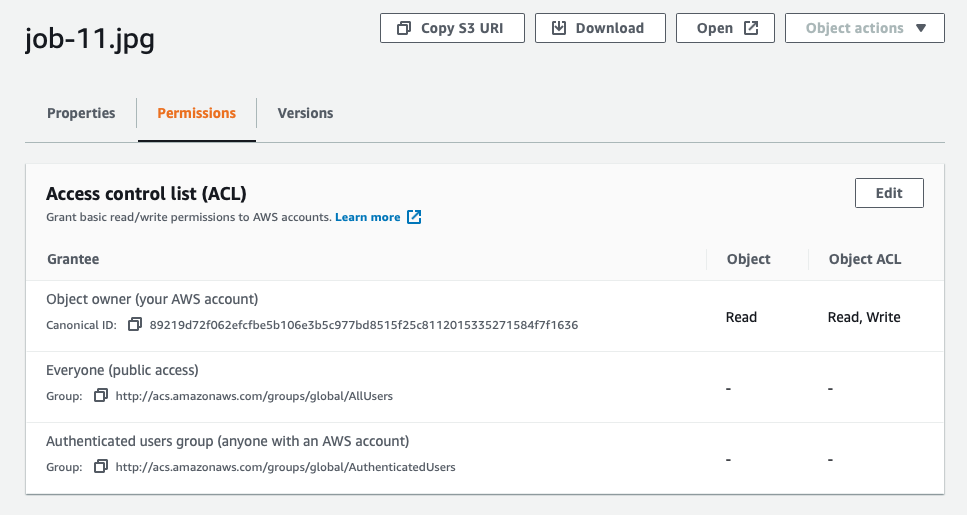
and this worked, for the single file.
So I went to the general bucket permissions, which has a similar ACL permissions panel, to set the same thing.
I set Everyone (public access) setting to Read but it didn’t work as expected.
People could not see the files publicly, even though I was setting it explicitly.
It turns out there’s no way to do this through clicking around.
I had to set a Bucket Policy, which can be done from the bucket permissions page, and I added this:
{
  "Version": "2008-10-17",
  "Statement": [
    {
      "Sid": "AllowPublicRead",
      "Effect": "Allow",
      "Principal": {
        "AWS": "*"
      },
      "Action": "s3:GetObject",
      "Resource": "arn:aws:s3:::YOURBUCKETNAME/*"
    }
  ]
}
Change YOURBUCKETNAME to your bucket name.
This made it work. Once you add this, you can set the Block public access as follows:
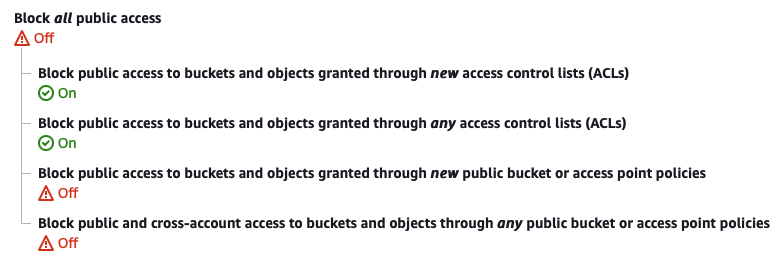
That’s it. Now my files (images in my case) were accessible from the public.
Lessons in this unit:
| 0: | Introduction |
| 1: | How to create an IAM user in AWS |
| 2: | ▶︎ How to make your S3 buckets public |